
Restore an earlier version of a note
To restore an earlier version of a note on the web, open the note's menu and choose Version history, pick a version, and choose Restore this version. Memlow on the web keeps earlier versions of each note in your browser, from before each time you sat down to write and every 10 minutes while you wrote. The Android app doesn't keep versions: see the end of this page for what to do there.
When Memlow keeps a version
Before a note changes, Memlow keeps the note as it was, as long as the last version it kept is at least 10 minutes old. So there's one from before each sitting, and one every 10 minutes while you write. It also keeps one:
- before you restore an earlier version, so you can go back;
- when a change from your phone or another computer arrives through Google Drive and changes the note here;
- before a backup is restored with
Replace.
Recent versions are all kept. Older ones thin out: every version from the last day, then one a day for 60 days, then one a week, up to 100 for each note.
Restore an earlier version
- Open the note.
- Open its menu (
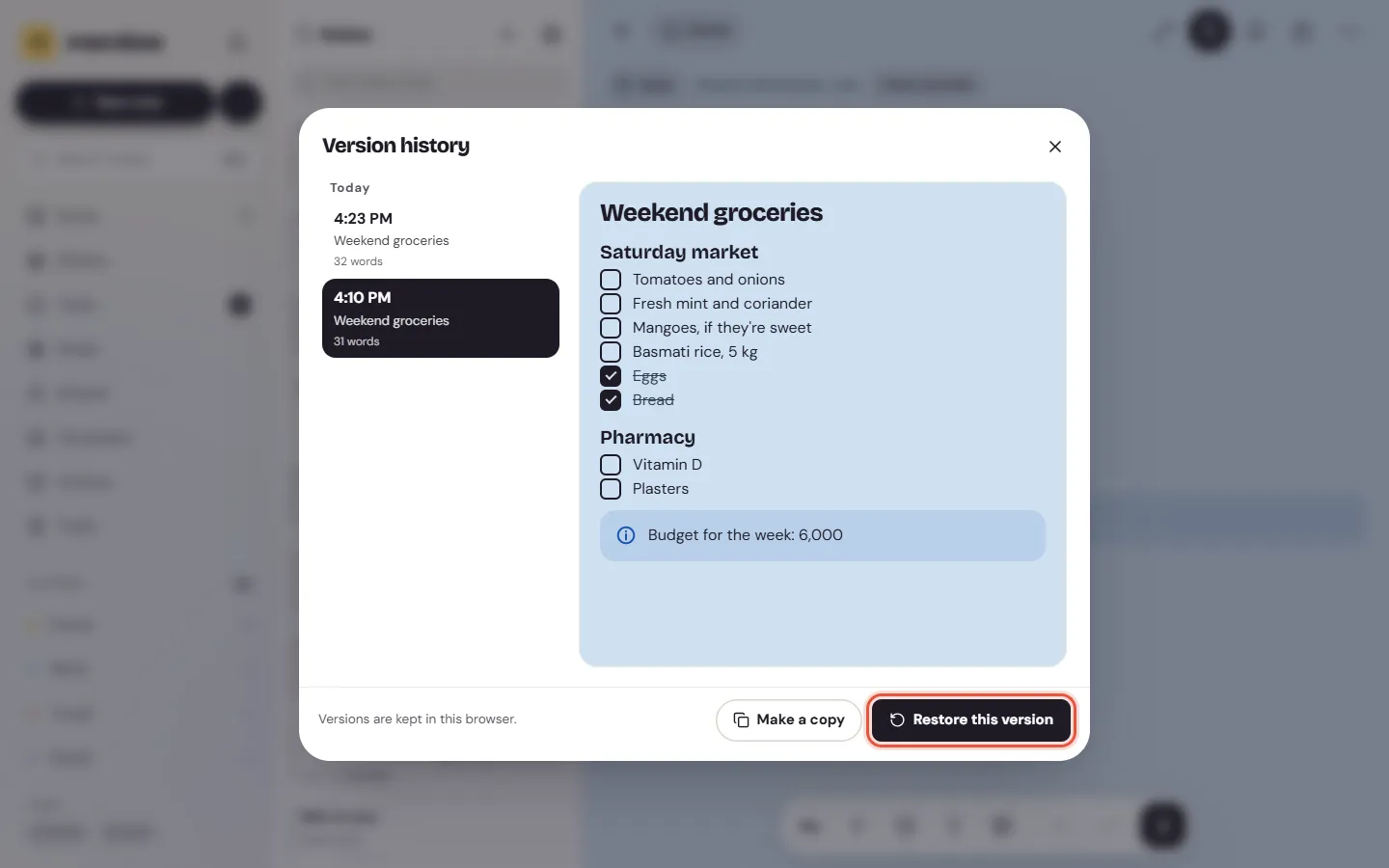
More) and chooseVersion history. - The versions are listed by day, newest first, each with its time, title and number of words. Pick one to read it on the right.
- Choose
Restore this version.
Memlow says Version restored. The one before it is in Version history. If the old one wasn't what you wanted, open Version history again and restore the one from a moment ago.
Make a copy instead
To keep the note as it is now and get the old words back beside it, pick the version and choose Make a copy. Memlow makes a new note titled with "(earlier version)" after the old title, in the same folder. Copy what you need into the note, then delete the copy.
What to know
- Versions are kept in this browser only. They don't go to your other devices or into backups, so another browser has versions of its own, or none.
- When a note is deleted for good, from Trash or after its 30 days there, its versions go with it.
- A locked note's Version history is behind its lock: you reach it from the open note, after your PIN.
- A goal's log isn't part of a version: restoring keeps the goal's progress as it is now.
- If a note says
No earlier versions yet, it hasn't changed since Memlow started keeping them, or it was written on another device.
While the note is still open, Undo is quicker: Ctrl + Z, or the Undo button in the toolbar.
In the Android app
The Android app keeps no earlier versions of notes. To get back words you lost there:
- While the note is still open, tap Undo at the top of the screen (it shows while the keyboard is open). It goes back through your changes since you opened the note, up to 100 steps.
- If you deleted the whole note, it's in Trash for 30 days: Recover deleted notes from Trash.
- If you also use Memlow on the web with Google Drive sync, the web kept the note as it was before your phone's change arrived. Open the note on the web and use
Version historythere. - A backup holds every note as it was when the backup was made. Restoring with
Mergekeeps the newer copy of a note that's in both, so it won't undo an edit.Replacemakes everything match the backup. See Save and restore a backup file.
Questions and answers
When does Memlow save a version of a note?
On the web, before a note changes, if the last version it kept is 10 minutes old or more. That gives one from before each sitting and one every 10 minutes while you write. The Android app keeps no versions.
How do I restore an earlier version?
On the web, open the note's menu, choose Version history, pick the version and choose Restore this version. The one you replaced is kept in Version history too.
Are versions backed up or synced?
No. Versions are kept in the browser where they were made, and they don't go into backups.