
Save and restore a backup file
A Memlow backup file holds all your notes, photos and voice notes in one file, named like memlow-backup-2026-10-24.memlow. It's protected with a password unless you turn that off. Keep it somewhere safe, away from the device, and you can restore it on any Android phone or in Memlow on the web, with no internet needed.
A file made by the Android app restores in the web app, and the other way round.
Save a backup file
On Android
- Open
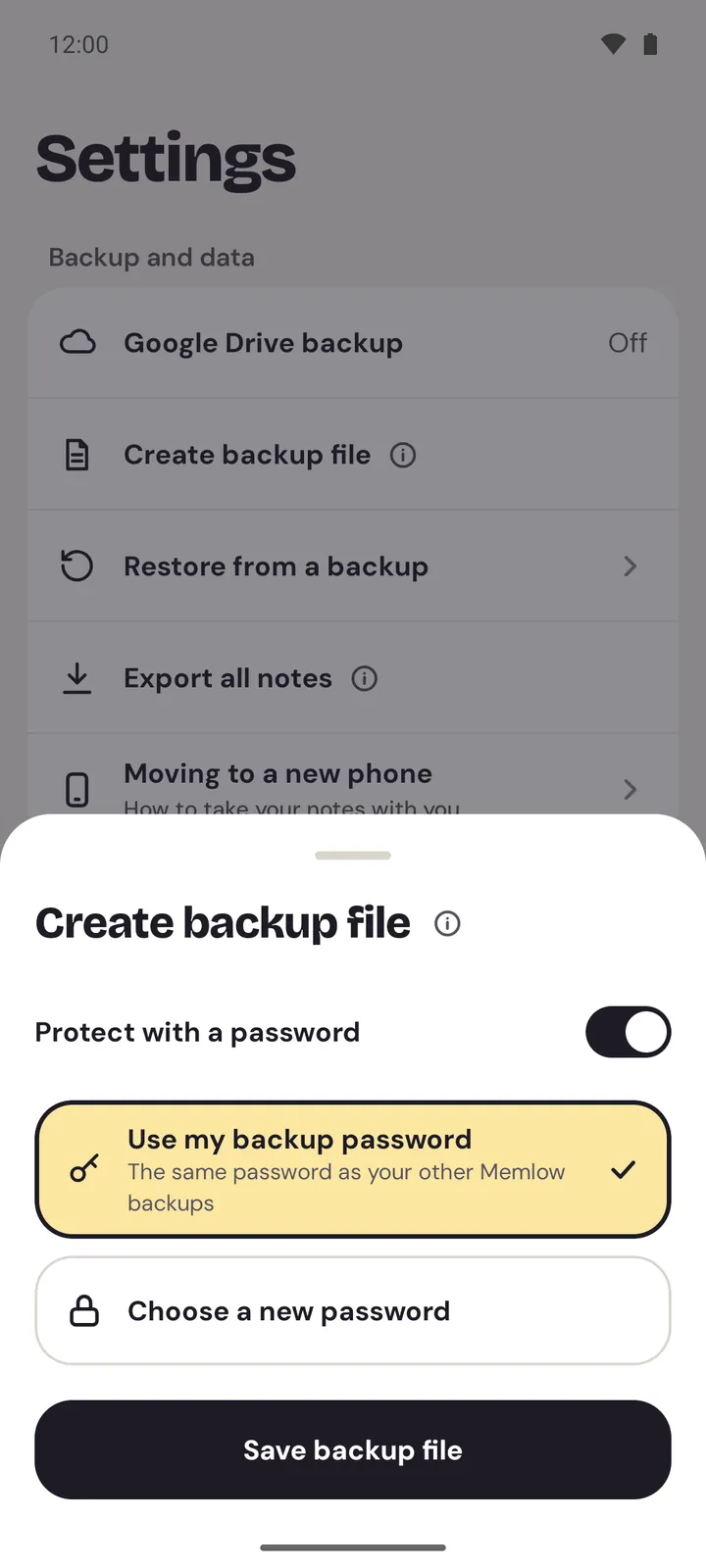
Settings. UnderBackup and data, tapCreate backup file. - Leave
Protect with a passwordon. If you use Google Drive backup, chooseUse my backup password, orChoose a new passwordand type it twice (at least 8 characters). - Tap
Save backup file. - Choose where to save it, such as Downloads or Google Drive, and tap
Save. - Memlow says "Backup file saved".
On the web
- Open
Settings, thenBackup and data. - Beside
Backup file, chooseDownload. - Leave
Protect with a passwordon, and chooseUse my backup passwordor a new password. - Choose
Save backup file. Your browser downloads the file, and Memlow says how many notes it holds.
Warning
A file without a password can be read by anyone who gets it, locked notes included. Turn the password off only for a file that never leaves your hands. If you have locked notes, Memlow asks for your PIN first (Enter your PIN to include locked notes), on Android and on the web, unless you entered it since Memlow opened.
What's in it
- Every note, Trash included, with its checklists, tags, links and reminders.
- Photos and voice notes.
- Your folders and your saved templates.
- A few settings, such as the theme, text size and language. They're used only when you restore with
Replace.
Not in it: notes in shared notebooks (they come back from the notebook when you sign in), your PIN and app lock, and your Google Drive link.
Where to keep it
Somewhere that isn't the phone or computer it came from: a USB stick, your computer, your own cloud storage, or an email to yourself. With a password, the file is encrypted, so it's safe to store anywhere. Without the password, though, it can't be opened, so keep the password somewhere safe too.
A file is a snapshot: it has what you had when you made it. Make a new one now and then, or turn on Google Drive backup, which keeps itself up to date.
Restore a backup file
On Android
- Open
Settings, thenRestore from a backup. On a new install, tapRestore from a backupon Memlow's first screen. - Under
Where is your backup?, chooseBackup file, and pick the file. - Enter the file's password if Memlow asks.
- Memlow shows what's in it: notes, folders, photos and recordings, and reminders.
- Choose
MergeorReplace, thenRestore.
On the web
- Open
Settings, thenBackup and data. - Beside
Restore from a backup file, chooseChoose file, and pick the file. - Enter the file's password if Memlow asks.
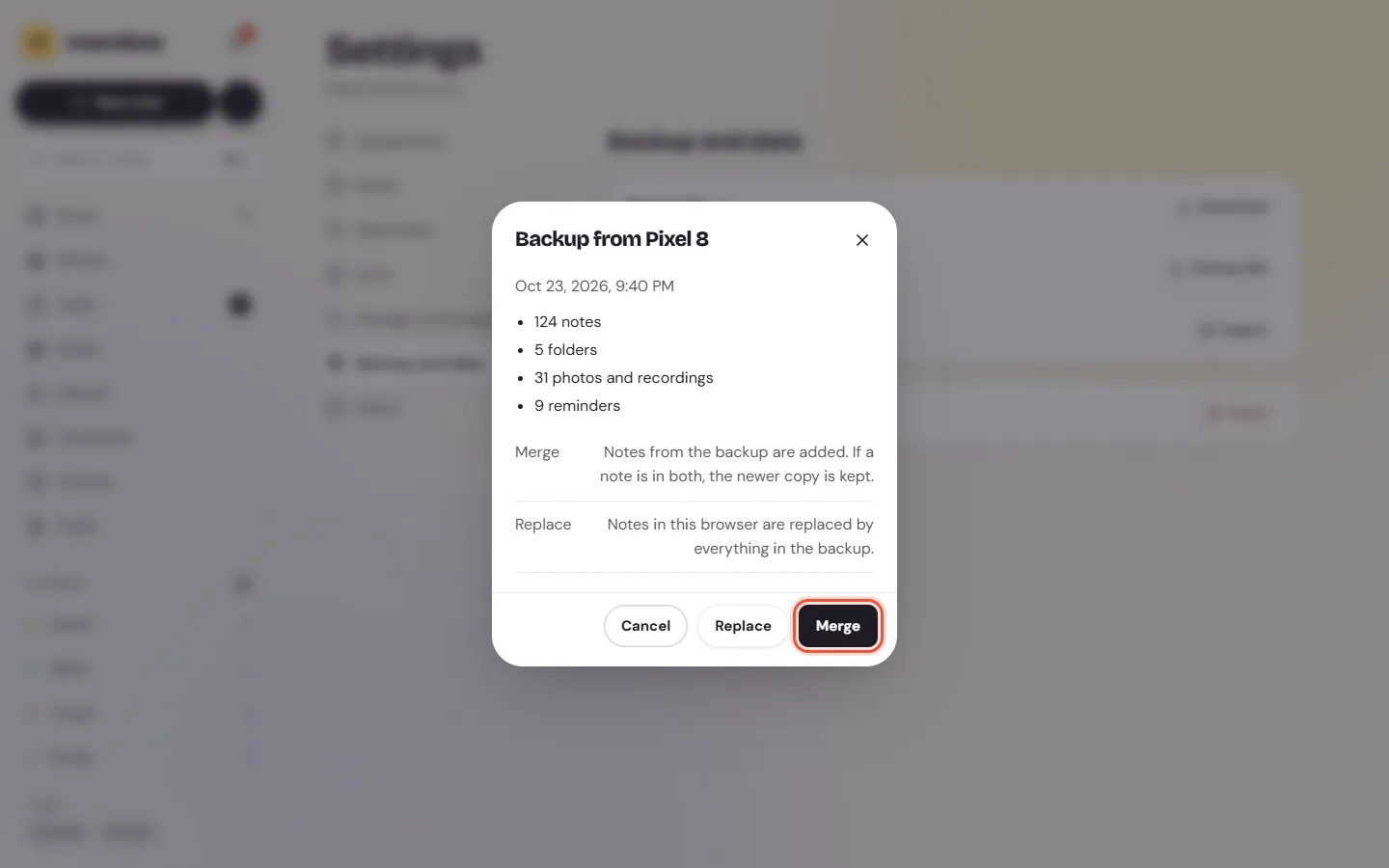
- Memlow shows what's in it. Choose
MergeorReplace.
Merge or Replace
| Choice | What happens |
|---|---|
Merge | Notes from the backup are added. If a note is in both, the newer copy is kept. Nothing else is removed. |
Replace | The notes here are replaced by everything in the backup. Notes that aren't in the backup are deleted. |
Choose Merge unless you want the device to match the backup exactly. Replace asks once more before it goes ahead. On Android, Memlow keeps a safety copy of the phone's notes first; on the web, each replaced note stays in its Version history.
If the file won't open
| Memlow says | What it means |
|---|---|
| "That password doesn't match this backup." | Try the password you used for this file. For a file made with your backup password, that's the one for Google Drive. |
| "This isn't a Memlow backup file." | Pick the .memlow file itself, not an export or a ZIP. Older files ending in .inknest restore too. |
| "This backup was made with a newer Memlow." | Update the app (Android) or reload Memlow (web), then try again. |
| "This backup is damaged and can't be restored." | The file was cut short or changed. Use another copy. |
On Android, if there isn't enough free space to restore safely, Memlow stops and changes nothing.
Questions and answers
How do I save a backup file?
On Android, Settings, then Create backup file. On the web, Settings, Backup and data, then Download beside Backup file. Leave the password on and save it.
Where should I keep it?
Away from the device it came from: a computer, a USB stick, your own cloud storage or an email to yourself. With a password it's encrypted.
How do I restore it?
On Android, Settings, then Restore from a backup, then Backup file. On the web, Settings, Backup and data, then Choose file beside Restore from a backup file. Enter the password and choose Merge or Replace.
Can I open a phone's backup file on the web?
Yes. Both apps use the same .memlow file, so a file from either restores in the other.