
Same notes on your phone and computer
To sync notes between Android and a PC, link Memlow on both to the same Google Drive. Use the same backup password on the phone's app and on app.memlow.com. Each note then travels on its own, encrypted, through your Drive, and a change on one shows on the other within seconds while both are open. If you change the same note on both, Memlow puts the two sets of changes together.
Your notes never go to Memlow's servers on the way. They go to your own Drive, encrypted on your device first.
What you need
- The Memlow app on your Android phone, and app.memlow.com in a browser on your computer.
- One Google account, used on both.
- A Memlow account to sign in with on the web. On the web, Google Drive comes with a free account. Sign in on the phone too: changes then arrive faster, and the phone can open your backups without typing the password.
- Your backup password, at least 8 characters, written down somewhere safe.
From your phone to your computer
- On the phone, turn on Google Drive backup if it isn't on:
Settings, thenGoogle Drive backup, thenChoose Google account, and create a backup password. - On the computer, open app.memlow.com and sign in: open
Account, thenSign in. - Open
Settings, thenStorage and Google Drive. If Memlow saysYour notes are already in Google Driveand offersOpen my notes, your account already keeps Drive connected: skip to step 5. - Otherwise choose
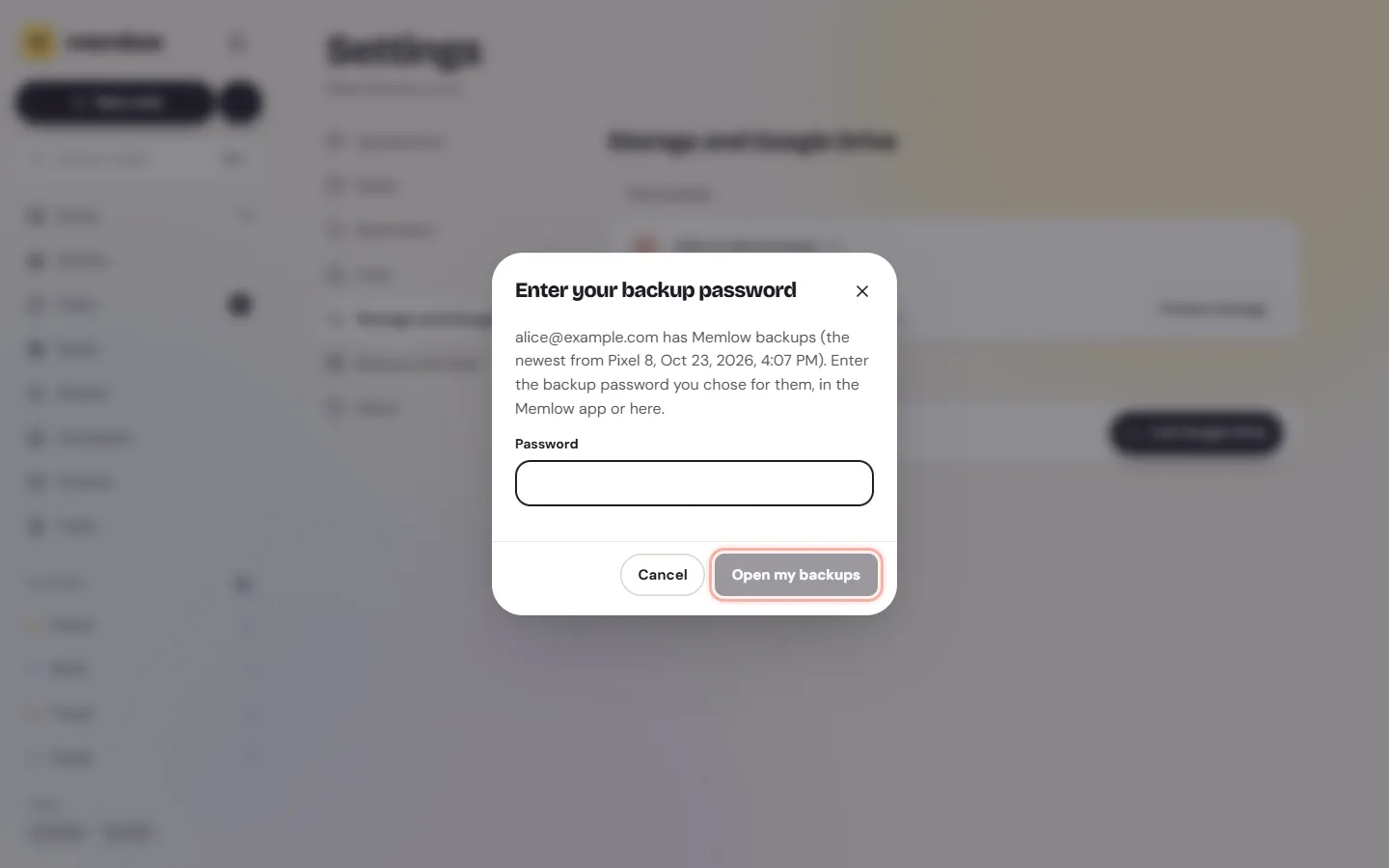
Link Google Drive(orConnect Google Drive), and pick the same Google account in Google's window. You do this once per account; after that, every browser you sign in to connects by itself. - Memlow finds your phone's backups. Type their backup password and choose
Open my backups. Or chooseApprove on another deviceand approve it on your phone (below).
Your phone's notes appear in the browser, and from then on both stay in step.
From your computer to your phone
- On the web, link Google Drive as above. If your Drive has no backups yet, Memlow asks you to create a backup password and makes the first backup.
- On the phone, choose one of these:
- Sign in to the same Memlow account: tap
Accountin the bar along the bottom. Memlow connects to your Drive and asks how to open your backups:Approve from another deviceorType your backup password. - Or, without signing in:
Settings, thenGoogle Drive backup, thenChoose Google account. Pick the same account. Memlow saysYour backups are already here; chooseType your backup password, thenContinue, thenTurn on and back up now.
- Sign in to the same Memlow account: tap
- The web's notes come onto the phone, and both stay in step.
Don't choose Start over with a new password on the phone. Your computer would need the new password before it could open the phone's backups.
Approve a new device instead of typing the password
If you're signed in to the same Memlow account on both, a new device can get the key to your backups from one that already has it.
- On the new device, choose
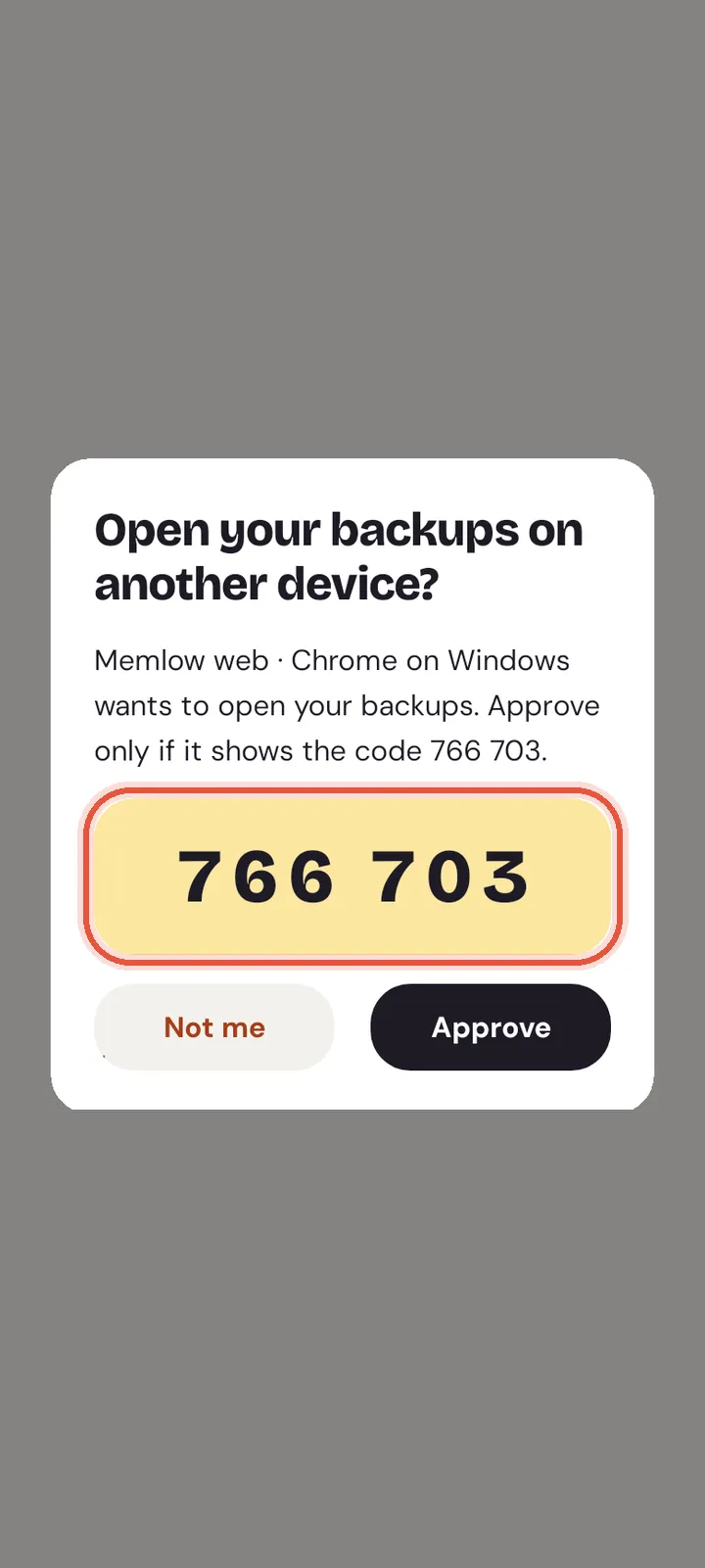
Approve on another device(web) orApprove from another device(Android). It shows a six-digit code. - On the device that already opens your notes, with Memlow open, a request appears with the new device's name and a code.
- Check that the two codes match, then choose
Approve. If you didn't ask for this, chooseNot me.
The key travels encrypted, end to end. Memlow's server passes it on but can't open it. A request lasts 10 minutes, and the device that approves has to be open in front of you to see it.
How fast changes arrive
| When | How long |
|---|---|
| Both open and signed in to the same Memlow account | A few seconds |
| The phone open but not signed in | The phone gets the web's changes within about 15 seconds; the web gets the phone's within a couple of minutes |
| One device closed | It catches up when you open it. The Android app also checks every 15 minutes in the background. |
On Android you can pull down on Home or a folder to bring in changes at once. Memlow then says what happened, for example "3 notes came in" or "Up to date".
The very first time a device links, Memlow gets every note ready to sync on its own and shows how far it is ("84 of 140"). After that, only the notes that change travel.
What travels between them
Notes, checklists, reminders, photos, voice notes, sheets, goals, folders and your saved templates. So do a note's pin, its colour, its folder, Archive, Trash and its lock.
What stays on each device: your settings, your app lock, and your PIN. A note locked on the phone is locked on the web too, but each one asks for its own PIN. Notes in shared notebooks travel through the shared notebook instead; see shared notebooks.
When the same note changes on both
Memlow puts the two versions together, so neither device's work is lost.
- Each part of the note follows the device that changed it. Change the title on the phone and add a line on the computer, and you get both.
- A line changed on one device and left alone on the other takes the change.
- If the same line's words changed on both, both versions stay, one under the other. Keep the one you want.
- A line deleted on one device goes, unless the other device changed it meanwhile.
- In a sheet, changes to different cells all stay. When the same cell changed on both, the later change stays. On the web the other one is kept in the note's
Version history. - If one device locked the note while the other changed it, the locked copy is kept as it was, and the other device's changes aren't added. The web keeps them in
Version history.
A note that's open while a change comes in takes it in where you are, and the cursor stays where you're typing.
Note
Restoring a backup by hand with Merge works differently: for each note in both, the newer copy is kept. You don't need a restore to keep two devices in step; sync does that by itself.
No Google Drive? Use a backup file
A backup file carries every note, photo and voice note in one .memlow file, and either app can open it. Make one on one device, copy it over (by USB cable, email or your own cloud), and restore it on the other with Merge. It's a snapshot: nothing new comes across until you make another file.
Tips
- Use the same Google account on both. Another account means another Drive, and separate backups.
- Keep one backup password. If you change it on the phone, the web asks for the new one once.
- Use the phone for reminders that must ring. A browser rings them only while Memlow is open.
- On the web, choose
Protect storageinSettings, thenStorage and Google Drive, so the browser keeps Memlow's data when space runs low. - Keep both apps up to date. An older version syncs more slowly, through full backups only.
If notes still don't arrive, see Notes not syncing between devices.
Questions and answers
How do I link both to the same Drive?
Turn on Google Drive backup on the phone. On the web, sign in to your Memlow account, then Settings, Storage and Google Drive, Link Google Drive, pick the same Google account and type your backup password.
How fast do changes arrive?
Within a few seconds when both are open and signed in to the same Memlow account. A closed device catches up when you open it.
What if I edit the same note on both?
Memlow puts the changes together. Each change follows the device that made it, and if the same words changed on both, both versions stay, one under the other.
Does Memlow see my notes while they sync?
No. They go to your own Google Drive, encrypted with your backup password. Memlow's server only passes on a short message that something changed.