
Notes not syncing between devices
Memlow syncs your notes between phone and computer through your own Google Drive. When notes are not syncing, one device usually isn't linked to the same Google account and backup password, or the web app isn't signed in to your Memlow account. Once both are linked and open, a change shows on the other device within seconds.
What you might see
- A note you wrote on your phone isn't on app.memlow.com, or the other way round.
- An edit shows on one device only.
- Memlow asks for a backup password, or asks you to reconnect Google Drive.
How long to wait
With both devices open and online, a change arrives within seconds. Each note travels as its own small encrypted file in your Drive, so only the notes that changed are fetched. A device that's closed catches up when you open it. The Android app also checks every 15 minutes in the background, when the battery allows.
The first time a device links, Memlow gets every note ready, with a line like "Getting each note ready to sync on its own: 84 of 140". Changes come through fully once that's done.
The web app isn't signed in
On the web, Google Drive comes with a free Memlow account. While you're signed out, the Drive panel says "Drive sync is paused" and the status reads "Paused: sign in to Memlow". Your notes are safe in the browser and in your Drive meanwhile.
- Open
Account: in the bar along the bottom on a phone, or at the bottom of the sidebar on a computer. - Tap
Sign in, and sign in with the account you use on your phone. - Open
Settings, thenStorage and Google Drive, and check the status line.
If you can't sign in, see Can't sign in to Memlow.
Drive isn't linked on one device
Both devices need Google Drive linked. When your Drive already has backups, Memlow opens them with your backup password. Don't start over with a new password: your other devices would then need the new one.
On Android
- Open
Settings. IfGoogle Drive backupsaysOff, tap it. - Tap
Choose Google accountand pick the account your other device uses. - Memlow shows
Your backups are already here. ChooseType your backup passwordand enter it, orApprove from another device. - Tap
Continue, choose how often, thenTurn on and back up now.
On the web
- Open
Settings, thenStorage and Google Drive. - Choose
Link Google Drive, orConnect Google Driveif Memlow says "Your notes are already in Google Drive". - Pick the same Google account in Google's window.
- When Memlow asks, type your backup password, or choose
Approve on another deviceif it offers that.
The two devices use different Google accounts
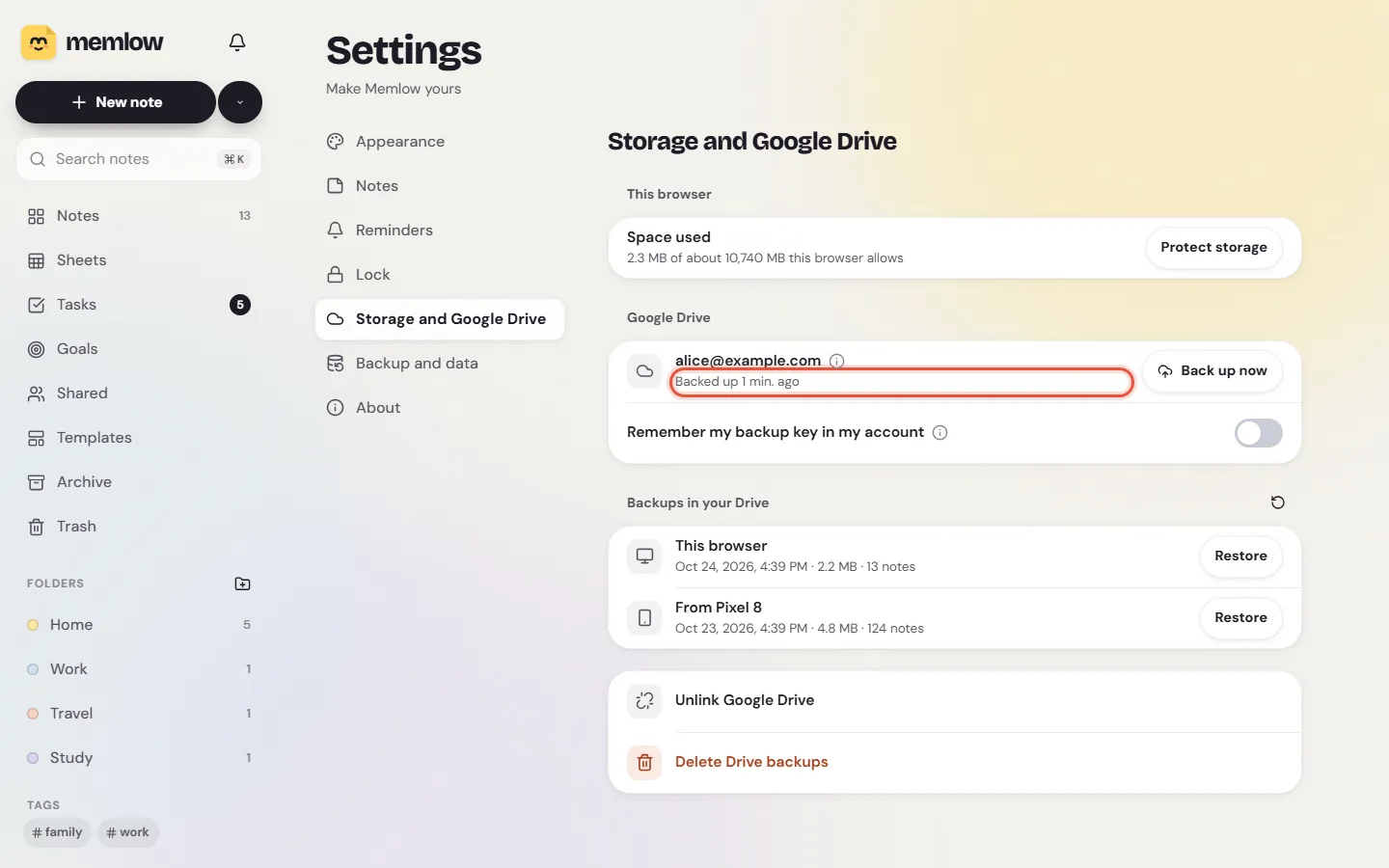
Each device shows which Google account holds its backups. On Android it's the Account row in Google Drive backup. On the web it's the first row of the Google Drive panel.
On Android
Tap Account in the bottom bar. If it says "This phone uses different backups than your account.", tap Choose which to use:
Use your account's backupskeeps this phone's notes and adds them to the account's backups. Pick this one in most cases.Make this phone's backups the account'sasks your other devices to open these backups instead.
On the web
Memlow says "That's another Google account" when you pick the wrong one, and names the account that holds your backups.
- Choose
Pick another account. - In Google's window, pick the account Memlow named.
A backup uses a different password
Your devices only open each other's backups with the same backup password.
On Android
Google Drive backup shows "A backup from another device uses a different backup password. Enter it to bring those notes here." Tap Enter password and type the password from your other device.
On the web
The status reads "Your backup password changed on another device. Enter it once here." Choose Enter password and type it.
Lost the password? Read what to do about a lost backup password.
Google asks you to connect again
On Android
Google Drive backup says "Google Drive needs to be connected again." Tap Reconnect and pick the same Google account.
On the web
The notes list shows "Google asks to confirm again. Tap Reconnect." Choose Reconnect. If nothing opens, your browser may have blocked Google's window: allow pop-ups for app.memlow.com and try again.
The phone is offline or waiting for Wi-Fi
With Back up over Wi-Fi only on, the phone keeps your changes until it's on Wi-Fi. The status says "Waiting for Wi-Fi…", and pulling down on Home says "Up to date. Your changes back up on Wi-Fi."
- Connect to Wi-Fi, or open
Settings, thenGoogle Drive backup. - Turn off
Back up over Wi-Fi onlyif you're happy to use mobile data.
The phone stops Memlow in the background
Battery savers can stop the Android app between uses, so it only catches up when you open it.
- Open Memlow on the phone. It brings in the latest notes as it starts.
- To keep it syncing in the background, set its battery use to
Unrestricted. The steps are in Reminders don't ring, or ring late, and they help sync too.
One app is out of date
Older versions sync more slowly, through full backups only. A note may also show a card saying "This needs a newer Memlow".
- On Android, update Memlow from Google Play.
- On the web, choose
Reloadwhen Memlow says "A new version of Memlow is ready".
Shared notes sync differently
Notes in a shared notebook, or shared with a link, travel through the shared notebook. They aren't in your Drive backups.
- On the other device, sign in with the same Memlow account.
- If it says "This device can't open your sharing key yet", open
Sharedand follow its steps.
See Share a notebook with family or friends.
Bring in the latest notes now
Memlow syncs on its own. When you don't want to wait:
On Android
Pull down on Home, a folder, Shared or Tasks. Memlow brings in your other devices' changes and backs up yours. Then it tells you what happened: "Up to date", "3 notes came in", "Connect Google Drive to sync" (with Set up), "No connection" or "Couldn't sync everything. Try again in a moment."
On the web
Switch to the Memlow tab: it checks for changes when it comes to the front. Or open Settings, then Storage and Google Drive, and choose Back up now. After backing up, Memlow brings in your other devices' notes.
Still not working?
Write to [email protected]. Please include:
- the Memlow version on each device (Android:
Settings, thenAbout, thenVersion; web:Settings, thenAbout); - your phone's make, model and Android version, and the browser you use on the computer;
- a screenshot of the Google Drive screen on each device;
- which note didn't arrive, and where you wrote it.
Please don't send your backup password. We never need it. To learn how sync puts changes together, see Same notes on your phone and computer.
Questions and answers
Do both devices need the same Google Drive and backup password?
Yes. Link the same Google account on both, and open the backups with the same backup password. A device with another password asks for it.
Does the web app need to be signed in?
Yes. On the web, Google Drive comes with a free Memlow account, and syncing pauses while you're signed out.
How long should I wait?
With both devices open and online, a few seconds. A closed device catches up when you open it. On Android, pull down on Home to sync now.
What if I edit the same note on both devices?
Memlow puts the changes together. A word changed on both sides keeps both versions, one under the other.