
Google Drive backup failed: how to fix it
When a Google Drive backup failed, your notes are still safe on your phone or in your browser, and the backups already in your Drive stay there. The usual causes are no internet connection, Google asking you to connect Drive again, or a full Drive. Memlow says which one it is and offers the button that fixes it.
What you might see
On Android
- "Couldn't reach Google Drive. Memlow will try again later."
- "Google Drive needs to be connected again." with
Reconnect - "Your Google Drive is full."
- "Enter your backup password to keep backing up."
- A notification and a card in Settings:
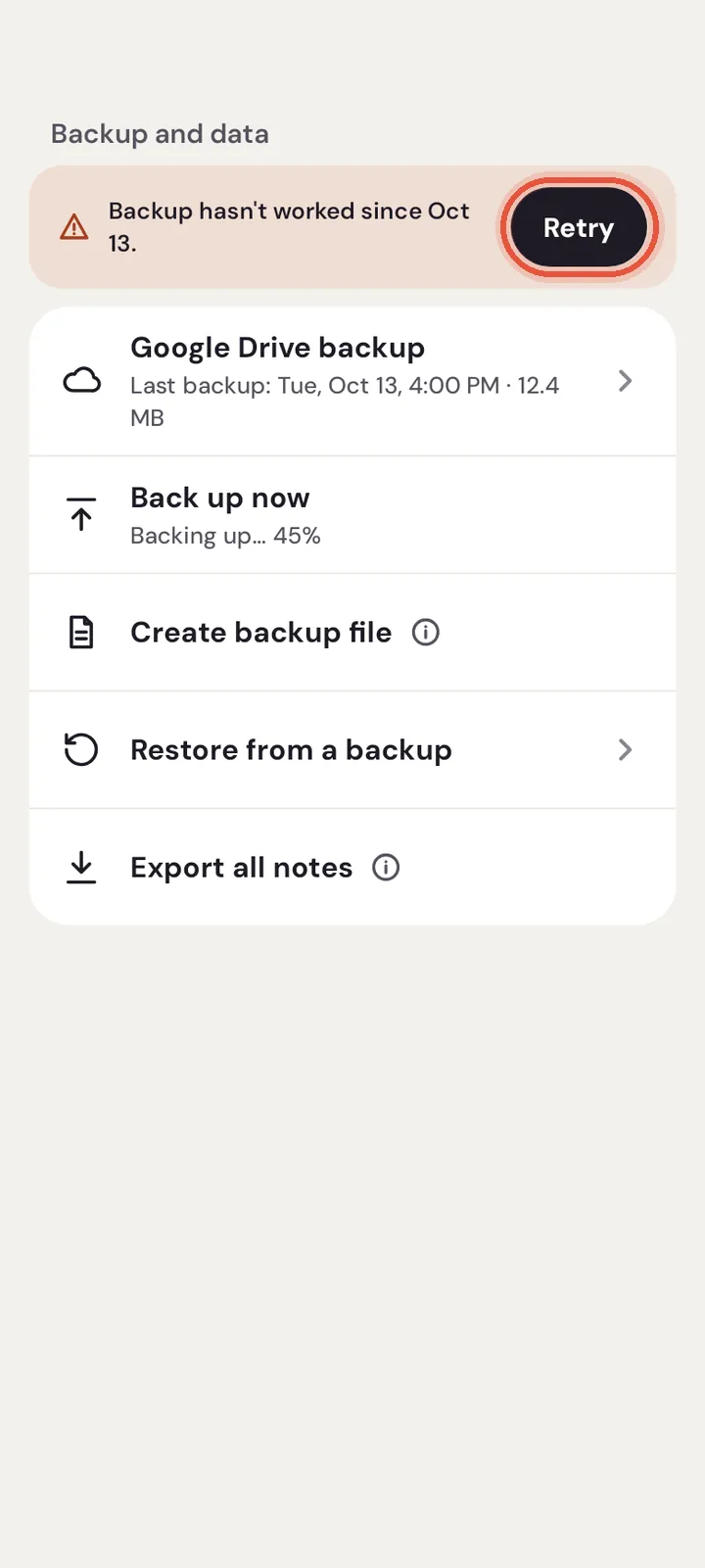
Backup isn't working, "Backup hasn't worked since" a date. Memlow shows this after scheduled backups fail three times in a row.
On the web
- The Google Drive panel's status says "Couldn't reach Google Drive".
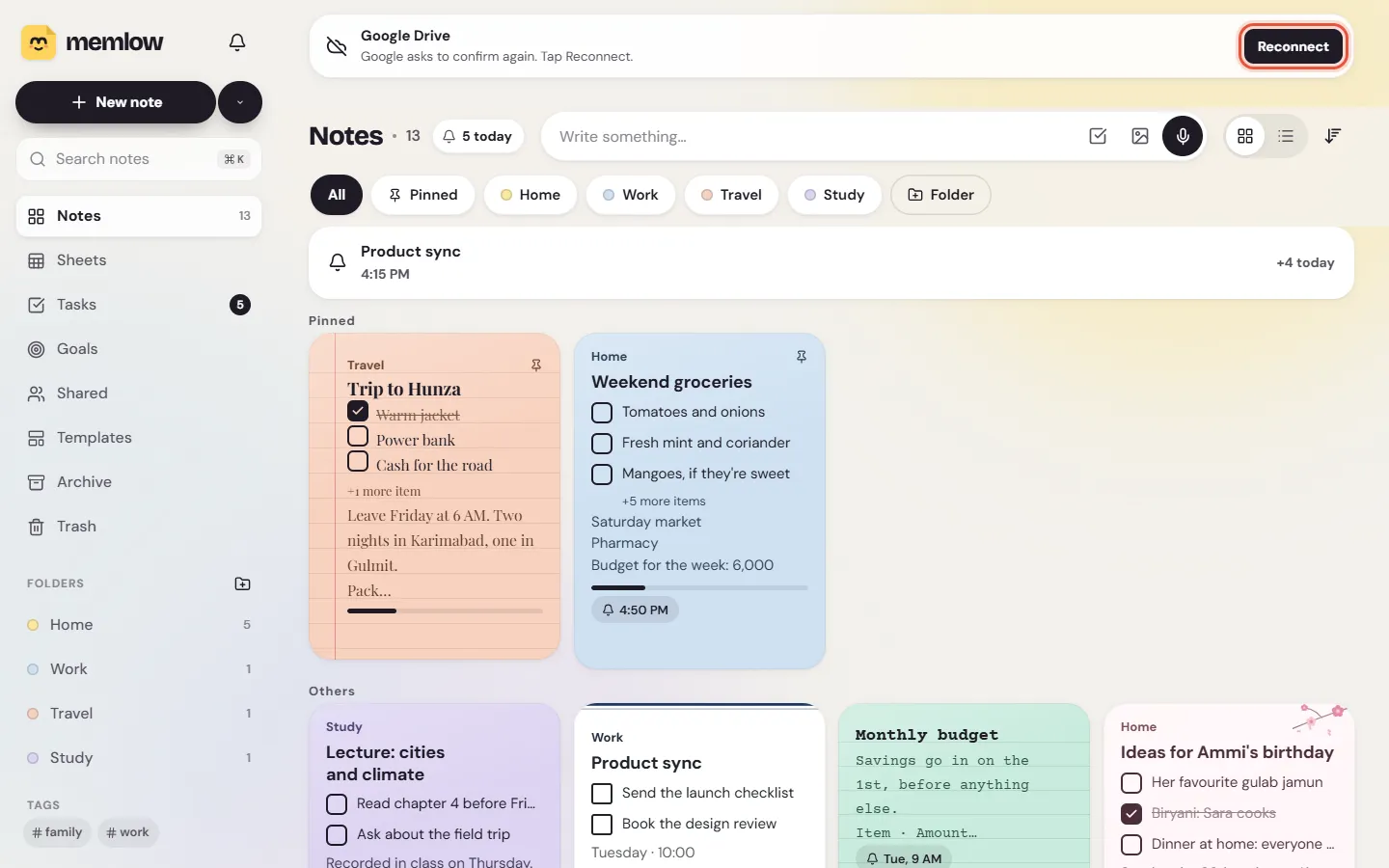
- "Google asks to confirm again. Tap Reconnect." on the notes list, with
Reconnect - "Your Google Drive is full. Free up some space and try again."
- "Your backup password changed on another device. Enter it once here."
- "Paused: sign in to Memlow"
Is my data safe meanwhile?
Yes. A failed backup changes nothing on your device. Your notes stay where they are, and the newest backups in your Drive stay as they were. Memlow tries again by itself. Fix the cause below and your next backup catches up with everything.
No connection, or Google Drive didn't answer
This is the most common cause. The phone or computer was offline, or Google Drive didn't answer in time.
- Check that you're online: open any website.
- Open the Google Drive screen. On Android:
Settings, thenGoogle Drive backup. On the web:Settings, thenStorage and Google Drive. - Tap
Retryon the warning, orBack up now. - Wait until the status shows the new time: "Last backup:" with today's date on Android, or "Backed up" and how long ago on the web.
Google asks you to connect again
Google's permission for Memlow's folder can end, for example when you remove Memlow's access in your Google account. Google then wants you to confirm again.
On Android
- Open
Settings, thenGoogle Drive backup. - Tap
Reconnecton the warning. - Choose the same Google account and allow access.
If Google refuses, Memlow says "Google didn't allow Memlow to use your Drive" with an error number. Try again later, and note the number for support.
On the web
- Choose
Reconnecton the notes list, or inSettings,Storage and Google Drive. - Google's window opens. Pick the same Google account and allow Memlow's folder.
- If nothing opens, allow pop-ups for app.memlow.com and try again.
If Google says no, Memlow shows "Google didn't give access. Try again and allow Memlow's folder."
Your Google Drive is full
Backups go into your own Google storage, which Gmail and Google Photos share. When it's full, Memlow can't upload.
- Free up space in your Google account, or add more storage at Google.
- On Android,
Google Drive backupshows how much your Memlow backups take: "Backups use" and a size. - Come back to Memlow and tap
Back up now.
Memlow keeps only its newest backups from each device and deletes older ones itself, so its own share stays small.
Memlow needs your backup password
The backup password is what encrypts your backups. Memlow keeps it on the device after you enter it once. It asks again when it can't read the key any more, or when another device changed the password.
On Android
- Open
Settings, thenGoogle Drive backup. - Under
Enter your backup password, type it. Memlow says it "needs your backup password once to keep backing up on this phone". - Tap
Continue.
On the web
- Open
Settings, thenStorage and Google Drive. - Choose
Enter passwordand type it.
If you've lost it, read what to do about a lost backup password.
You're signed out on the web
On the web, Drive backup comes with your Memlow account and pauses while you're signed out. The panel says "Drive sync is paused".
- Open
Accountand chooseSign in. - Sign in with your Memlow account. Backups carry on by themselves.
See Can't sign in to Memlow if that doesn't work.
Backups wait for Wi-Fi (Android)
With Back up over Wi-Fi only on, the status says "Waiting for Wi-Fi…". Nothing is wrong: the backup runs once the phone is on Wi-Fi.
- Connect to Wi-Fi, and the backup starts.
- To back up on mobile data too, open
Settings, thenGoogle Drive backup, and turn offBack up over Wi-Fi only.
The phone stops Memlow in the background (Android)
Scheduled backups run in the background, and not when the battery is low. If a battery saver stops Memlow, backups only happen while it's open.
- Charge the phone if the battery is low.
- Set Memlow's battery use to
Unrestricted. The steps are in Reminders don't ring, or ring late, and they help backups too.
Still not working?
Write to [email protected]. Please include:
- your Memlow version (Android:
Settings, thenAbout, thenVersion; web:Settings, thenAbout); - your phone's make, model and Android version, or your browser and computer;
- the exact message Memlow shows, and any error number (a screenshot is best);
- when the last backup worked.
Please don't send your backup password. We never need it. For how backups work, see Back up your notes to Google Drive.
Questions and answers
What does "Couldn't reach Google Drive" mean?
Memlow couldn't talk to Google Drive, usually because you were offline. It tries again by itself. Tap Retry or Back up now once you're connected.
How do I reconnect Google Drive?
Tap Reconnect where Memlow shows the warning, pick the same Google account and allow Memlow's folder. On the web, allow pop-ups for app.memlow.com if Google's window doesn't open.
Is my data safe meanwhile?
Yes. Your notes stay on your device, and the backups already in Drive stay there. The next backup that works includes everything.