
Move your notes to a new phone
To transfer your notes to a new phone, back them up on the old phone and install Memlow on the new one. Then bring them back from Google Drive or a backup file, with your backup password. Your photos, voice notes, checklists, reminders and folders come too. Memlow keeps your notes only on your phone and in your own backups, so do the first part before you reset or hand over the old phone.
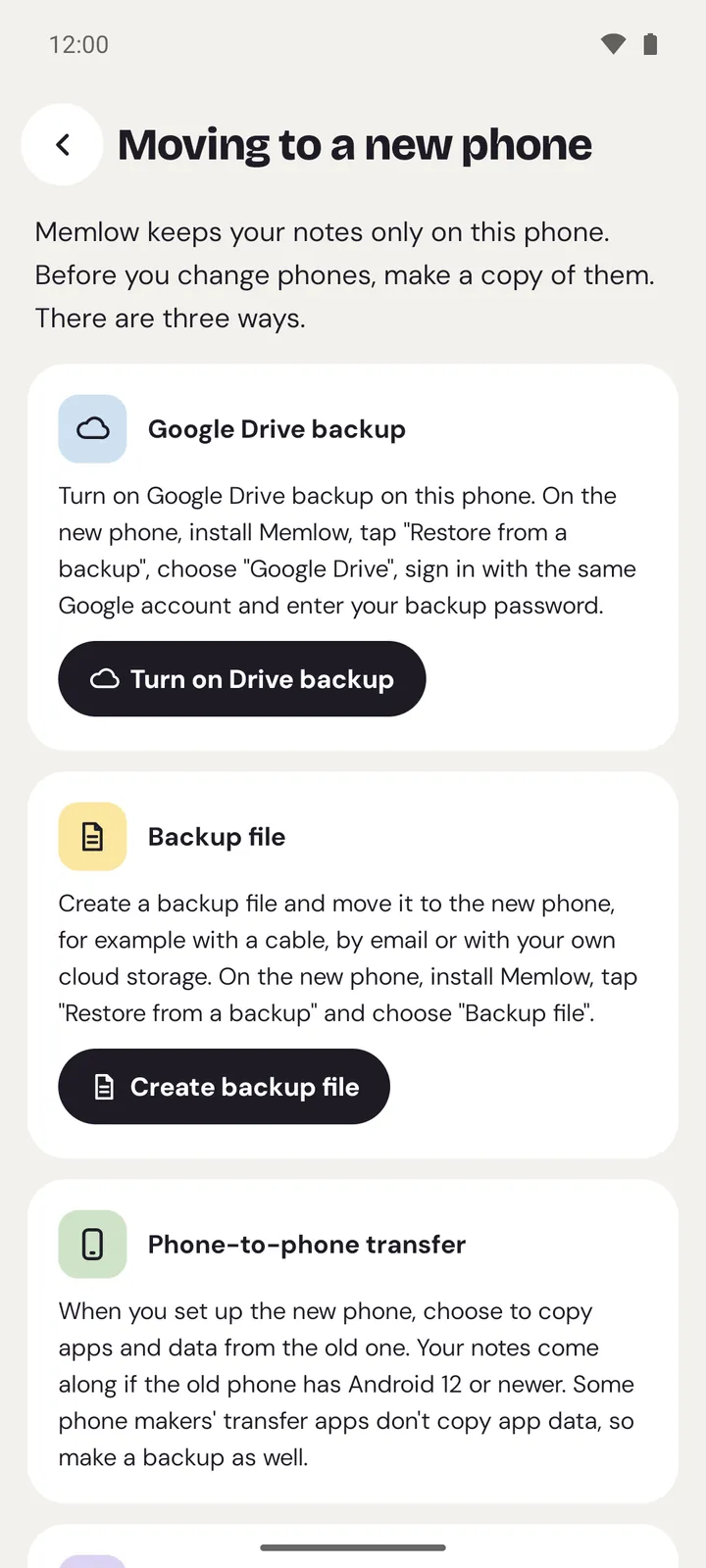
Memlow has the same steps in the app: open Settings, then Moving to a new phone.
Move notes from Android to Android
- On the old phone, back up to Google Drive, or save a backup file and copy it across.
- On the new phone, install Memlow from Google Play and open it.
- Sign in to your Memlow account, or tap
Restore from a backup, and enter your backup password.
Each step is below in full.
On the old phone
Choose one way, or both:
- Google Drive: open
Settings, thenGoogle Drive backup, and turn it on if it isn't (see Back up your notes to Google Drive). Then tapBack up nowand wait until it says the backup is done. - A backup file: open
Settings, thenCreate backup file, protect it with a password, and save it. Then copy the file to the new phone, by USB cable, email or your own cloud storage.
Check that you know your backup password. The new phone needs it, unless you approve it from the old phone. See what to do if you've lost it.
Keep the old phone until the new one shows your notes.
On the new phone
Install Memlow from Google Play and open it. On the first screen, pick the way that matches what you did.
With your Memlow account
If you signed in to a Memlow account on the old phone:
- Tap
Continue with GoogleorSign in with email, and sign in to the same account. - Memlow connects your Google Drive and asks how to open your backups. Choose
Approve from another deviceand approve it on the old phone, with the same code on both. Or chooseType your backup password. Getting your notes readyshows each step. When it saysYour notes are here, tapContinue.
Drive backup is on already, with the same account and password.
From Google Drive
- Tap
Restore from a backup. - Under
Where is your backup?, chooseGoogle Drive, and pick the same Google account as on the old phone. - Pick the newest backup. Each one says which phone made it, when, and how many notes it holds.
- Enter your backup password.
- Choose
MergeorReplace(below), thenRestore. - When the restore is done, tap
Turn on Drive backupunderKeep backing up to Google Drive, so the new phone carries on with the same account and password.
From a backup file
- Tap
Restore from a backup. - Choose
Backup file, and pick the .memlow file you copied over. - Enter the file's password.
- Choose
MergeorReplace, thenRestore.
Then turn on Google Drive backup on the new phone, so it's backed up from now on.
With phone-to-phone transfer
When you set up the new phone, Android can copy apps and their data from the old one. Your notes come along if the old phone runs Android 12 or newer. Some phone makers' transfer apps don't copy app data, so make a backup as well.
Merge or Replace
On a new phone with no notes yet, both give the same result. They differ when the phone already has notes:
| Choice | What happens |
|---|---|
Merge | Notes from the backup are added. If a note is in both, the newer copy is kept. |
Replace | The notes on this phone are replaced by everything in the backup. Notes on this phone that aren't in the backup are deleted. |
Merge is chosen to start with, and it's the safe choice. Replace asks once more before it goes ahead, and Memlow keeps a safety copy of the phone's notes first.
After the move
- Reminders are set again on the new phone by themselves. Check that they can ring: see Reminders don't ring, or ring late.
- Your PIN stays with the old phone. If you used app lock, turn it on again in
Settings, underSecurity. The first time you open a locked note, Memlow asks you to "Set your PIN again". - Add your widgets again.
- Notes in shared notebooks come back when you sign in to your Memlow account.
If the new phone doesn't show your notes, check that it uses the same Google account and backup password as the old one. More fixes are in Notes not syncing between devices.
Questions and answers
What do I do on the old phone?
Turn on Google Drive backup and tap Back up now, or create a backup file and copy it to the new phone. Make sure you know your backup password.
How do I restore on the new one?
Install Memlow, then sign in to your Memlow account, or tap Restore from a backup on the first screen and choose Google Drive or Backup file. Enter your backup password and choose Restore.
Replace or Merge?
On a new, empty phone they're the same. Merge adds the backup's notes and keeps the newer copy of any note that's on both. Replace makes the phone match the backup and deletes notes that aren't in it.
Do I need the old phone?
Not if your notes are in Google Drive or a backup file and you know the backup password. You need it only to approve the new phone instead of typing the password.