
Home-screen widgets on Android
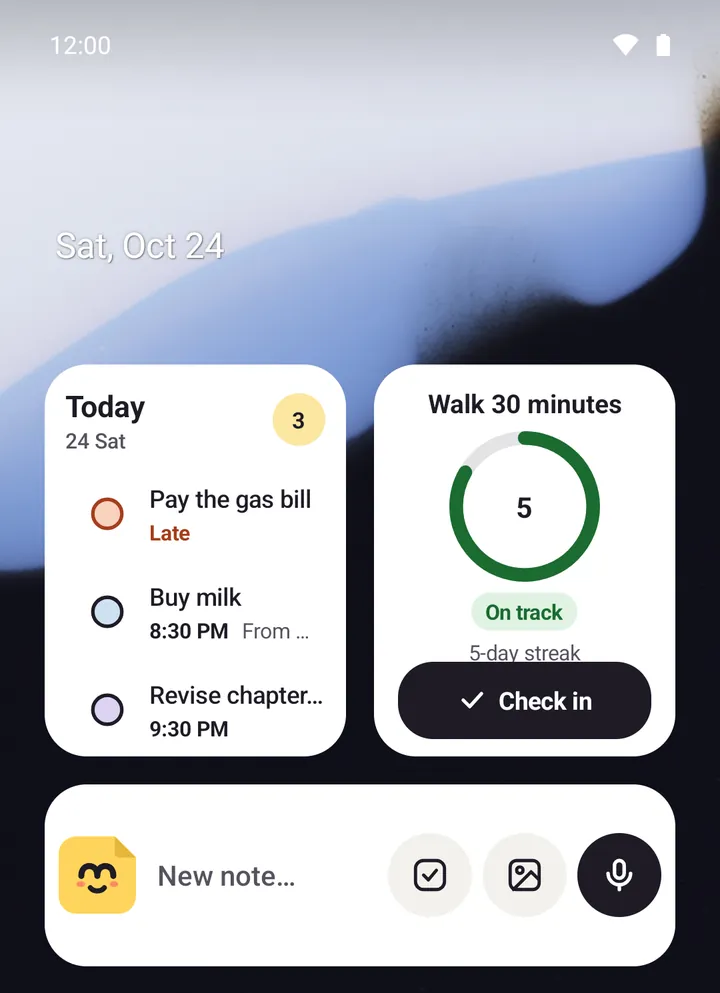
Memlow has five widgets for your Android home screen: Quick note, Note, Today, Goals and One goal. They let you start a note, keep a shopping list in view, tick off today's tasks or check in on a habit without opening the app. Widgets are only in the Android app; the web app has none.
Add a widget
The steps depend a little on your phone's maker, but they go like this:
- Touch and hold an empty spot on your home screen.
- Tap
Widgets. - Find Memlow in the list and open it.
- Touch and hold the widget you want, drag it to your home screen and let go.
- For
NoteandOne goal, Memlow then asks which note or goal to show.
To make a widget bigger or smaller, touch and hold it, then drag its edges.
What each widget does
| Widget | What it shows | What you can do from it |
|---|---|---|
Quick note | A bar with New note… and round buttons | Start a note, a checklist, a photo note or a voice note |
Note | One note you choose: its colour, title, lines and checklist | Tick items; tap the rest to open the note |
Today | Today's tasks, late ones first, with their times | Tap a circle to mark a task done; tap the title to open Tasks |
Goals | Up to four active goals with their rings and status | Tap a goal to open it |
One goal | One goal's ring, status and progress line | Check in on a habit, or +1 on a number target |
Quick note fits on one row and stretches sideways. On a narrow widget the photo button is left out first, then the checklist button.
Note suits a grocery list or a packing list: tick items in the shop without opening Memlow. It also shows the note's next reminder.
Today marks late tasks with Late in red. When nothing is due it says "Nothing due today".
Choose or change the note or goal
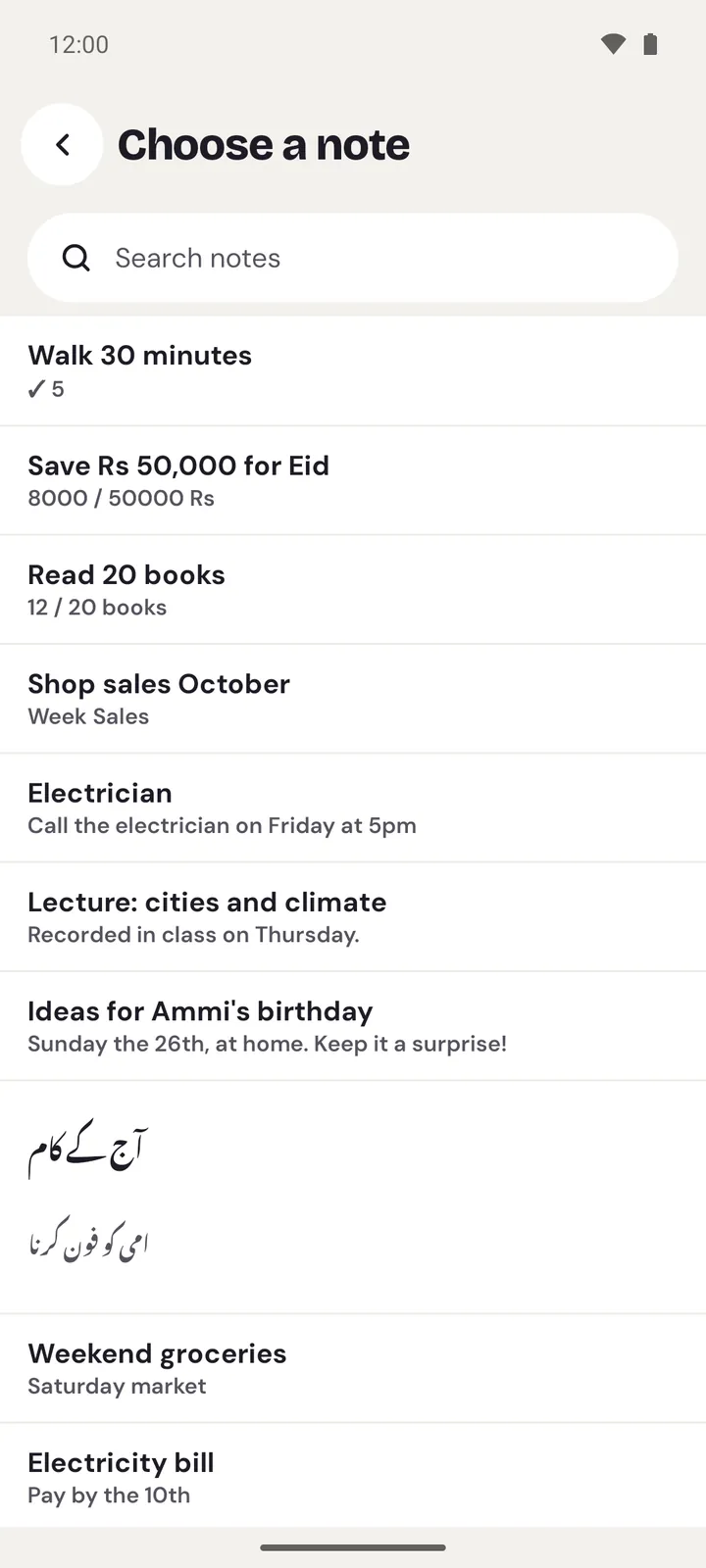
When you add Note, Memlow opens Choose a note, with a search box. For One goal it's Choose a goal. If you back out, the widget isn't added.
To show something else later, touch and hold the widget and choose its settings, on phones that offer it (the option's name depends on the phone). If the note was deleted, the widget says "This note was deleted. Tap to choose another one."
Locked notes and locked goals can't be put on a widget. If you lock one after adding it, the widget says Locked — tap to open instead of the note.
Widgets and app lock
With app lock on, widgets hide your notes while Hide content when locked is on (it is, unless you turn it off). Each widget then says Locked — tap to open, and ticking or checking in from it does nothing. Tapping it opens Memlow, which asks for your PIN.
To show notes on widgets while app lock is on, open Settings and, under Security, switch off Hide content when locked. That setting also hides note text in reminder notifications, so think about who sees your phone. See Lock the whole app with your fingerprint.
Whatever the setting, opening anything from a widget goes through the app lock.
A widget isn't updating
Widgets refresh on their own after a change, from the app, a notification or the widget itself. They don't refresh while Memlow is on the screen, because you can't see them then; they catch up a moment after you leave it. They also refresh just after midnight, for the new day.
If a widget looks out of date:
- Go back to your home screen and wait a few seconds. Changes made in the app show up then.
- If it says
Locked — tap to open, see the section above: app lock is hiding its content. - If a task should say
Late, or a goal's status should have moved on with the day, open Memlow once and leave it again. - If it still doesn't change, remove the widget and add it again.
If reminders also ring late, your phone may be limiting Memlow in the background. The fixes are in Reminders don't ring, or ring late.
A quick note without a widget
Memlow also has a New note tile for Quick Settings, the panel you pull down from the top of the screen. Edit the panel's tiles and drag New note in.
Questions and answers
Which widgets are there?
Five: Quick note (start a note, checklist, photo or voice note), Note (one note you choose, with ticking), Today (today's tasks), Goals (up to four goals) and One goal (one goal with a quick check-in).
How do I add one?
Touch and hold an empty spot on your home screen, tap Widgets, find Memlow and drag the widget you want onto the screen.
Why isn't a widget updating?
It catches up a moment after you leave Memlow, and again after midnight. If it says Locked, app lock is hiding its content. If nothing helps, remove it and add it again.
Is there a widget on the web or on iPhone?
No. Widgets are only in the Android app.