
The Tasks view: today, upcoming, done
Memlow Tasks is one list of every reminder in every note. A note with a reminder is a task, and so is a checklist item with a reminder. Tick one in Tasks and it's ticked in its note too, because it's the same item.
Checklist items without a reminder stay in their notes and don't show here, so the list holds only what has a time. To add one, set a reminder.
Open Tasks
On Android
Tap the checklist icon in the bar along the bottom. At the top, Tasks and Goals sit side by side; tap Tasks. The button opens whichever of the two you used last.
On the web
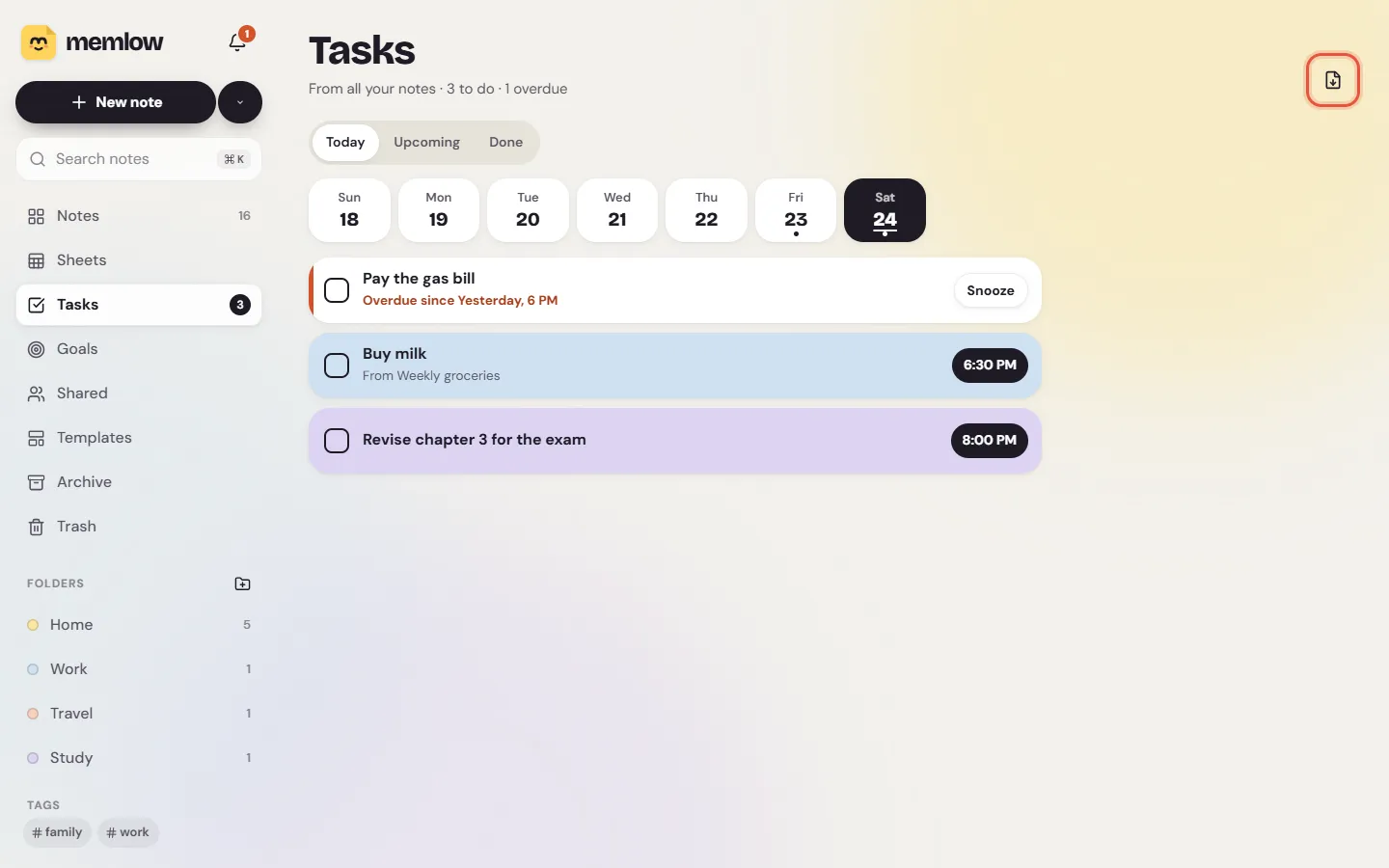
On a computer, choose Tasks in the sidebar. Its number is what's due today. On a phone's browser, tap the checklist icon in the bar along the bottom, then Tasks at the top.
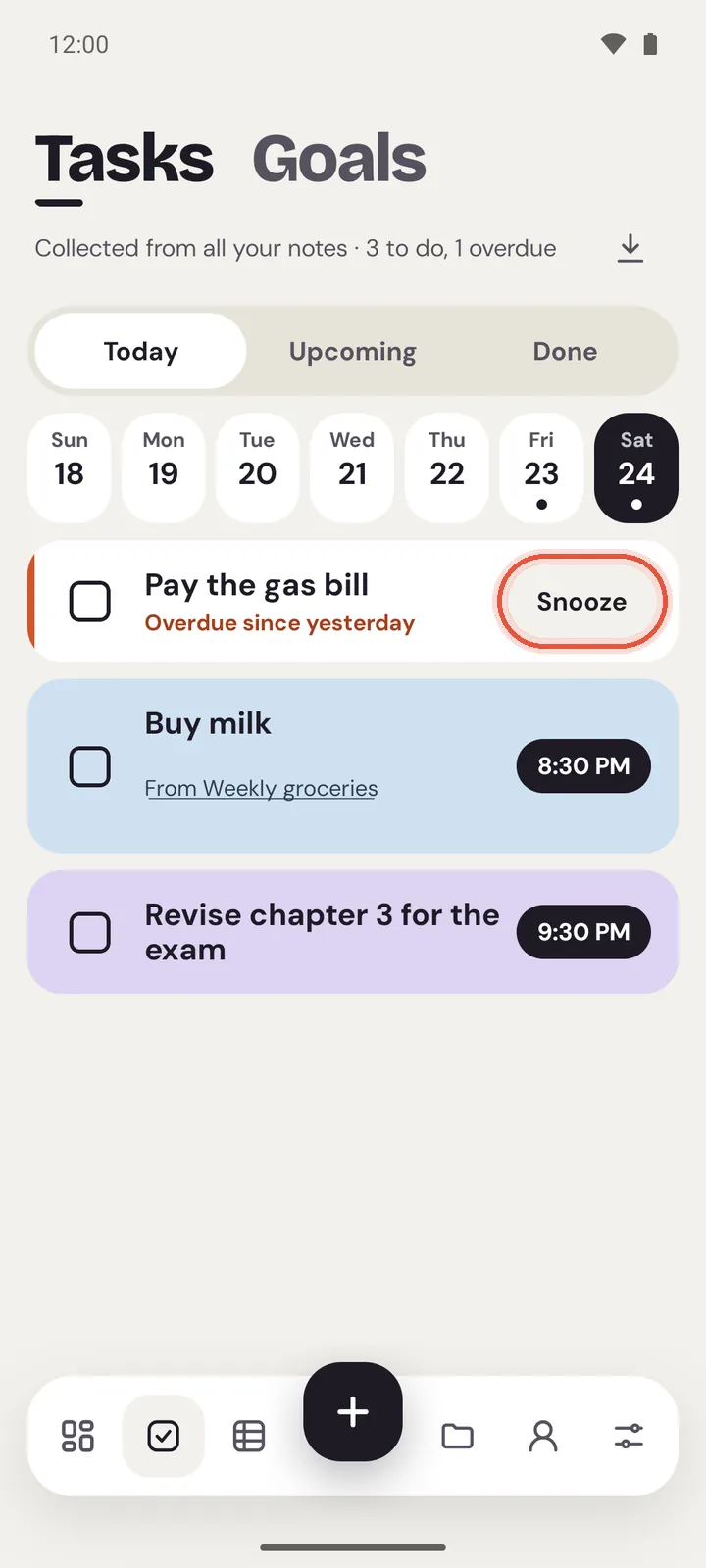
Under the title, Memlow says how many tasks are left for today ("3 to do") and how many are late ("1 overdue").
Today, Upcoming and Done
| Tab | What's in it |
|---|---|
Today | Everything due by tonight, late ones first, then by time |
Upcoming | Everything after today, by day |
Done | What you ticked off in the last 30 days, newest first |
On Android, Upcoming shows the next 30 days day by day, then the rest under Later.
The week strip under the tabs has a dot on each day with something due. Tap a day to see just that day; tap it again, or tap today, to go back. On the web the strip is on Today; on Android it's on Today and Upcoming.
What a task shows
Each row has a tick box, the task's words, the time, and the note's colour behind it. A checklist item also says which note it's from ("From Weekly groceries"). Tap the words to open the note; on Android it opens at that item.
A late task turns red, says "Overdue since" and when, and has a Snooze button instead of its time. A task in a locked note says only "Locked note" until you open that note.
Tick a task off
Tap its tick box. Memlow says so, with Undo in case you tapped the wrong one. The item is ticked inside its note too.
If you change your mind later, open Done and un-tick it. The task comes back, late if its time has passed.
A repeating task moves on to its next time once you tick it, and stays in Done for the time you finished.
Add a task from Tasks
This is on Android only. With Tasks showing, tap the + in the bar. Type what you need to do, pick a time and save. Memlow makes a new note named after it, with one checklist item and the reminder on that item.
On the web, write the task in any note and put a reminder on it.
Export your tasks as a PDF
Use the export button at the end of the line under the title (Export as PDF). The PDF has Today, Upcoming and Done, drawn as Tasks draws them.
On Android
Choose Save to device or Share. The file is named "Tasks" with today's date.
On the web
Your browser's print window opens. Choose Save as PDF as the printer, or print it on paper. See Print a note or save it as a PDF.
When Tasks warns you
On Android, a line at the top of Tasks tells you when reminders may not ring. Notifications may be off, exact alarms not allowed, or the phone may be limiting Memlow in the background. Each warning has a button to fix it. The details are in Reminders don't ring, or ring late.
On Android you can also pull down on the list to bring in changes from your other devices straight away.
Questions and answers
What shows in Tasks?
Every note with a reminder, and every checklist item with a reminder, from all your notes. Items without a reminder stay in their notes.
How do I mark something done?
Tap its tick box in Tasks, or tick it in the note, or tap Done on the reminder's notification. All three do the same thing.
Where are my goals?
In the same place: tap Goals at the top of Tasks on a phone, or Goals in the sidebar on a computer. See Track goals, habits and streaks.