
Print a note or save it as a PDF
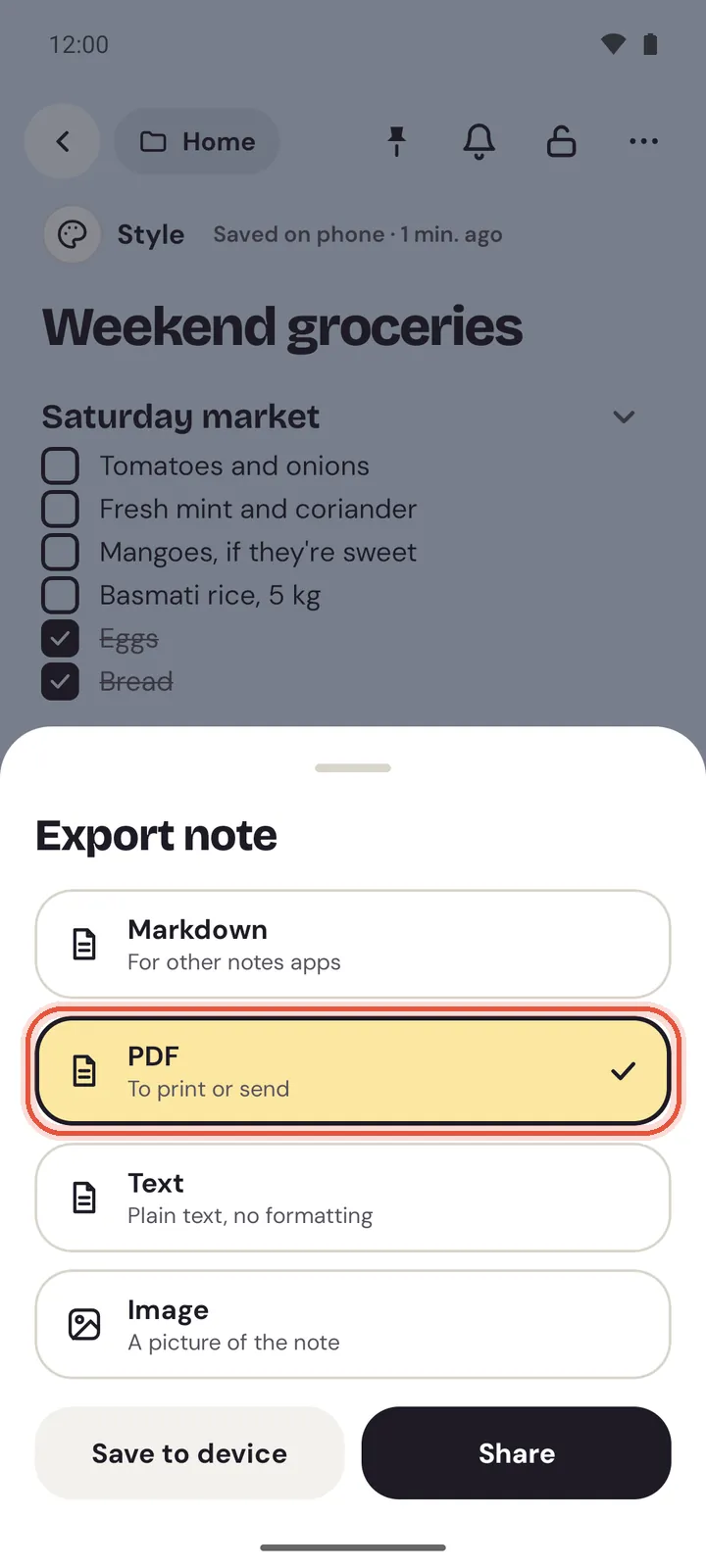
To save a note as a PDF in Memlow, open the note's ⋯ menu. On the web, choose Print or save as PDF; on Android, choose Export, then PDF. The PDF looks like the note on your screen: its colour or background, its paper lines, its theme, fonts, photos, tables and charts. The words stay real text, so you can search and copy them, and links still open.
Memlow picks A4 or US Letter paper for you, by where you are.
On the web
- Open the note.
- Choose
⋯at the top, thenPrint or save as PDF. (Export, thenPDF, does the same.) - Your browser's print window opens with the note on its pages.
- To print, pick your printer and print. To save a PDF, choose
Save as PDFas the printer and save. The file is named after the note's title.
The note's colours and backgrounds print as they are: you don't need to tick the browser's "Background graphics".

In a full-screen sheet, use File, then Print or save as PDF, or press Ctrl + P (Cmd + P on a Mac).
On Android
The Android app makes the PDF itself. It doesn't print straight to a printer.
- Open the note and tap
⋯at the top. - Tap
Export, thenPDF. - Tap
Save to deviceto keep the PDF, orShareto send it.
To print it, share the PDF to your printer's app, or open the saved PDF in a PDF viewer and use its print option.
What the PDF keeps
- The note's colour, background or theme, edge to edge, and its paper: lined and grid paper carry on down every page.
- Its fonts, text size, highlights and text colours.
- Checklists, tables, callouts, stickers and other elements, photos, and charts.
- Sheets as tables, with their colours and number formats. On the web, frozen header rows repeat at the top of each page, and hidden rows and columns are left out.
- A goal's ring, chart and history.
- Toggles open, so what's inside them prints too.
Memlow avoids cutting a block in half across two pages, and keeps a heading with what follows it. The title is on the first page only. On Android, page numbers appear when there are two pages or more.
A4 or Letter
There's no setting for paper size: Memlow chooses it. It uses US Letter in the United States, Canada, Mexico, the Philippines and some other countries in the Americas, and A4 everywhere else. It goes by your device's time zone first, then your language.
Tasks and goals
- Tasks: tap the export button at the top of Tasks (
Export as PDF) to get today's, upcoming and done tasks on paper. See The Tasks view. - A goal: open it and export or print it like any note. The PDF has its progress and chart.
A locked note
A locked note prints only while it's open, after you've entered your PIN.
Questions and answers
Does the PDF keep the note's design?
Yes. Its colour or background, paper, theme, fonts, highlights, photos, tables and charts come out as they are on screen.
A4 or Letter?
Memlow chooses: US Letter in the United States, Canada, Mexico, the Philippines and a few other countries in the Americas, A4 everywhere else.
Can I print from the Android app?
Not directly. Export the note as a PDF, then print the PDF from your printer's app or a PDF viewer.
Is the text in the PDF real text?
Yes. You can search it and copy from it, and web links in the note still open.