
Themes, paper, colours and fonts
To change a note's theme, open the note and tap Style above its title. From there you can pick one of 75 themes, 12 colours or 32 backgrounds. You can also choose a paper such as lined or notebook, a decoration, one of 30 fonts, and the text size and line spacing. Changes show on the note at once, and every look is free.
Open Style
On Android
Tap Style above the note's title, or choose Note style in the note's ⋯ menu. A panel opens at the bottom with seven tabs: Theme, Colour, Paper, Decoration, Font, Text size and Line spacing.
On the web
Choose Style above the note's title, or Style in the note's menu. On a computer, the panel opens beside the note; on a phone, above the toolbar. Its tabs are Theme, Colour, Paper, Decoration, Font and More, where text size and line spacing are.
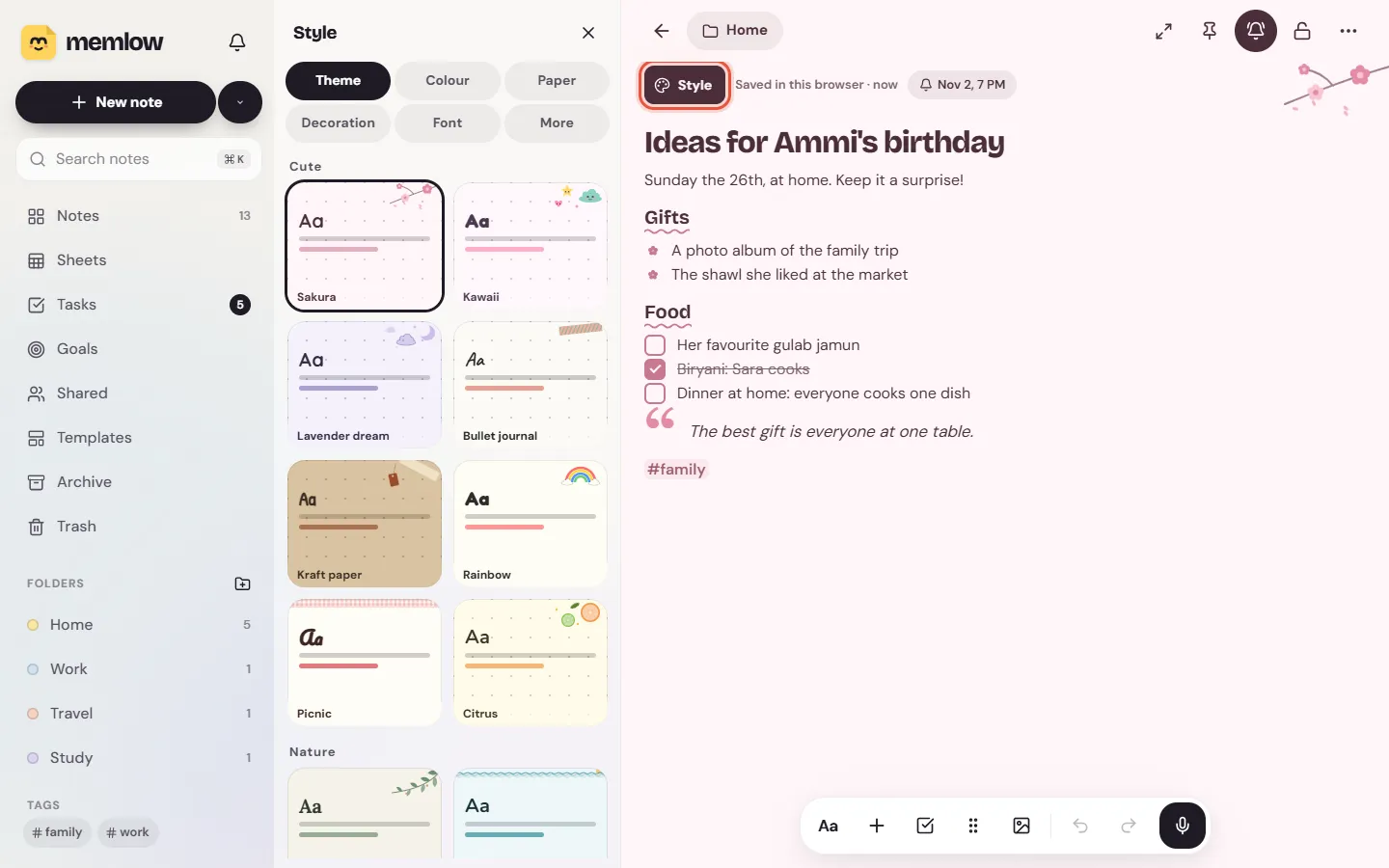
Themes
A theme changes a note's colours, paper, little drawing and fonts together. The 75 themes come in 10 groups: Minimal, Study & work, Cute, Nature, Seasons & festivals, Classic, Pakistani heritage, Global heritage, Bold & modern, and Night. Among them are Exam prep and Lab notebook, Eid, Ramadan nights and Basant, Ajrak, Phulkari and Multani blue pottery, and Moroccan zellige.
Use the chips at the top to see one group, or All. No theme goes back to a plain page. Choosing a theme sets its own paper and font, and replaces a colour or background you picked before.
Colours and backgrounds
The Colour tab has 12 note colours, from Butter and Sage to Rose and Stone. The note and its card on Home both take the colour. Under them are 32 backgrounds in four families: Solid colours, Soft gradients, Mesh glow and Subtle patterns.
A colour or a background is a look of its own, so picking one takes the theme away.
Paper
Paper draws lines or a grid on the page, like a real notebook. There are 18 papers in five families:
| Family | Papers |
|---|---|
| Basic | Plain, Lined, Notebook, Grid, Dots |
| Study | Cornell, Graph, Planner |
| Creative | Isometric, Hexagon, Music |
| Textured | Kraft, Speckle, Linen, Parchment |
| Classic pads | Legal pad, Index card, Steno |
Lined paper suits lecture notes and a journal; Grid suits a workout log or a maths sum.

Decorations
A decoration is a little picture in the top corner of the page, or a band across it. There are 15, among them washi tape, sparkles, flowers, a moon and stars, and a folded corner. With a theme on, a decoration takes the place of the theme's own picture.
Fonts, text size and line spacing
There are 30 fonts in seven groups: Handwriting, Rounded, Serif, Clean, Typewriter, Decorative and Other alphabets. Other alphabets has Vazirmatn and Noto Naskh Arabic for Arabic script, and Hind Siliguri for Bengali. The first choice is Memlow's own font.
Text size goes from small to extra large, and line spacing is Compact, Normal or Relaxed. These change one note only. The size of the whole app is a separate setting, Text size, in Settings.
For Urdu, Memlow writes in Nastaliq unless the note's font has its own Arabic letters: see Write notes in Urdu, Arabic and other RTL.
Make new notes start with a look
On Android
- Set up a note the way you like.
- In the Style panel, tap ⋯ and choose
Use for new notes. Memlow saysNew notes will start with this style.
To go back to plain notes, open Settings, then Style of new notes under Notes, and tap Start plain again. The colour alone is in Settings too, as Default note colour. The Style panel's ⋯ menu also has Reset, which makes this one note plain again.
On the web
- Set up a note the way you like.
- In the Style panel, open
Moreand chooseUse for new notes. Memlow saysNew notes will start like this one.
To go back to plain notes, open Settings, then Notes, and choose Start plain again next to Style for new notes. In the Style panel, Start plain again under More makes this one note plain again.
Dark mode
Memlow's own screens follow light or dark. A note's page depends on its look:
- A plain note, with no colour, theme or background, turns dark with the app.
- A note with a colour keeps its light page, so Butter stays butter.
- Themes and backgrounds keep their own design. Nine themes are dark by design: the seven in Night, plus Ramadan nights and Neon nights.
To switch the whole app, on Android open Settings, then Theme under Look and language, and choose Light, Dark or System. On the web, open Settings, then Appearance, and pick under Theme. On a computer, the moon button at the bottom of the sidebar switches too.
Questions and answers
How do I change a note's look?
Open the note and tap Style above the title. Pick a theme, or a colour, paper, decoration and font on their own tabs. Changes show at once.
Can new notes use my favourite look?
Yes. Set up a note, then choose Use for new notes in the Style panel: in its ⋯ menu on Android, or under More on the web.
What happens to my notes in dark mode?
Plain notes turn dark with the app. Notes with a colour keep their light page, and themes keep their own design. Nine themes are dark by design.