
Use templates and save your own
To use note templates in Memlow, open Templates, pick one and it becomes an ordinary note you can change. There are 41 note templates in 10 groups, from meeting notes and exam revision to a credit book and a packing list, plus 12 templates for sheets. Once a note is laid out the way you like, save it as your own template to start from next time.
Open Templates
On Android
- Press and hold
+in the bar along the bottom, on any tab except Tasks. - Or, in a new, empty note, tap
Use a template. - In a folder, its ⋯ menu has
New from template, and the note goes into that folder.
On the web
- On a computer, choose
Templatesin the sidebar, orFrom a templatein the menu besideNew note. - On a phone, open
Sheetsand chooseTemplate gallery: it has the note templates as well as the sheet ones. - Or press Ctrl + K and type "templates".
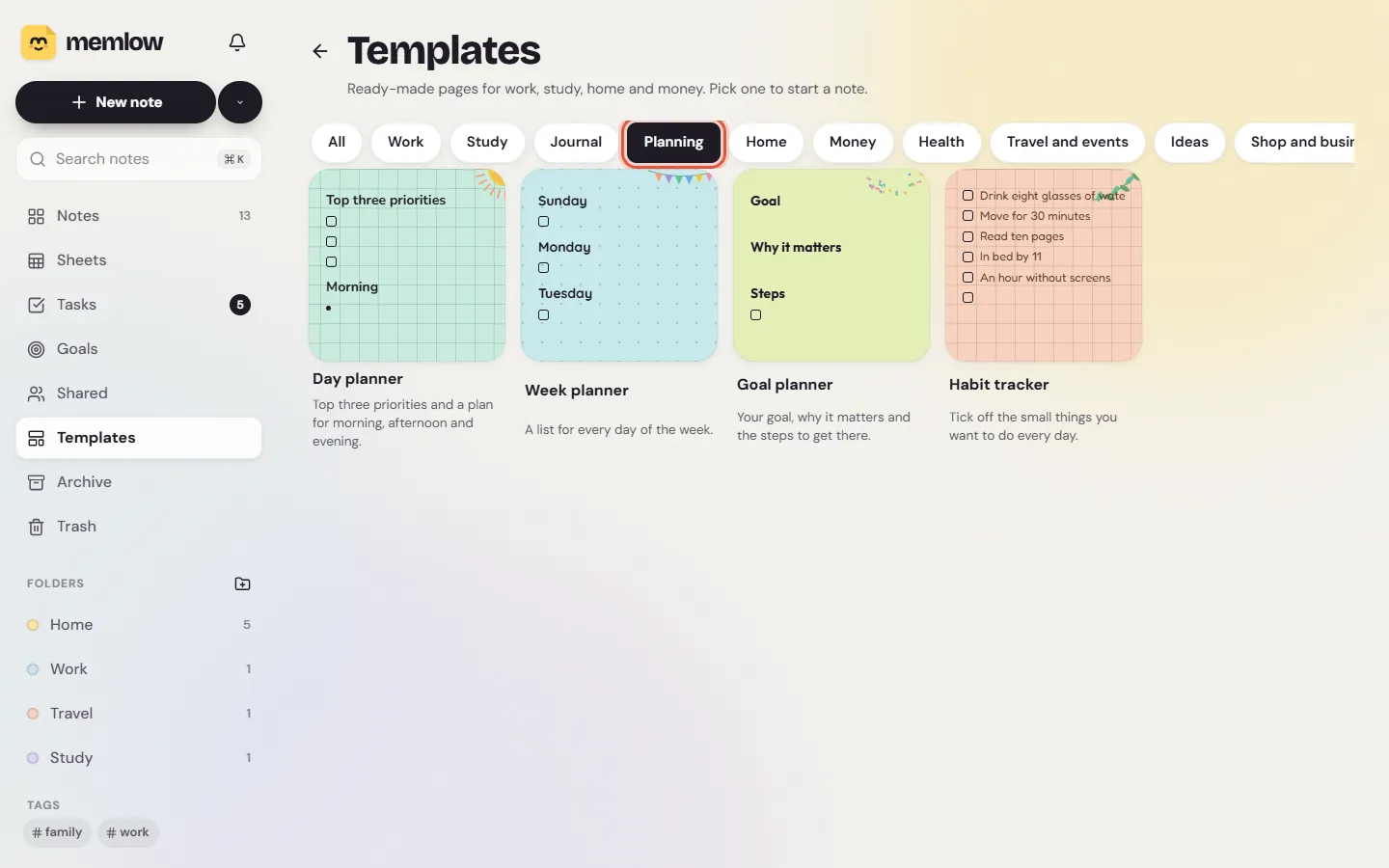
Start a note from a template
The chips at the top filter by group: All, then Work, Study, Journal, Planning, Home, Money, Health, Travel and events, Ideas, Shop and business, and Sheets.
On Android
Tap a template to see it, then tap Use template.
On the web
Choose a template. The new note opens straight away.
A template's headings and week days come out in Memlow's language. The week planner starts on your own first day of the week, and some templates, such as the day planner, are titled with today's date. After that it's your note: rename the headings, delete what you don't need, add your own lines. The note templates pages show what's in each one.
Save a note as your own template
- Open the note.
- Open its menu (⋯ on Android,
Moreon the web) and chooseSave as template. - Type a
Template nameand chooseSave. Memlow saysTemplate saved.
What a template keeps: the title, the text, the colour and the style, with every box unticked, so each new note starts fresh. Photos, voice recordings and reminders are left out.
- On the web, turn on
Today's date as the titleto title each new note with its day. It suits a daily journal or a habit tracker. - On Android, a note titled with the date it was made gets today's date each time, by itself.
Save as template isn't offered for a locked note, and on Android not for an empty one either.
Use, rename or delete your own templates
On Android
Your templates are under My templates. Tap one to see it, then choose Use template, Rename or Delete. Deleting asks Delete this template?, and the notes you made from it stay as they are.
On the web
Your templates are at the top of Templates, under Your templates. Choose one to start a note. The ⋯ button on its card has Rename and Delete. Deleting asks Delete this template?, and the notes you made from it stay as they are. With Google Drive linked, a new name reaches your other devices too.
The built-in templates can't be renamed or deleted. Your own templates are kept on the device where you saved them, and they go into your backups.
A look to match
A template comes with its own colour and style, and you can change both in Style. To make every new note start with a look you like, see Themes, paper, colours and fonts.
Questions and answers
How do I start a note from a template?
Open Templates (press and hold + on Android, or choose Templates in the sidebar on the web) and pick one. It opens as a new note you can change.
Can I save my own templates?
Yes. Open the note's menu and choose Save as template. It keeps the text, colour and style, unticks the boxes and leaves out photos, recordings and reminders.
How many templates are there?
41 note templates in 10 groups, and 12 sheet templates.