
Search your notes in any language
To search notes in Memlow, open Search and type a word or two. Memlow looks through every word of every note, in any language, and it doesn't trip over accents, Arabic letter forms or Urdu digits. Filters narrow it down to checklists, photos, voice notes, a folder or a colour, and you can use them without typing anything.
Open Search
On Android
Tap the magnifier at the top of Home (Search notes). You can also press and hold Memlow's icon on your home screen and choose Search.
On the web
On a computer, choose Search notes at the top of the sidebar, or press /. On a phone, tap the magnifier at the top of the screen.
Type in Search notes. Results show as you type.
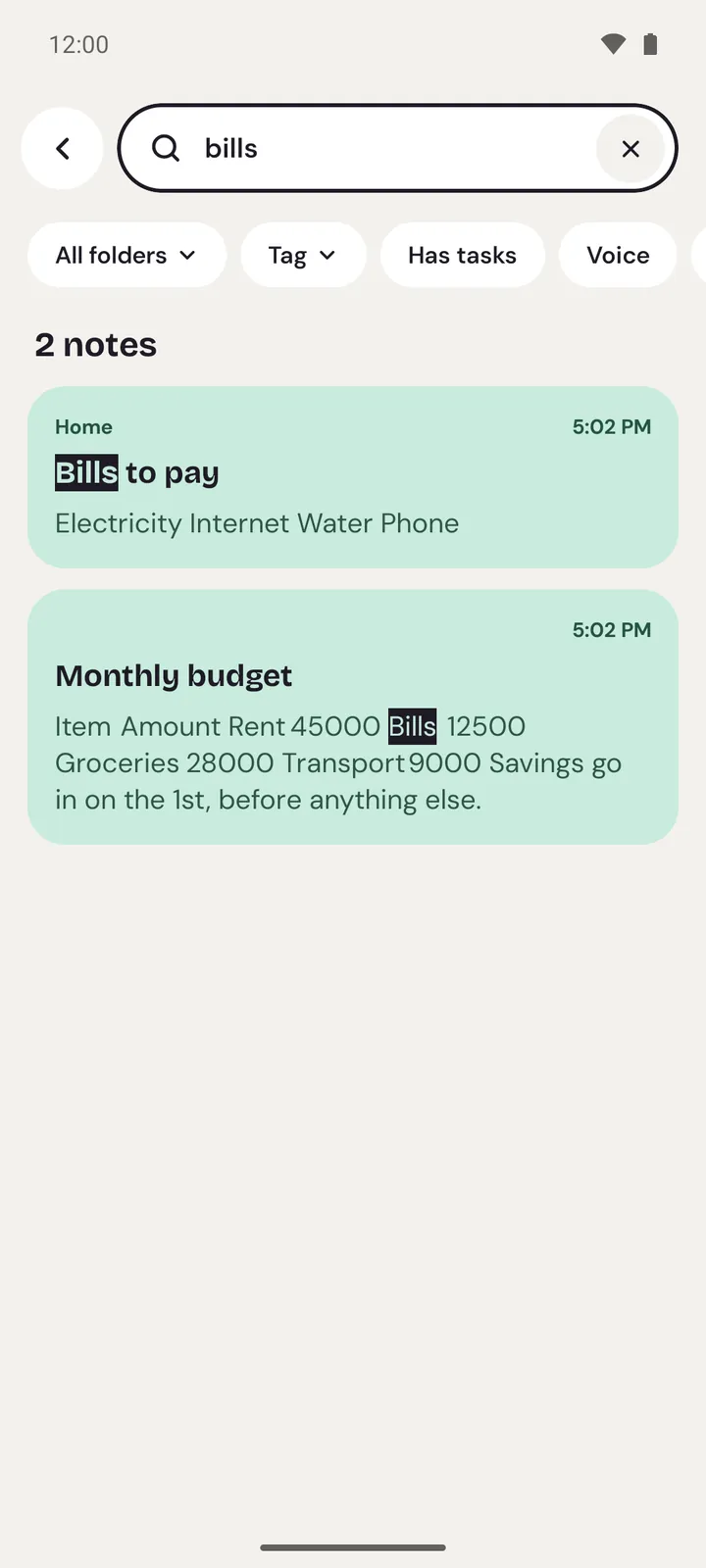
What Search looks at
Search looks through:
- titles and text, including every checklist item;
- table cells and sheet cells;
- photo captions, and the words in countdowns, ratings and dropdowns;
- your #tags, and on Android the folder's name;
- text you typed by voice, which is saved as ordinary text.
It doesn't hear recordings or read photos. It doesn't look in Trash, either: open Trash to see what's there.
When you type more than one word, a note has to have all of them, in any order. On Android, each word matches the start of a word in the note, so "elec" finds "electricity". On the web, a word matches anywhere inside a word.
Narrow it down
On Android
The chips under the search box are All folders, Tag, Has tasks, Voice, Colour, Photos, Checklists and Archived. Tag and Browse tags find notes by tag, and Has tasks shows notes with items still to do. Archived notes are in the results to begin with, marked Archived. The Archived chip shows only those.
Checklist items that match show as tasks in the results, such as Task in Bills to pay, and you can tick them right there. Your last 10 searches wait under Recent searches, with Clear to remove them.
On the web
The chips are Checklists, Reminders, Photos and Voice, then one chip for each folder, and a row of colours. Archived notes are left out until you turn on Include archive. Type # and a tag, such as #exams, to find notes with that tag.
Urdu, Arabic and other scripts
Search matches the way people type, on any keyboard:
- Zer, zabar, pesh and other Arabic marks are ignored, so a word is found with or without them.
- The different forms of ی, ک and ہ that Urdu and Arabic keyboards type count as the same letter, and so do أ, إ and آ with ا.
- Digits match whatever script they're in: ۲۰ finds 20, and 20 finds ۲۰.
- Accents are ignored in Latin, Greek and Cyrillic letters, so "cafe" finds "café".
- Upper and lower case don't matter.
So a customer's name typed on one keyboard still turns up when you search with another. Hindi, Bengali and Thai vowel signs are kept, because they change the word. More on writing in Urdu in Write notes in Urdu, Arabic and other RTL.
Locked notes
Search finds a locked note by its title only. The words inside it never match, and its card shows no text, so a glance at your search results doesn't give anything away. On Android, the same goes for notes in a locked folder. To search inside a note's text, remove its lock. See Lock notes and folders with a PIN.
Nothing found?
- Try one word, or another spelling.
- Turn off every filter and colour you picked.
- Check
ArchiveandTrash.
Can't find a note? Where to look goes through every place a note can be.
Questions and answers
What does Memlow's search look at?
Every word of every note: titles, text, checklist items, tables, sheets, photo captions and tags. It doesn't look in Trash, and it can't hear recordings.
Does search work in Urdu and Arabic?
Yes. It ignores zer, zabar, pesh and other marks, treats the different keyboard forms of letters such as ی and ک as one, and matches Urdu digits with English ones.
Why can't I find a locked note?
Search finds a locked note by its title only. Search for its title, or look for its locked card on Home.