
Write notes in Urdu, Arabic and other RTL
Memlow works as an Urdu typing notepad with nothing to set up: add an Urdu keyboard, open a note and type. Urdu shows in Nastaliq, the flowing script of Urdu books and newspapers, and reads right to left. Urdu and English can share a note, and search and reminders understand Urdu too, in both apps.
Add an Urdu or Arabic keyboard
Memlow takes whatever your keyboard types, phonetic or standard.
- On an Android phone, open your keyboard's settings and add Urdu (or Arabic) as a language. Gboard and most other keyboards offer it. Then switch with the globe or space-bar key.
- On a computer, add Urdu as an input language in the computer's language settings, and switch to it with the keyboard shortcut your computer shows.
Start writing in Nastaliq
Open a note and type in Urdu. Memlow shows Urdu in Nastaliq and gives the lines extra height, so the letters don't crowd each other. It knows a line is Urdu from letters only Urdu uses, such as ٹ, ڈ and ے, so a note that mixes Urdu with other languages works too. With Memlow itself set to Urdu, any Arabic-script text is shown as Urdu. Titles and note cards on Home use Nastaliq as well.
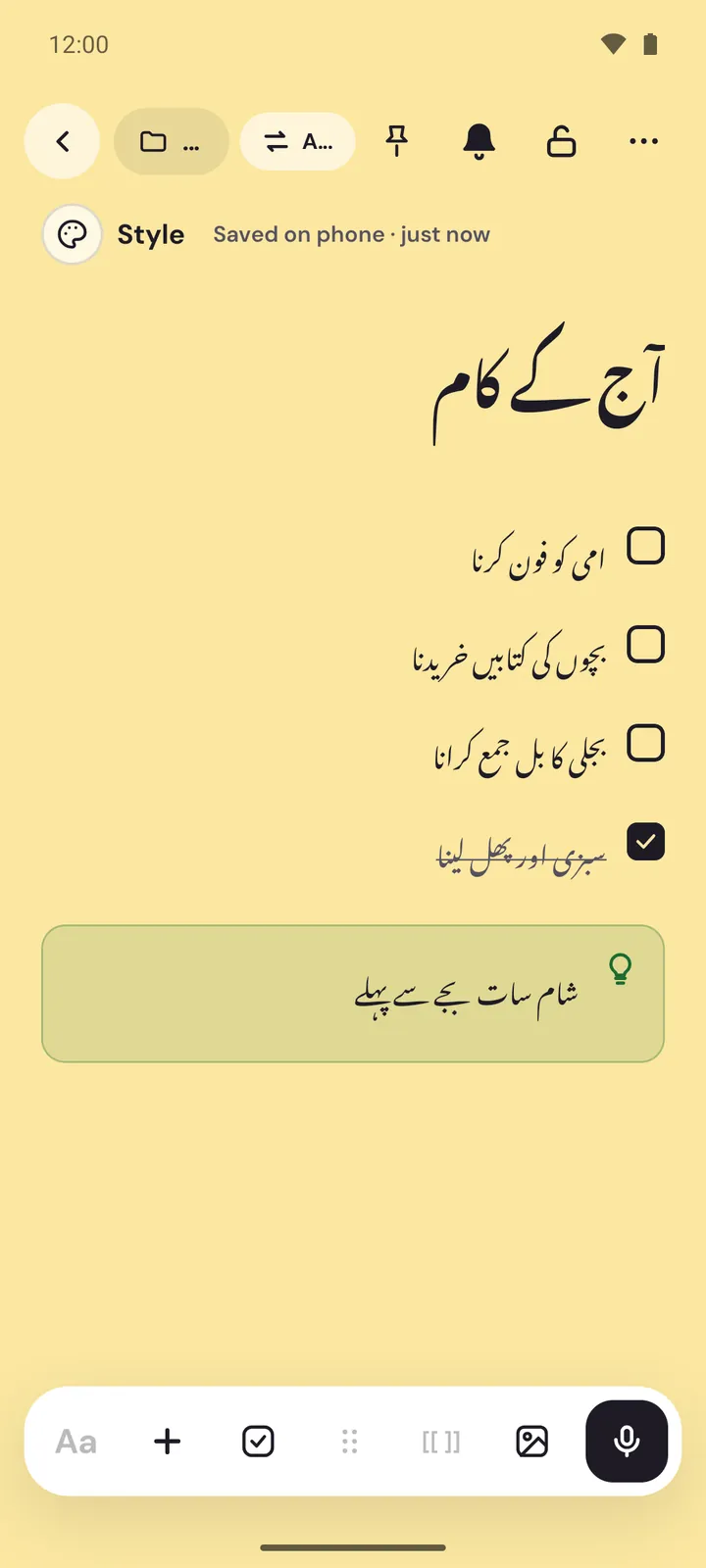
On Android
Prefer Naskh? Open Settings, then Urdu text style under Look and language, and choose Naskh. The row shows once Memlow or your phone is in Urdu, or a note has Urdu or Arabic text.
On the web
There's no Nastaliq or Naskh setting on the web. For a Naskh look in one note, open Style, then Font, and pick Noto Naskh Arabic under Other alphabets.
Use the whole app in Urdu
You can write Urdu notes whatever language Memlow is in. To have the menus and buttons in Urdu too, choose اردو: in Settings, then App language, on Android, or Settings, then Appearance, then Language, on the web. The whole app turns right to left. Memlow's language is set on its own, so the app can be in Urdu while your phone or computer stays in English. See Change Memlow's language.
Mix Urdu and English in one note
Real notes are often mixed: a shopping list in Urdu, a meeting in English, a recipe in both. Each paragraph takes its direction from its first letter, so Urdu lines read right to left and English lines left to right, side by side in one note. That holds whatever language the app is in.
To set a line's direction yourself:
On Android
Use the ا/A button (Text direction). It goes from automatic to right to left to left to right. With the app in Urdu or Arabic, it's the first button in the toolbar; otherwise it's in Aa. A chip at the top of the note sets the direction for the whole note: Auto direction, Right to left or Left to right.
On the web
Put the cursor in the line, open Aa and choose Auto, ا← (right to left) or A→ (left to right).
Search in Urdu
Search looks through every word of every note, and it handles the small differences that trip up most searches:
- Zer, zabar and pesh: a word is found with or without them.
- Letter forms: the different forms of ی, ک and ہ that Urdu and Arabic keyboards type count as one.
- Digits: Urdu digits match English ones, so ۲۰ finds 20.
So a word typed on one keyboard still turns up when you search from another, and a customer's name brings up every note that mentions them. See Search your notes in any language.
Reminders that read Urdu
Write کل شام 6 بجے امی کو فون کرنا ہے (call Ammi at 6 tomorrow evening) and Memlow offers to set the reminder. One tap sets it. Ignore it and nothing happens: Memlow never sets a reminder on its own.
It understands words such as آج, کل and پرسوں, the days of the week and the months, صبح, دوپہر, شام and رات, بجے, ساڑھے, سوا and پونے, and phrases like "2 گھنٹے بعد". کل counts only with a time or a part of the day, so "کل رقم ادا کر دی" isn't mistaken for a reminder. Roman Urdu works too, such as "kal subha 9 baje", when Memlow or your phone or browser is set to Urdu or Hindi.
This is a fixed set of rules that runs on your device. There's no AI in Memlow, and your words stay in the note. If you'd rather not be asked, turn off Suggest reminders in Settings, then Notes. See Set, repeat and snooze reminders.
Speak in Urdu
- On Android, open the voice screen, choose
Voice typingand set the language button to اردو. It uses your phone's own speech service. - On the web, Speak to type listens in Memlow's language, so switch Memlow to Urdu first.
More in Voice notes and voice typing.
Templates and themes that suit Urdu notes
Every template becomes a normal note, so you can rename the headings and write the rest in Urdu. With Memlow in Urdu, a template's headings and week days are in Urdu too. A few that suit notes kept the way you'd keep them on paper:
- Credit book: a list of money owed to you, money you owe and a Settled checklist, like a paper khata. It holds people's names and amounts, so lock it with a PIN: a locked note shows only its title until the PIN is entered.
- Daily sales: a dated note for each day, with the day's sales, expenses and the cash in hand.
- Week planner: a heading and a checklist for each day.
For a look to match, the Pakistani heritage themes include Ajrak, Phulkari, Truck art and Multani blue pottery.
Arabic, Persian and Hebrew
Everything here works for Arabic too: right-to-left notes, the whole app in Arabic, search that ignores harakat and letter forms, and reminders that read Arabic dates and times. The fonts include Vazirmatn and Noto Naskh Arabic for Arabic script. In the Android app, Persian and Hebrew are right to left as well.
Questions and answers
How do I add an Urdu keyboard?
On Android, add Urdu as a language in your keyboard's settings; Gboard and most keyboards have it. On a computer, add Urdu as an input language in its language settings. Then open a note and type.
How do I mix Urdu and English in one note?
Just type. Each paragraph takes its direction from its first letter, so Urdu lines read right to left and English lines left to right. You can also set a line's direction in Aa.
Can reminders and search work in Urdu?
Yes. Write کل شام 6 بجے and Memlow offers to set a reminder. Search ignores zer, zabar and pesh, keyboard letter forms and Urdu digits.