
Dividers, stickers, countdowns and more
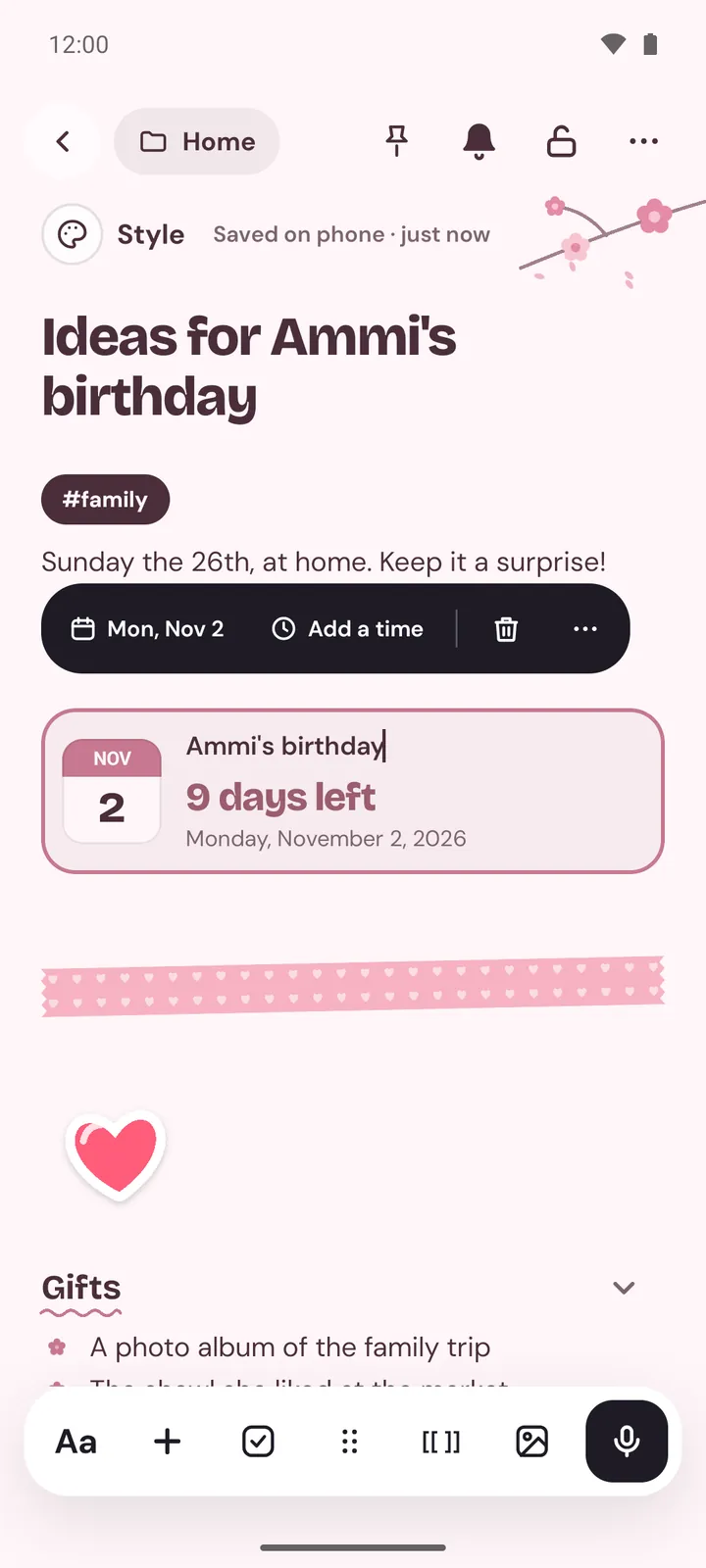
Note stickers and dividers, washi tape, countdowns, dates, moods and ratings are small elements you can drop into any note. They're all in the + menu, under Elements and Tables and media, and in the / menu. Tap one in a note to show its own bar, with what you can change and Delete.
Where to find them
- Put the cursor where the element should go.
- Tap
+in the toolbar. Dividers are underTables and media; stickers, tape, countdowns, dates, moods and ratings are underElements. - Or type / and the element's name, such as
/stickeror/countdown.
To change an element later, tap it while you're writing. Its bar shows above or below it. Every bar ends with Delete, and on Android with ⋯ (Block actions) too.
Dividers
A divider is a line across the note. There are nine looks: Line, Thick, Dotted, Double, Ornament, Wavy, Stars, Floral and Dashed.
- Add one from
+, or type---on an empty line. - To change its look, tap it and pick another.
Delete dividerremoves it.
On Android, the + menu shows each of the nine as its own tile, and Aa has Divider too.
Stickers
- Choose
Sticker. The picker,Choose a sticker, opens straight away. - Pick one of 24 drawn stickers, such as a star, a coffee cup or a trophy. Or, under
Or any emoji, type or paste an emoji and chooseUse.
Tap the sticker later to Change it, make it Small, Medium or Large, or move it to the start, centre or end of the line. If you close the picker without choosing, the new sticker goes away.
Washi tape
Washi tape is a strip of patterned tape across the page, like the tape in a paper journal. Tap it to pick a pattern (Stripes, Dots, Grid, Checks, Hearts, Stars, Zigzag or Plain) and one of eight colours.
Callout cards
Callouts are coloured boxes for tips, warnings and things not to forget. Under Boxes and cards in + you'll also find three cards: Sticky note, Quote card and Key idea. To change one, see the callouts part of Write and format notes.
Countdown
A countdown shows how long until a date: "12 days left", then "Tomorrow" and "Today". After the day, it counts up instead, as in "3 days ago".
- Choose
Countdown. It starts a week from today, with the cursor in its title. - Type what's coming, in
What's coming up?, such as "Physics exam" or "Eid". - Tap the countdown to change the date, or
Add a timefor a time on that day.No timetakes the time away.
Date
Date puts today's date in the note, beside a small calendar. Tap it to pick another day, and to show it as the full date or as a relative day, such as "In 3 days". It suits a journal or a log. To type the date as plain text instead, use Today's date under Quick add.
Mood
Mood asks How are you feeling? with five faces, from Awful to Great. Tap one to choose it, and tap it again to clear it. Tap the mood to change its date. It's handy at the top of a daily journal.
Rating
Rating is a row of five marks with a label, Add a label, such as "Film" or "Biryani at Ammi's". Tap a mark to rate. Tap the rating to choose Stars, Hearts or Faces, or Clear rating.
Search finds the words in elements too, such as a countdown's title or a rating's label. For the look of the whole page, see Themes, paper, colours and fonts.
Questions and answers
What elements can I add to a note?
Dividers in nine looks, stickers or any emoji, washi tape, callout cards, a countdown, a date, a mood and a rating. A dropdown and a toggle are there too.
How does a countdown work?
Add one from + under Elements, give it a title and a date. It shows the days left, then Tomorrow and Today, and counts the days since afterwards.
How do I change or remove an element?
Tap it while you're writing. Its bar shows what you can change, and Delete removes it.