
Add photos to your notes
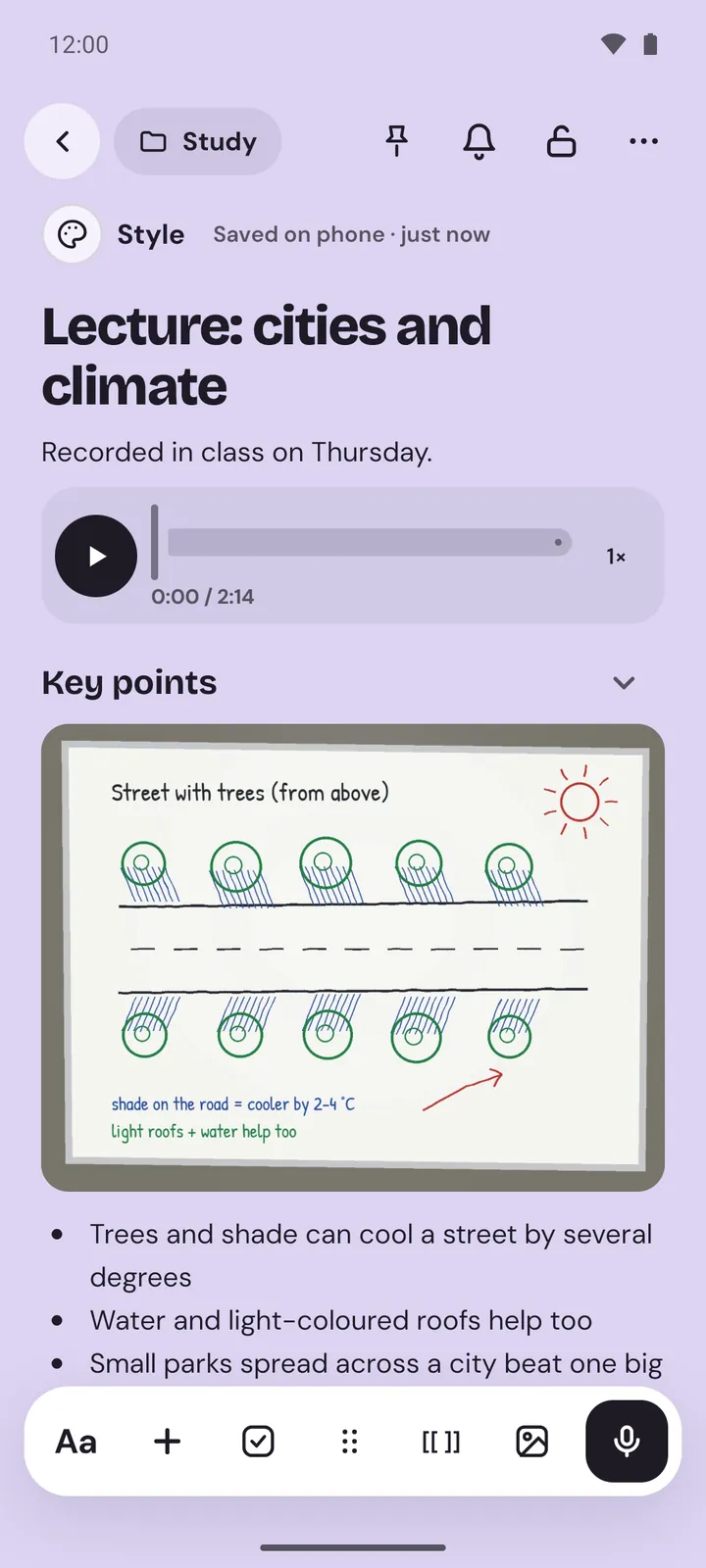
To add photos to notes, tap the photo button in a note's toolbar. On Android, take one with the camera or pick from your gallery. On the web, pick files, drop them in or paste them. Photos sit in the note between your words: a whiteboard beside your lecture notes, or a receipt under a bill. They stay on your device with the note and go into your backups.
Add a photo
On Android
- In the note, tap the photo button in the toolbar (
Add a photo). - Choose
Take phototo use your phone's camera, orChoose from galleryto pick up to 10 at a time. - The photos go into the note where the cursor was.
To start a note with a photo, use New photo note on the Quick note widget. A note can hold up to 50 photos.
Memlow doesn't need the camera or storage permission for this. Take photo hands over to your camera app, and the gallery uses Android's photo picker, which shares only the photos you choose.
On the web
- In the note, choose the photo button in the toolbar, or
Photoin the+menu. - Pick one or more pictures, up to 10 at a time.
You can also drag photos from your computer straight into the note, or paste a copied picture with Ctrl + V. To start a new note from photos, drop them anywhere on Memlow outside a note, or use the photo button in the Write something… box on Home.
Captions
On the web, type a caption in Add a caption under the photo, such as "Board, week 3". Search finds the words in captions, in both apps. On Android you can't add or change a caption yet.
Look at a photo, or remove it
On Android
Tap a photo to see it full screen. Swipe to the note's other photos, and pinch or double-tap to zoom. The viewer has Share and Delete. Delete asks Delete this photo? first, and removes it from the note.
On the web
Photos show inside the note, with no full-screen view. To take one out, choose Remove photo beside its caption. Ctrl + Z brings it back.
Where photos are kept
Photos are kept with the note on your device: inside the app on Android, and in the browser's own storage on the web. They're never sent to Memlow's servers.
- On Android, each photo is saved as a JPEG of at most 2560 pixels on its longest side, and its location and camera details are removed.
- On the web, very large photos are made smaller, to the same 2560 pixels, and pictures in formats some devices can't show are converted.
Photos take up most of the space notes use. If your phone or browser runs short, see Storage is full: free up space.
Photos in backups
Google Drive backups and backup files include your photos, so they come back with the notes when you restore on a new phone or computer. Drive backups are encrypted on your device with your backup password before they upload, and a backup file is too when you give it a password. Without a backup, photos go when the notes go. See Back up your notes to Google Drive.
When you save a note as your own template, its photos are left out. On the web, exporting a note as Markdown puts its photos in a ZIP beside the text. See Export notes as Markdown, text or PDF.
Questions and answers
How do I add a photo to a note?
Tap the photo button in the note's toolbar. On Android, choose Take photo or Choose from gallery. On the web, pick files, drop them into the note or paste them.
Where are photos in notes kept?
On your device, with the note: inside the app on Android, or in the browser's storage on the web. Memlow's servers never receive them.
Do photos go into backups?
Yes. Google Drive backups and backup files include every photo, so they come back when you restore.