
Find and replace in a note
Find and replace in notes works inside the note you have open: open the note's menu and choose Find in note on Android or Find and replace on the web. Type a word, step through each match, and replace one or all of them. On Android, a note with headings also has an outline to jump around in, and a reading mode without the toolbar.
To look through all your notes at once, use Search instead: Search your notes in any language.
Find a word in a note
On Android
- In the note, tap ⋯ (
More options) and chooseFind in note. - Type in
Find. Memlow highlights every match and shows how many, such as "2 of 7". - Use
Previous matchandNext matchto move between them. Enter on the keyboard goes to the next one.
Find looks in the title, the text and table cells. It doesn't look inside dropdowns, elements such as countdowns, or sheets. The toolbar hides while Find is open, and Back closes it.
On the web
- Open the note's menu (
More) and chooseFind and replace. Or press Ctrl + F (⌘ + F on a Mac). - Type in
Find in note. Memlow highlights every match and shows how many, such as "2 of 7". - Use
PreviousandNext, or press Enter for the next match and Shift + Enter for the one before. Esc closes it.
Find looks in the note's text. It doesn't look in the title or in table cells.
In both apps, a match inside a closed toggle opens the toggle so you can see it. Turn on Match case to find "Ali" without "ali".
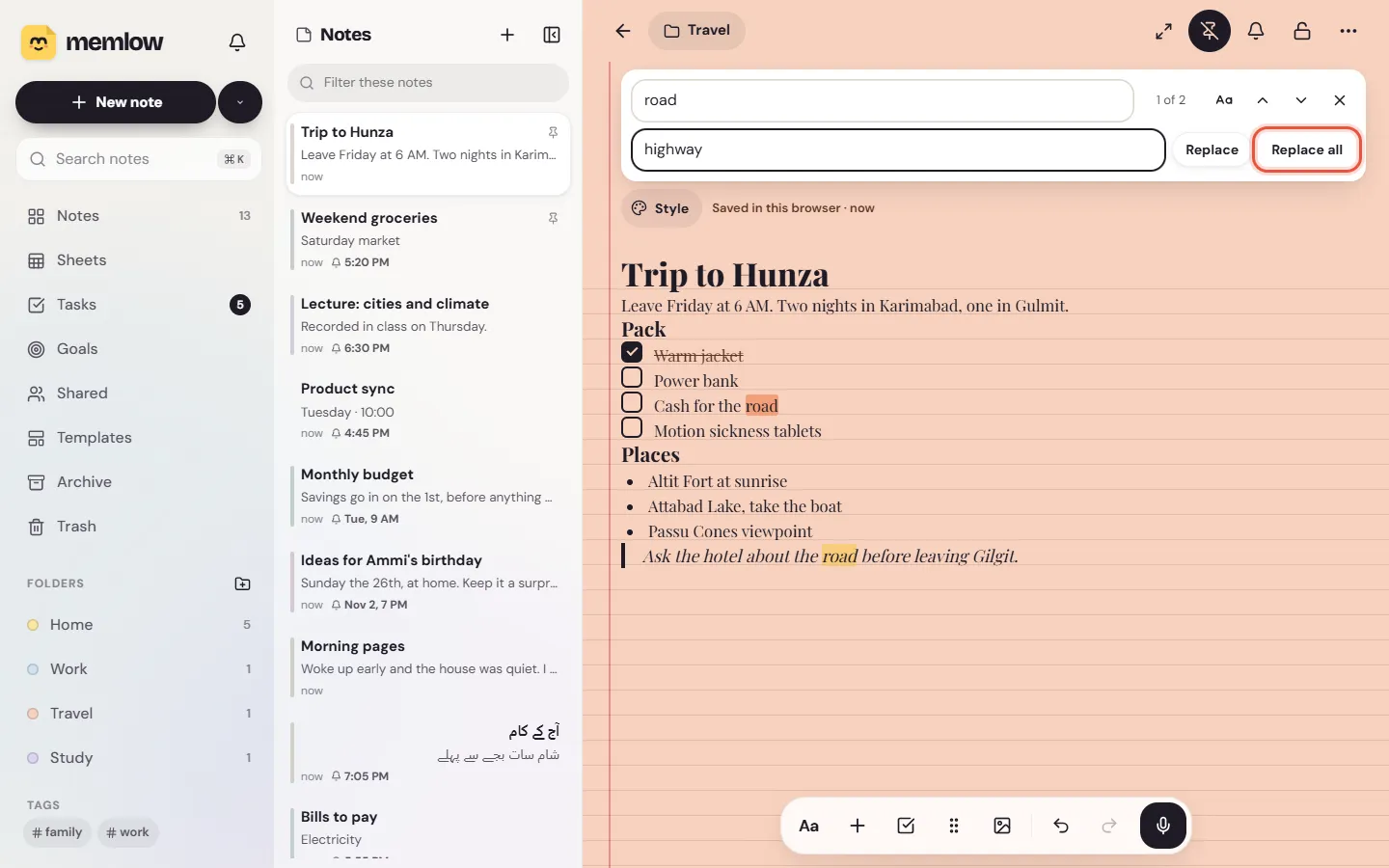
Replace it once or everywhere
On Android
- With Find open, tap ⇄ (
Replace). TheReplace withfield shows. - Type the new words.
- Tap
Replacefor the match you're on, orReplace all. Memlow says how many it replaced, withUndo.
On the web
The second row of the bar is Replace with. Type the new words, then choose Replace for the match you're on, or Replace all. Ctrl + Z undoes it.
Leave Replace with empty to delete every match.
Jump through a long note with its outline (Android)
- Tap ⋯ and choose
Outline. It's there when the note has at least one heading. - Tap a heading to jump to it.
Collapse all folds every section under its heading, and Expand all opens them again. The web app has no outline. On both apps, each heading has its own Collapse section button, which folds what's under it until the next heading.
Read without the toolbar
On Android
Tap ⋯ and choose Reading mode. The keyboard and toolbar go away, so a long note or a recipe is easy to read while you cook. You can still tick checklist items, open links and look at photos. To write again, tap Edit at the top, or press Back.
On the web
There's no reading mode on the web. On a computer, Focus mode (the button with two arrows at the top of the note) hides the sidebar and the notes list, so the note has the whole window. Press Esc or choose Leave focus mode to bring them back.
Questions and answers
How do I find a word in a long note?
Open the note's menu and choose Find in note (Android) or Find and replace (web), or press Ctrl + F on the web. Type the word and step through the matches.
How do I replace a word everywhere in a note?
Open Find, type the word, then type the new one in Replace with and choose Replace all. On Android, tap the Replace button first to show that field.
Is there an outline or reading mode?
On Android, yes: both are in the note's ⋯ menu. The web has Focus mode instead, which hides everything but the note.