
Write and format notes
In Memlow you just type: every change is saved as you go. To format notes in Memlow, use the Aa button for headings, bold, highlight and colours, the + button for everything else, or type / at the start of a line. Markdown shortcuts such as # for a heading work as you type, too.
Writing and saving
A note has a title and the text under it. Memlow saves after every pause, at the end of each sentence and when you leave, so there's nothing to press. The line above the title says Saved on phone on Android and Saved in this browser on the web.
- An empty new note isn't kept.
- On Android, an older note you empty completely goes to Trash when you leave it, with
Undo. - On the web, a note left with no title and no text is deleted when you close it. If you cleared one by mistake, use Undo before you leave.
Undo and Redo work across the whole note. On Android they're at the top of the screen while the keyboard is open. On the web they're in the toolbar, and Ctrl + Z and Ctrl + Shift + Z work too.
The toolbar
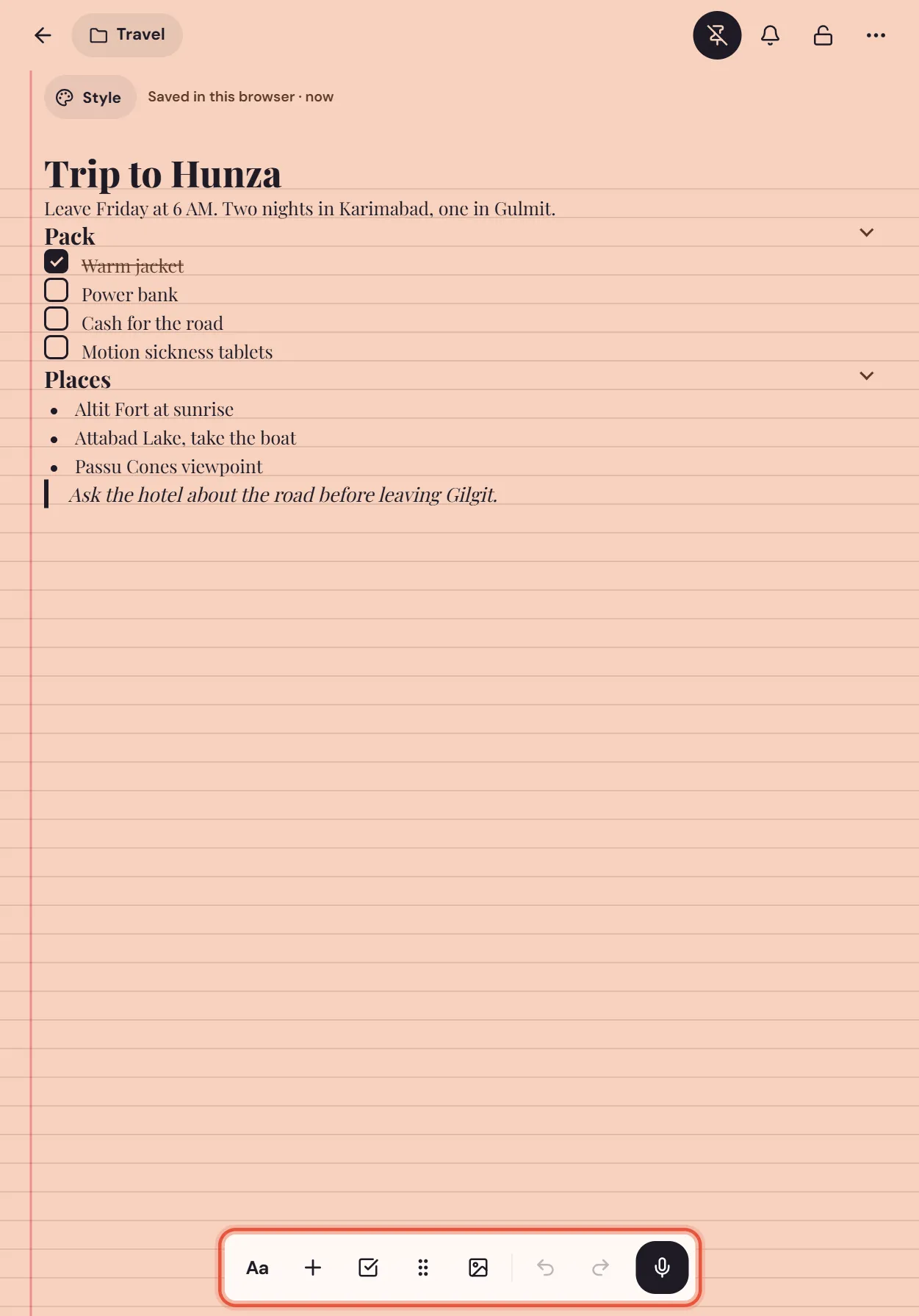
The toolbar holds the tools you use most. On Android it sits above the keyboard; on the web, at the bottom of the note.
| Button | What it does |
|---|---|
Aa (Text style) | Headings, quote, callout, bold, italic, colours, alignment |
+ (Insert) | Every block: lists, tables, sheets, photos, stickers, toggles, dropdowns |
| Checklist | Turns the line into a checklist item, or back |
⋮⋮ (Block actions) | Move the line up or down, copy its text or delete it |
| Photo | Adds a photo |
Microphone (Voice) | Records a voice note or types what you say |
On Android there's also a [[ ]] button that links to another note. On the web, Undo and Redo sit in the toolbar.
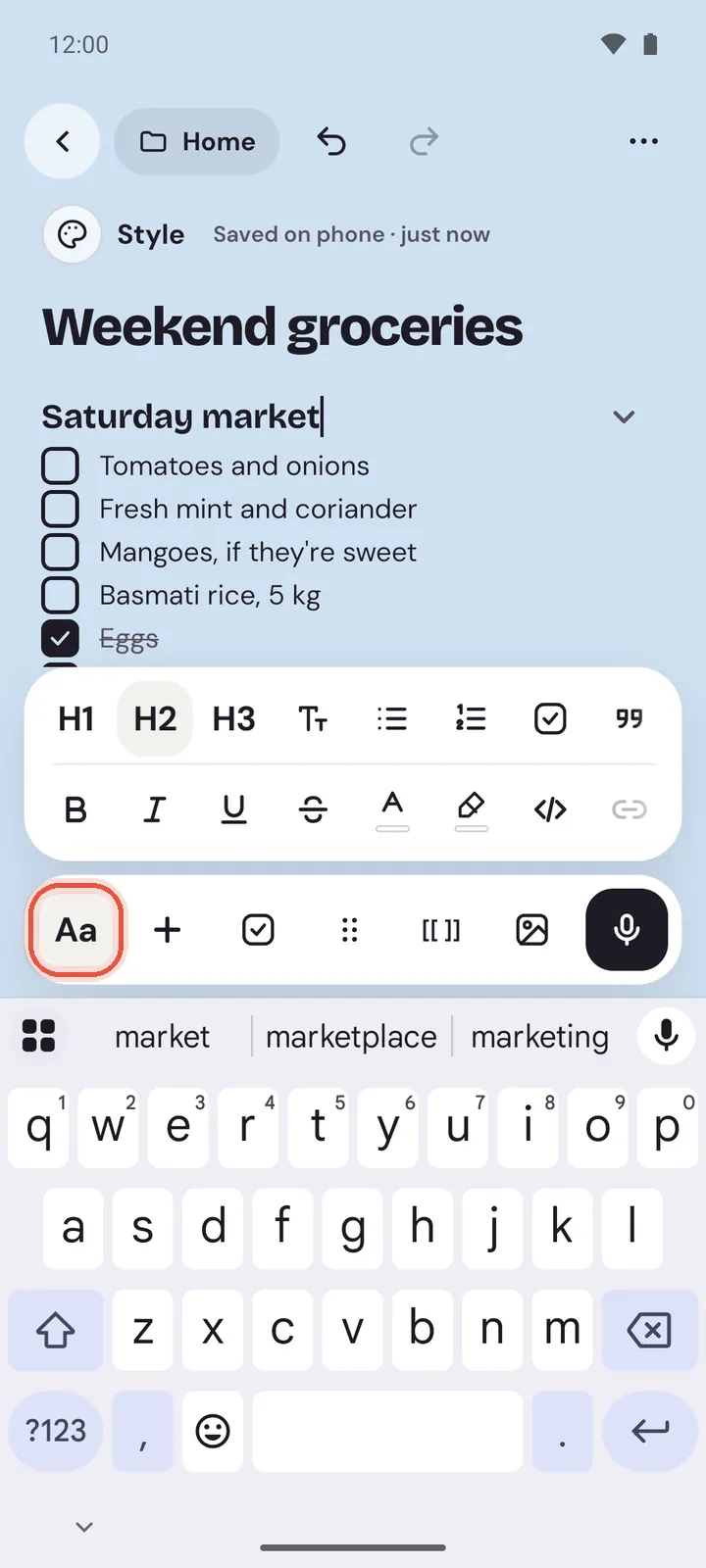
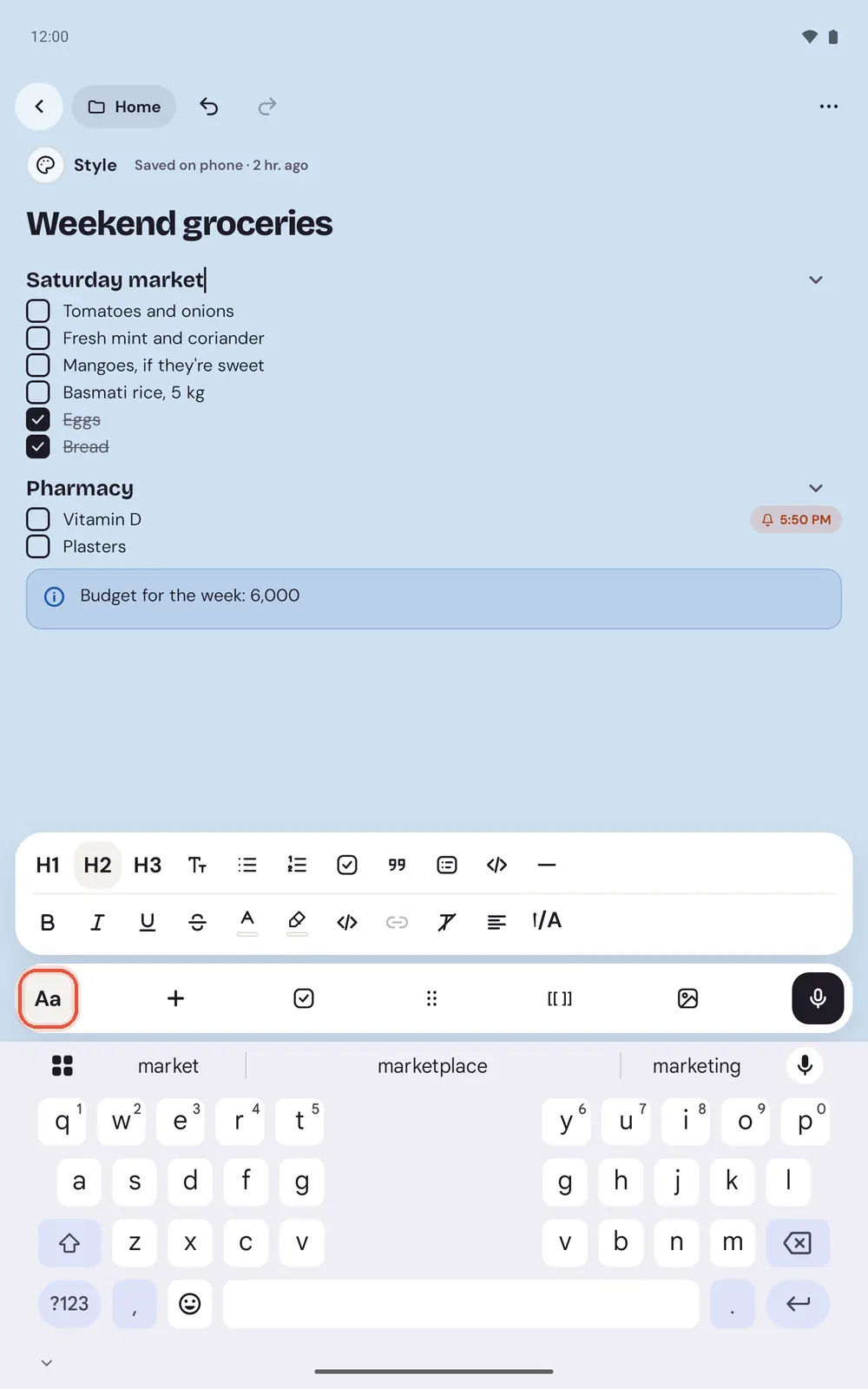
On an Android tablet the Aa panel has room for more tools in each row.
Headings, quotes, callouts and code
Put the cursor in a line, tap Aa, then choose what the line should be.
On Android
The first row of Aa has Heading 1, Heading 2, Heading 3, Normal text, Bulleted list, Numbered list, Checklist, Quote, Callout, Code block and Divider. Choose the same one again to turn the line back into normal text.
On the web
The first row of Aa has Text, three heading sizes, Quote and Info box. Lists, code and dividers are in the + menu, or come from the shortcuts below.
A heading has a small button beside it that folds everything under it, up to the next heading: Collapse section. Choose it again (Expand section) to open it.
In a quote, Aa offers three looks: Bar, Quotation mark and Pull quote. In a callout, it offers six tones: Info, Tip, Success, Warning, Danger and Note. A callout also comes in four shapes, Box, Sticky note, Quote card and Key idea: on the web they're in Aa too, and on Android you tap the callout's icon to open Callout type.
Bold, italic, highlight and colour
Select the words first.
On Android
Tap Aa. The second row has Bold, Italic, Underline, Strikethrough, Text colour, Highlight, Inline code, Link and Clear formatting. Text colour and Highlight open nine colours, and No colour takes one away.
On the web
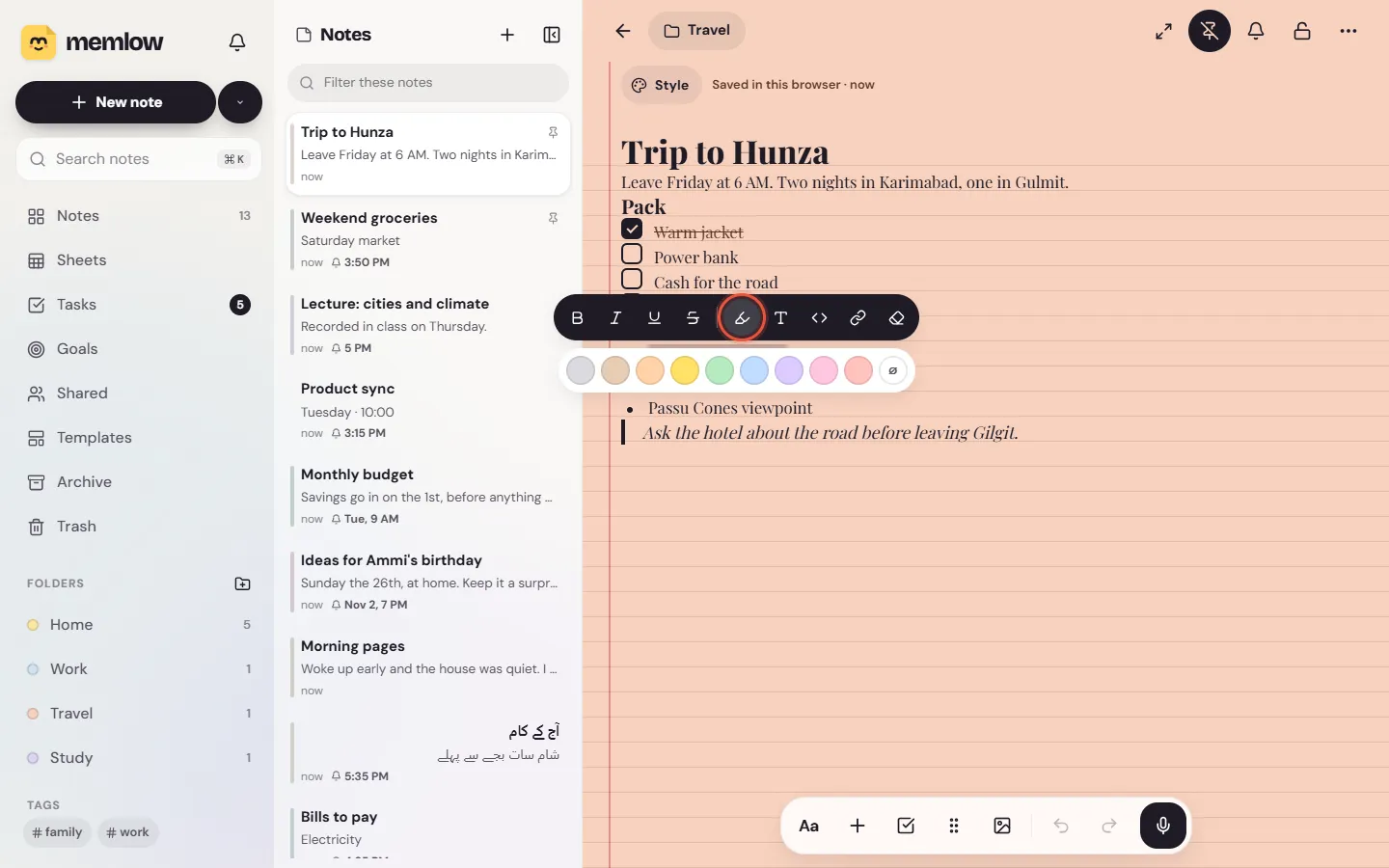
A small bar appears above the selected words, with Bold, Italic, Underline, Strikethrough, Highlight, Text colour, Code, Link and Clear formatting. The Aa panel has the same marks, with the nine highlight and text colours laid out.
Clear formatting takes bold, italic, colours and the rest off the selected words. On Android, links stay. Alignment (start, centre, end) and the text's direction are in Aa too. See Write notes in Urdu, Arabic and other RTL for direction.
The / menu and the + menu
Type / at the start of a line, or after a space, and Memlow suggests blocks as you type: /table, /heading, /toggle, /dropdown. Pick one to put it in the note. The /word you typed goes away.
The + button opens the whole list, in groups:
- Write: text, headings, quote, code
- Lists: checklist, bulleted list, numbered list, toggle
- Boxes and cards: coloured boxes, sticky note, quote card, key idea
- Tables and media: table, sheet, chart, photo, voice note, dividers
- Elements: sticker, washi tape, countdown, date, mood, rating, dropdown
- Quick add: link to a note, today's date, the time, plus a reminder on the web and a tag on Android
On Android, the Insert sheet has a search box, Search blocks. The / menu doesn't work inside a code block.
Each block has its own article: checklists, tables, toggles and dropdowns, stickers, dividers and other elements and photos.
Markdown shortcuts
Type these at the start of an empty line and the line changes as you finish typing:
| Type | You get |
|---|---|
# and a space | A big heading (## and ### for smaller ones) |
- or * and a space | A bulleted list |
1. and a space | A numbered list |
[ ] and a space | A checklist item |
> and a space | A quote |
> and two spaces | A toggle |
--- | A divider |
| Three backticks | A code block |
Inside a line, **words** makes them bold, _words_ italic, and words between single backticks become code. On the web, ~~words~~ strikes them through.
Press Enter on an empty list item to end the list. To turn any line back into plain text, choose Normal text (Android) or Text (web) in Aa. On Android, Backspace at the start of a heading, quote or list item does the same.
Move, copy or delete a block
Put the cursor in the block and use the ⋮⋮ button (Block actions): Move up, Move down, Copy text and Delete block. To copy the whole note, or see its word count, see Note info and copies of a note. On Android, Turn into changes a line into another kind. On the web, Alt + Shift + ↑ and Alt + Shift + ↓ move the block from the keyboard. Keyboard shortcuts lists the rest.
Questions and answers
How do I add headings, lists, quotes and callouts?
Put the cursor in the line and tap Aa for a heading, quote or callout, or the + button for lists. Or type # and a space for a heading, - and a space for a list, and > and a space for a quote.
What does the / menu do?
Type / at the start of a line and Memlow suggests blocks as you type, such as /table or /toggle. Pick one and it goes into the note, in place of what you typed.
Do I need to save a note?
No. Memlow saves as you type, after each pause and when you leave the note.