
Bring in notes from text or Markdown files
To import notes from text files, open app.memlow.com on a computer and drag the files onto it. Each .txt or Markdown (.md) file becomes a note of its own, with its headings, lists and checklists. You can bring in one file or a whole folder's worth at once.
Importing text files works in the web app on a computer. Notes you bring in there reach the Android app too once both are linked to the same Google Drive.
Drop files into Memlow
- Open app.memlow.com in a browser on your computer.
- To put the notes in a folder, open that folder first.
- Select the files in your computer's file manager and drag them onto your notes list, not into an open note.
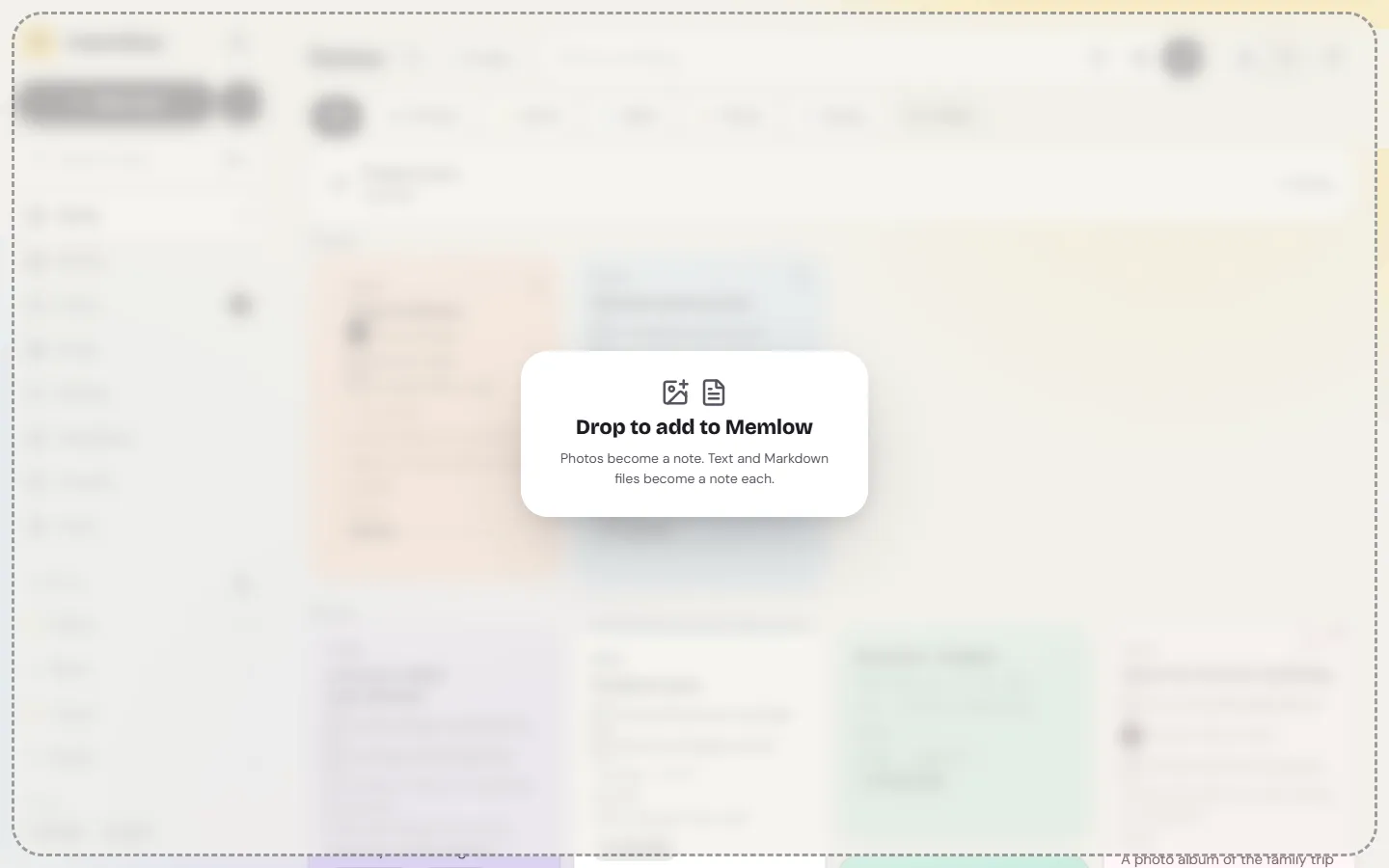
- Memlow shows "Drop to add to Memlow". Let go.
One file opens as a note straight away. With several, Memlow says how many notes it added.
Memlow takes files ending in .txt, .text, .md and .markdown. Photos dropped the same way become one note holding them. Anything else gets the message "Memlow can take photos, and text or Markdown files".
What comes across
- The title: a first line like
# Shopping listbecomes the note's title. Without one, the file's name is used. - Headings, bullet and numbered lists (with their indents), checklists (
- [ ]and- [x]), quotes, callouts, tables, code and dividers. - Bold, italic, strikethrough, highlight, inline code, and links written as
[words](https://…). - Toggles written as
<details>, the way Memlow exports them. - #tags in the text work as Memlow tags.
What doesn't come across
- Pictures and attachments the file points to. Add photos to the note after.
- Links between notes in another app's own style, such as
[[Note name]], stay as plain text. - Front matter (the block between
---lines at the top that some apps add) comes in as text between two dividers. Delete it if you don't need it. - Folders and dates from the other app. Every note starts as new; drop each folder's files into a Memlow folder to keep them sorted.
Moving from another notes app
Memlow reads plain text and Markdown files, so it can take notes from any app that saves them.
- Obsidian keeps notes as Markdown files already: drop them in.
- Simplenote and Joplin can export notes as text or Markdown files. Unzip the export first if it comes as a ZIP, then drop the files.
- Google Keep and Evernote: Memlow can't import their exports.
Check a few notes after the import, especially tables and checklists, before you delete anything in the old app.
On Android
The Android app can't import text or Markdown files. You can still bring in text: share it from another app to Memlow, and the Save to Memlow sheet makes a new note or adds it to one. A spreadsheet's data comes in as a CSV file into a sheet.
Bring in a Memlow backup
A .memlow backup file, from the Android app or the web, isn't imported this way: restore it. Open Settings, then Backup and data, and choose Restore from a backup file. See Save and restore a backup file.
Questions and answers
Which files can I bring in?
Text and Markdown files (.txt, .text, .md and .markdown), and photos. Drop them onto app.memlow.com on a computer. Memlow backup files are restored from Settings instead.
How do I move from Simplenote, Obsidian or Joplin?
Export or find your notes as text or Markdown files, unzip them if needed, and drop them onto app.memlow.com. Each file becomes a note.
Can I import from Google Keep or Evernote?
No. Memlow has no importer for Keep or Evernote.
Can I import on my phone?
Not text files. On Android you can share text into Memlow from another app, one piece at a time.