
Import a CSV or TSV file into a sheet
To import a CSV into a spreadsheet in Memlow, open a sheet and choose File, then Import CSV or TSV. Pick where it goes, a new tab or the tab you're on, and choose the file. Files can be up to 20 MB, and the import works the same on Android and the web.
Memlow reads CSV (comma-separated) and TSV (tab-separated) text files. It can't open Excel files (.xlsx) directly: save them as CSV first.
Import a file
On Android
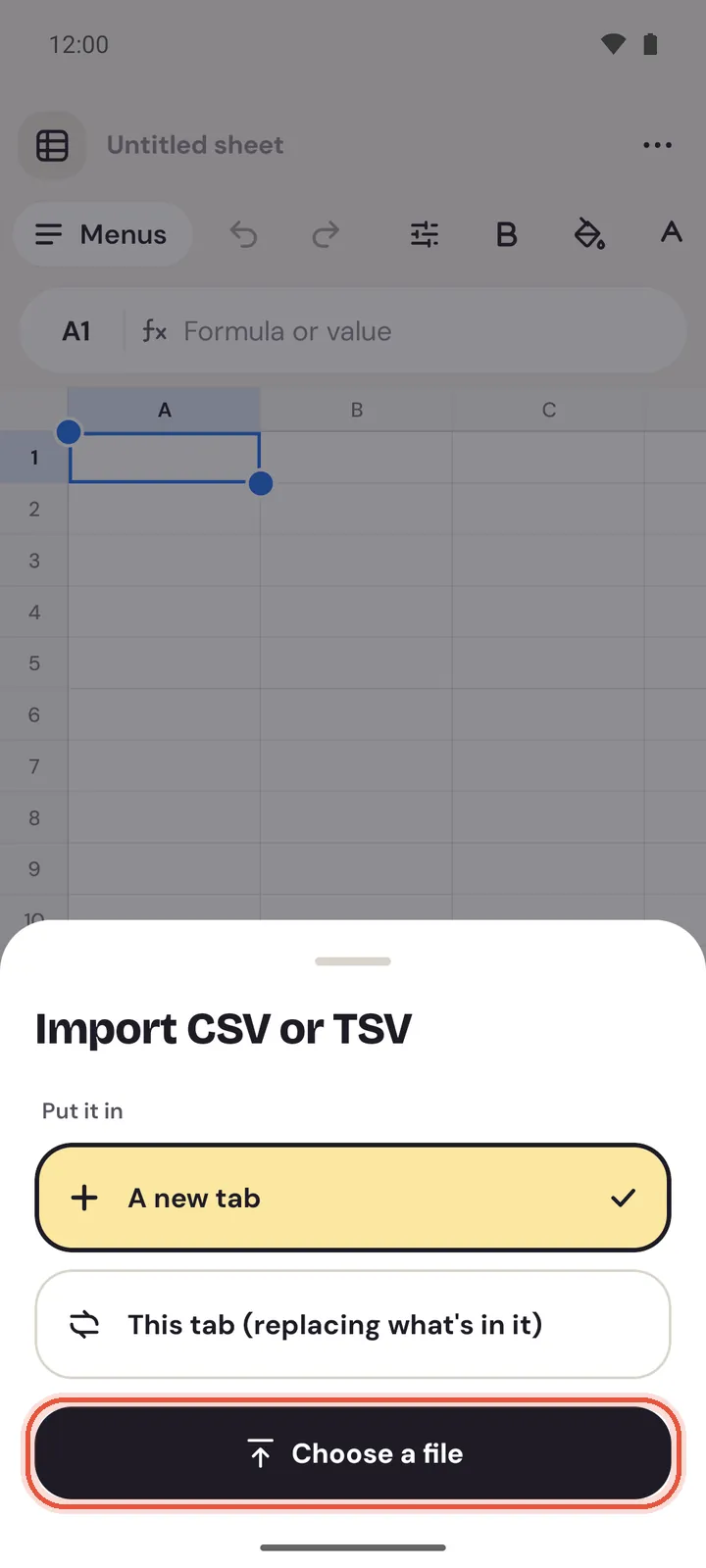
- Open the sheet you want the data in. A blank sheet is fine.
- Tap
Menus, thenFile, thenImport CSV or TSV. In a sheet inside a note, it's in the sheet'sMoremenu. - Under
Put it in, chooseA new tab, orThis tab (replacing what's in it). - Tap
Choose a fileand pick the file on your phone, in Downloads or Google Drive for example. - Memlow says how many rows came in.
On the web
- Open the sheet you want the data in.
- Choose
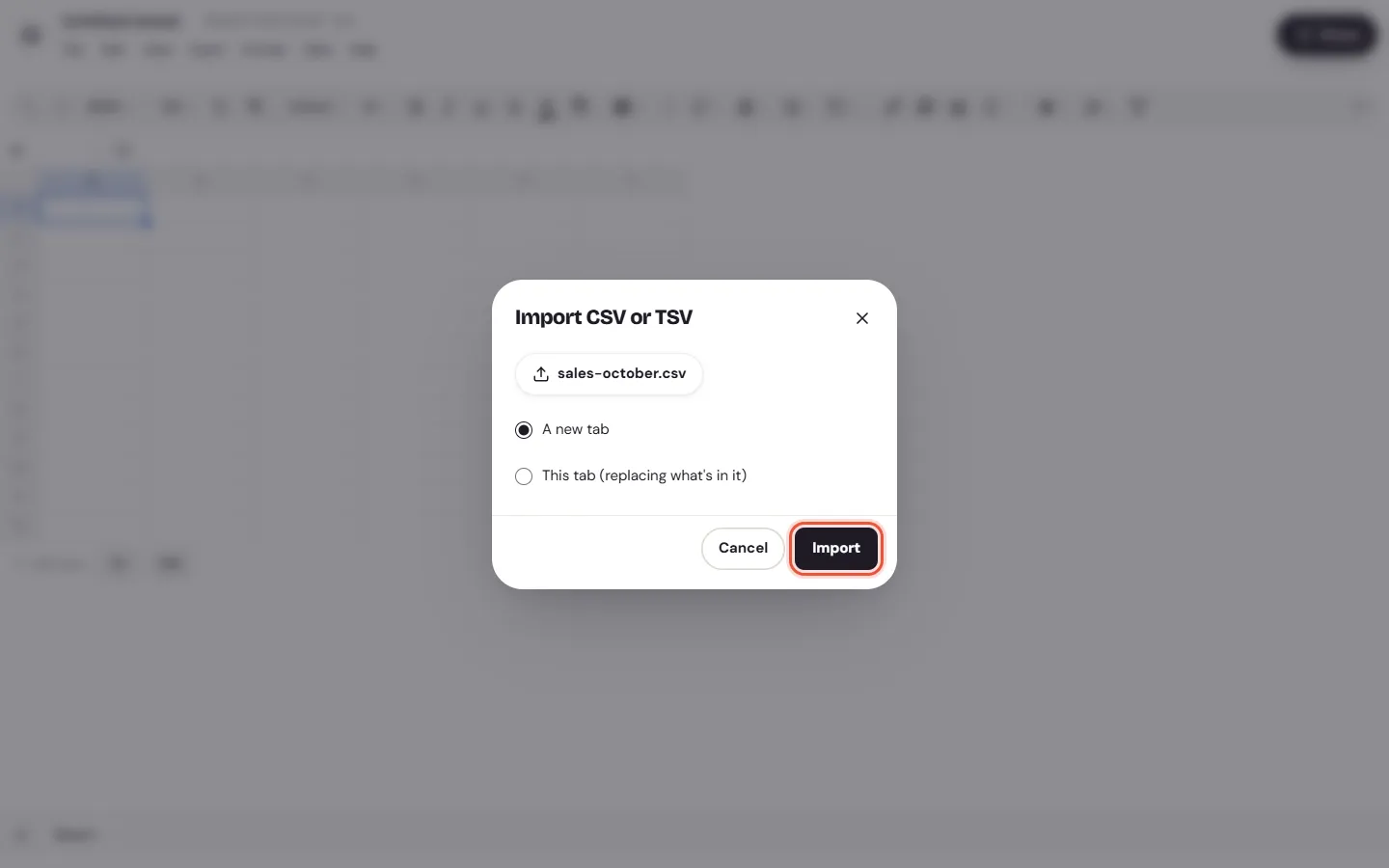
File, thenImport CSV or TSVin the menu bar. On a phone's browser, tapMenusfirst. In a sheet inside a note, it's in the sheet's toolbar menu. - Choose
Choose a fileand pick the file. - Under
Put it in, chooseA new tab, orThis tab (replacing what's in it). - Choose
Import.
Warning
This tab (replacing what's in it) clears the tab first. If you change your mind, use Undo straight away.
What comes across
- Every row and column of the file, starting at the first cell.
- Numbers, percentages and dates are read the same way as when you type them, so they add up and sort properly.
- Quoted fields with commas or line breaks inside them stay in one cell.
- Memlow finds the separator itself. A file with tabs is read as TSV; one with more semicolons than commas, as many European programs write, is read with ;.
A CSV file holds values only. Formulas, colours, column widths and charts from the program that made it don't come across. Add them in Memlow after.
Files from Excel and Google Sheets
Memlow doesn't read .xlsx or .ods files. In Excel or Google Sheets, save or download the sheet as CSV first, then import that. If there's a choice of encoding, choose UTF-8, so Urdu, Arabic and other scripts come across as they are.
A file from Excel or Google Sheets with several sheets becomes one CSV per sheet. Import each one into its own tab.
You can also copy cells in Excel or Google Sheets and paste them into a Memlow sheet on the web.
When the import doesn't work
| What you see | What to do |
|---|---|
| "This file is too big (20 MB at most)." | Split the file, or remove columns you don't need, then import each part. |
| Everything is in one column | The file uses a separator Memlow didn't expect. Open it in a spreadsheet program and save it again as CSV. |
| Letters look wrong (é instead of é) | The file wasn't saved as UTF-8. Save it again with UTF-8. |
| You can't find the file on Android | The file picker shows your phone and connected apps. Download the file first, or open it from Google Drive in the picker. |
Export a tab as CSV
To take data out again, choose File, then Download this tab as CSV or Download this tab as TSV. The file holds the tab's values as they show on screen. See Export notes as Markdown, text or PDF for whole notes.
Questions and answers
Which files can I import?
CSV and TSV files, as plain text. On the web the file picker also accepts .txt files in the same format.
Can I open Excel files?
No. Save the file as CSV in Excel or Google Sheets first, then import it into Memlow.
How big can the file be?
Up to 20 MB.
Does importing replace my data?
Only if you choose This tab (replacing what's in it). A new tab leaves everything else as it was.