
Checkboxes, dropdowns and colour rules
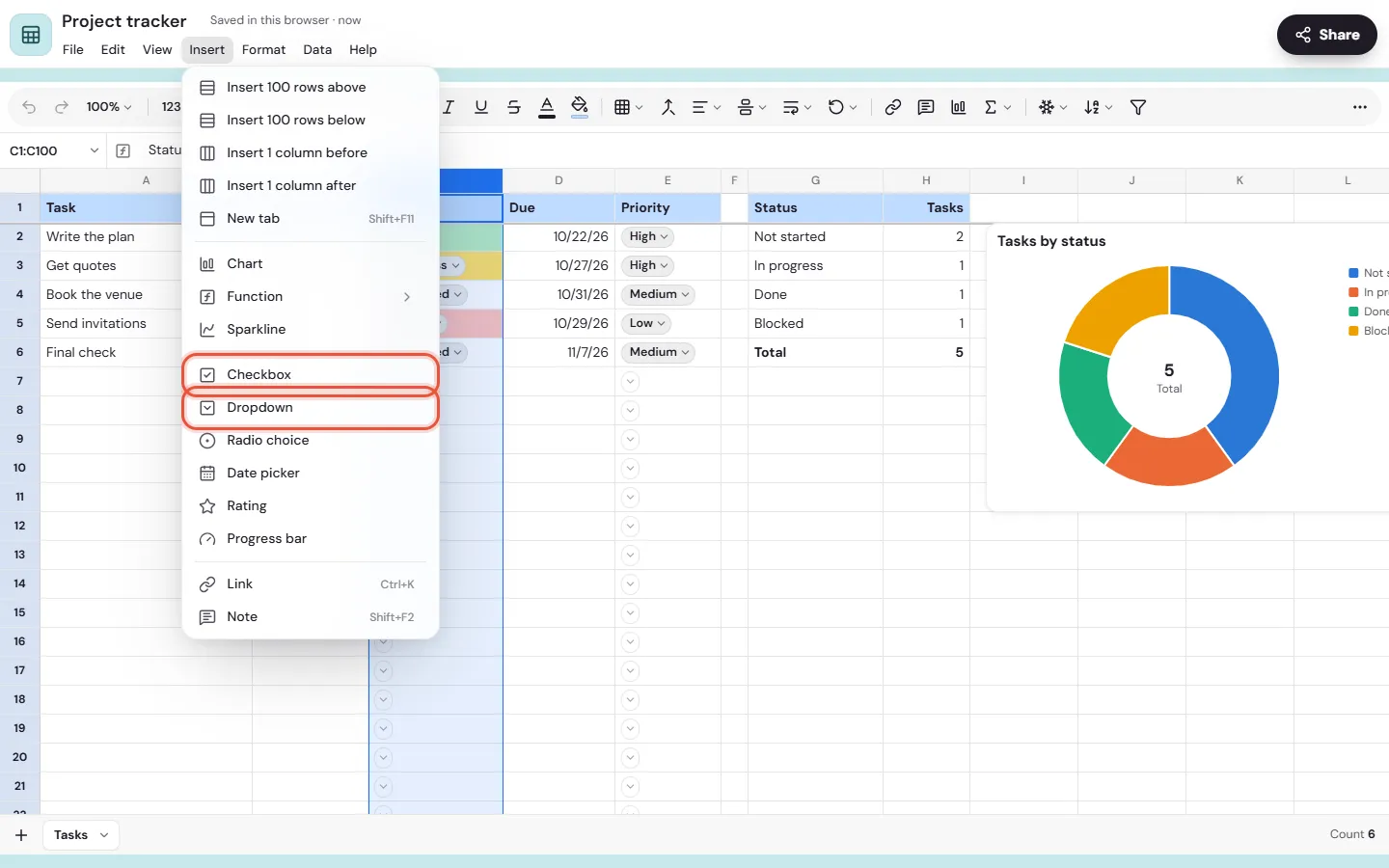
To put a checkbox in a spreadsheet cell in Memlow, select the cells and choose Insert, then Checkbox. The same Insert menu turns cells into a dropdown, a radio choice, a date picker, star ratings or a progress bar. Data validation limits what a cell accepts, and Conditional formatting colours cells by what they hold.
All of this works the same on Android and the web. Where you tap on a phone, you click on a computer.
Find the Insert menu
On the web
On a computer, choose Insert in the menu bar under the sheet's name. In a phone's browser, tap Menus, then Insert.
Checkboxes
Select the cells, for example a column for each school day in an attendance sheet, and choose Insert, then Checkbox. Empty cells become unticked boxes; cells that already hold something keep it.
Tap a box to tick it. A ticked box counts as TRUE in formulas and an unticked one as FALSE, so =COUNTIF(B2:B31, TRUE) counts the days present. On a computer, Space ticks every box in the selection.
Dropdowns
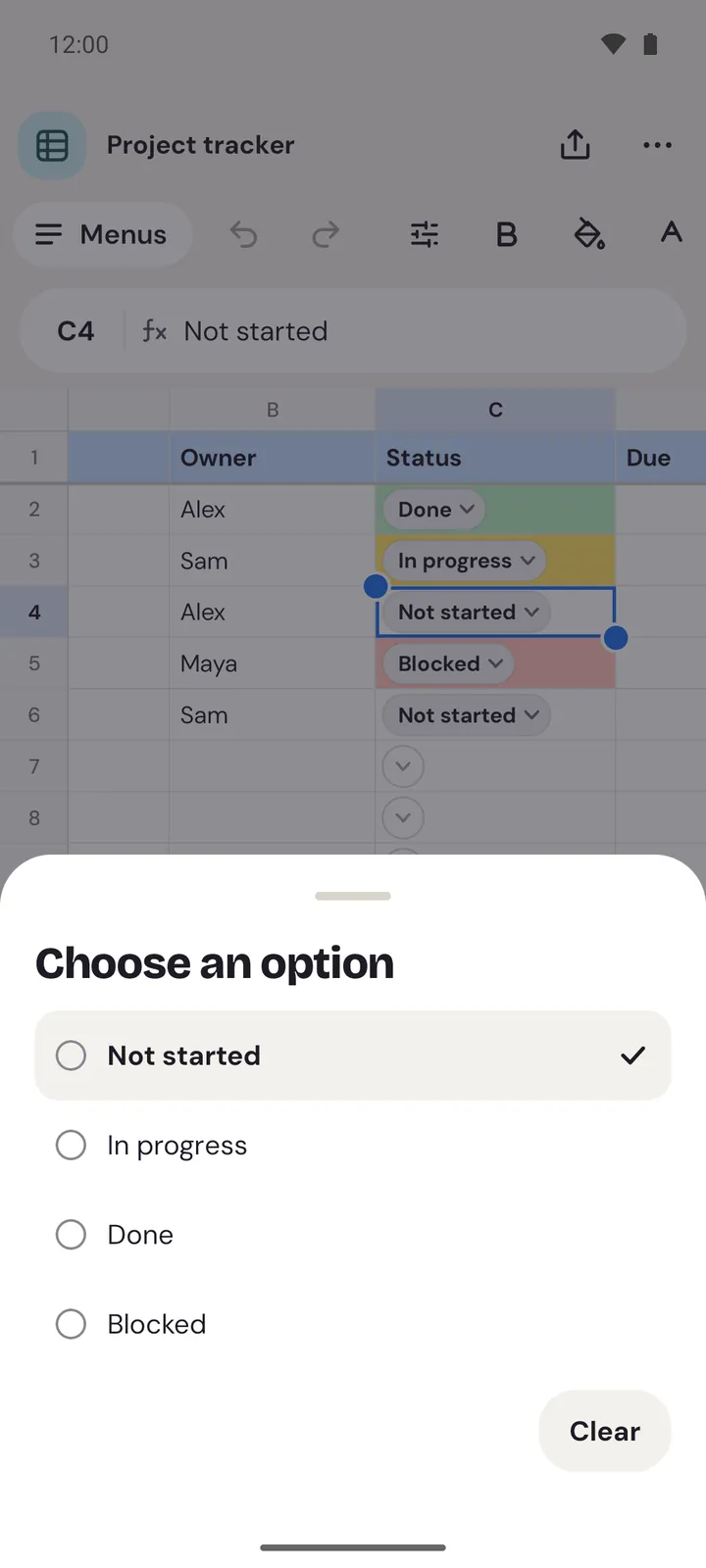
A dropdown lets you pick from a short list, like "Not started", "Doing" and "Done" in a project tracker.
- Select the cells and choose
Insert, thenDropdown. - The
Data validationpanel opens with a new rule. ItsOptionsstart with the words already in the selected cells, orOption 1,Option 2. - Change the options, add more with
Add another option, and give each a colour. - Under
Show as, chooseChip(a coloured label),ArroworPlain text. - Choose
Done.
To pick, tap the cell's chip: Choose an option opens. A search box appears when there are more than 8 options, and Clear empties the cell.
To take the options from cells instead, choose Dropdown (from a range) as the Criteria and type the range, such as Sheet2!A1:A20. When those cells change, the list changes with them.
Radio choice
A radio choice shows its options as small round marks inside the cell, and exactly one can be picked. It suits short lists such as Cash, Card and Bank. Choose Insert, then Radio choice, and set the options in the panel as for a dropdown. Tap an option in the cell to pick it.
Date picker
Choose Insert, then Date picker. The cells get a date format, and a calendar opens to pick a day: double-tap (or double-click) the cell, or use the calendar button beside it. The calendar starts the week on your usual first day and has Today and Clear.
Star ratings
Choose Insert, then Rating. The cells show five stars; tap a star to rate. Tap the same star again to clear the rating. On a computer you can also type a number from 0 to 9.
For up to ten stars, choose Format, then Number format, then Custom number format…, and set the number of Stars under Rating.
Progress bars
Choose Insert, then Progress bar. A cell then shows a bar for its number: 0.5 or 50% fills half, 1 or 100% fills it. Use it with a formula, such as =B2/C2 for how much of a savings target you've reached.
Limit what a cell accepts
Data validation (in Data) sets what each cell can hold:
| Criteria | What the cell accepts |
|---|---|
Dropdown | One of the options you type |
Dropdown (from a range) | One of the words in a range of cells |
Radio choice | One of the options, shown as round marks |
Checkbox | Ticked or not |
Number | A number, Between the two you set |
Date | A date, between the two you set (Dates between) |
Under If the data is invalid, choose what happens when someone types something else. Show a warning takes it but marks the cell. Reject the input doesn't take it and says "This cell takes only what its data check allows."
Rules on this tab lists every rule. Open one to change it, or choose Remove rule.
Colour cells by what they hold
Conditional formatting (in Format) changes a cell's look when its value matches a rule: marks under 50 in red, "Paid" in green, empty cells in grey.
- Select the cells and choose
Format, thenConditional formatting. - Choose
Add a rule. - Under
Rule type, chooseSingle colourorColour scale. - For a single colour, pick a condition under
Format cells if, such asLess thanorText contains, and type the value. Then choose a look underFormatting style: one of theReady-made looks, or your own bold, colours and fill. - For a colour scale, pick one of the scales. The lowest numbers take one colour and the highest another, with a middle colour if you turn on
Use a middle colour. It suits a sales sheet, to see the best days at a glance.
Rules are checked from the top, and the first one that matches gives a cell its look. Move the most important rule up: drag it on the web, or use Move up on Android.
Alternating colours
To stripe a table, select it and choose Format, then Alternating colours. Pick one of the Default styles or make a Custom style, and turn the Header and Footer colours on or off. Remove alternating colours takes them away.
Links and notes in cells
- Web addresses you type in a cell become links. To link a cell's words to an address, choose
Insert, thenLink. On a computer, Ctrl + click (or ⌘ + click on a Mac) opens a link. On a phone, tap the link in the selected cell to seeOpen link. Insert, thenNoteadds a short note to a cell, up to 2,000 characters. A small mark in the cell's corner shows it has one.
Questions and answers
How do I add a checkbox to a cell?
Select the cells, then choose Insert, then Checkbox. Tap a box to tick it. Ticked is TRUE and unticked is FALSE in formulas.
How do I add a dropdown?
Select the cells, choose Insert, then Dropdown, type the options in the panel, give them colours and choose Done. Then tap a cell's chip to pick.
How do colour rules work?
Choose Format, then Conditional formatting, and add a rule: a condition and a look, or a colour scale. Rules are checked from the top, and the first that matches a cell gives its look.
Can I stop people typing the wrong thing?
Yes. In Data validation, set the rule and choose Reject the input under If the data is invalid.