
Freeze, merge, hide and resize in a sheet
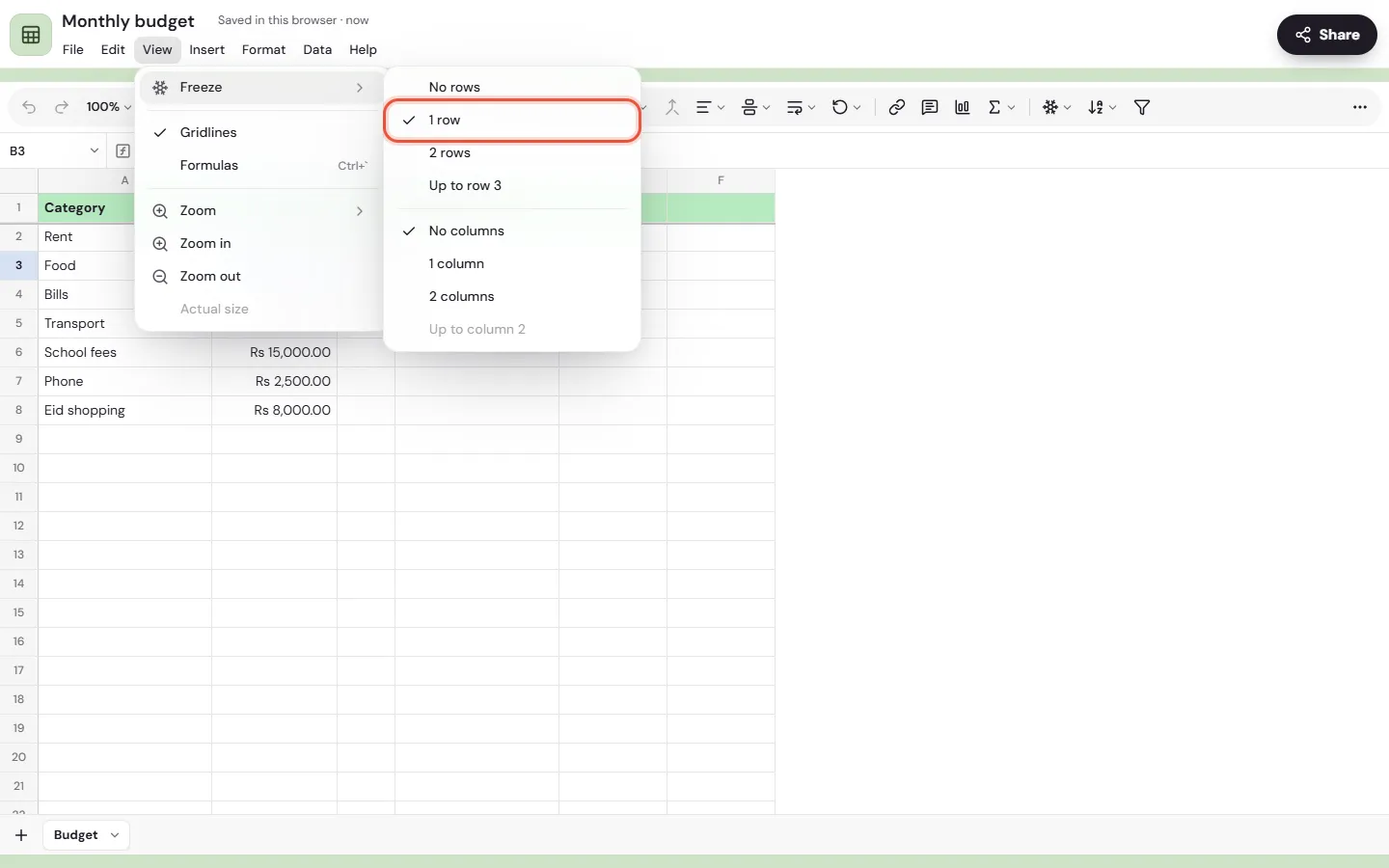
To freeze rows in a Memlow sheet, choose View, then Freeze, and pick how many rows or columns stay in place while you scroll. The rest of a sheet's layout is just as quick: merge cells from Format, hide rows and columns from their menu, and drag an edge to resize. It works the same in the Android app and on the web.
The menus are in a bar under the sheet's name on a computer. On a phone, tap Menus at the start of the toolbar. Search the menus in Help finds any command by name.
Freeze header rows and columns
Freezing keeps the first rows or columns on screen while you scroll, so you always see which column is "Amount" and whose row you're in.
- Choose
View, thenFreeze. - For rows, pick
1 row,2 rows, orUp to rowand the row your selection ends on. - For columns, pick
1 column,2 columns, orUp to columnand the column your selection ends on.
To unfreeze, pick No rows or No columns. Freezing is part of the sheet, so everyone who opens it sees the same frozen rows.
Resize rows and columns
- Drag the edge of a row number or a column letter.
- Double-click the edge on a computer, or double-tap it on a phone, to fit the text.
- To fit several at once, select them and open their menu:
Fit rows to their textorFit columns to their text.
You open a row's or column's menu by right-clicking its number or letter on a computer, or by touching and holding it on Android.
Hide and show rows or columns
- Select the rows or columns, then open their menu.
- Choose
Hide roworHide column(with several selected, it says how many).
A small arrow marks where hidden rows or columns are. Tap or click it to show them again, or select the rows on both sides and choose Show hidden rows (or Show hidden columns) from their menu.
Merge cells
- Select the cells, for example A1 to D1 for a title across the top.
- Choose
Format, thenMerge cells. The merge button in the toolbar does the same.
The cells become one. To split it again, select it and choose Unmerge cells. Some tools, such as Remove duplicates, ask you to unmerge cells that cross their range first.
Wrap and turn text
Format, then Text wrapping, has three choices:
Overflow: long text runs into the empty cells next to it, never over a filled one.Wrap: the text breaks onto more lines and the row grows.Clip: the text stops at the cell's edge.
Format, then Text rotation, tilts or stacks the words in a header, which helps with narrow columns.
Insert and delete rows and columns
Insert adds rows above or below the selection, or columns before or after it. Edit has Delete row and Delete column (with the number when you selected several). A new blank sheet has 100 rows and 26 columns, A to Z, and a sheet holds up to 20,000 rows, 500 columns and 50 tabs.
Clear cells
Edit has three ways to clear what's selected:
Clear contents(orDelete): the values and formulas go, the formatting stays.Clear formatting: the look goes, the values stay.Clear everything: values, formatting and anything put in the cells, such as a dropdown, a checkbox or a note.
To take just a dropdown or a checkbox out of a cell, select it and open Insert: Remove dropdown or Remove checkbox shows there while the cell has one.
Zoom, gridlines and formulas
These only change how you see the sheet, on this device. Nobody else's view changes.
View, thenZoom: from 50% to 200%.Zoom in,Zoom outandActual sizeare there too, and the toolbar shows the zoom.Gridlines: turn the lines between cells off for a cleaner look, for example before taking a screenshot of an invoice.Formulas: show every cell's formula instead of its result, to check your work. On a computer, press Ctrl and the backtick key together (⌘ and backtick on a Mac).
Print a sheet or save it as a PDF
On Android
Choose File, then Export…, and pick how you want the file. See Export notes.
On the web
Choose File, then Print or save as PDF, or press Ctrl + P. In the print window, choose a printer, or Save as PDF. See Print a note or save it as a PDF.
For sorting, filters and removing duplicates, see Sort, filter and clean up sheet data.
Questions and answers
How do I freeze the top row?
Choose View, then Freeze, then 1 row. Pick No rows to unfreeze it.
How do I merge cells?
Select the cells and choose Format, then Merge cells, or use the merge button in the toolbar. Unmerge cells splits them again.
How do I show hidden rows?
Tap or click the small arrow where they're hidden, or select the rows on both sides and choose Show hidden rows.
Does zoom change the sheet for everyone?
No. Zoom, gridlines and showing formulas are only for you, on the device you're using.