
Sort, filter and clean up sheet data
Memlow Sheets has the data tools you'd expect from a spreadsheet, all in the Data menu: sort, filter, filter views, remove duplicates, split text to columns and trim whitespace. In a shared sheet, protected ranges let you choose who may change some cells. They work the same in the Android app and on the web, and they work offline.
On a computer the Data menu is in the bar under the sheet's name. On a phone, tap Menus at the start of the toolbar, then Data. If you can't find a command, Search the menus (in Help) finds it by name.
Sort rows
Sorting keeps each row's cells together, so a customer's name never ends up beside someone else's phone number.
Sort A → ZandSort Z → Asort by the column you're in. With one cell selected, Memlow sorts every row under the header row. With a range selected, it sorts just those rows.Sort range…opens a panel for more control. Set theRange, pick a column underSort byand chooseA → ZorZ → A.Add another sort columnadds aThen bycolumn to break ties, for example by class and then by name. ChooseSort.
Empty cells always go last.
Filter rows
A filter hides the rows you don't need to see right now, such as every order that isn't paid yet.
- Select the data, or one cell in it, and choose
Data, thenAdd a filter. - Each column's header now has a filter button. Choose it for the column you want to filter.
- Untick the values you want to hide under
Values to show, or set aCondition.Search valueshelps in a long list. - Choose
Apply.
The filter button's menu can sort that column too. To show every row again, choose Data, then Remove the filter.
A filter is part of the sheet: in a shared sheet, everyone sees the rows it hides.
Save filter views
A filter view is a filter with a name that you open only for yourself. Opening one changes only what you see, and everyone else sees the sheet as it is. That makes it the better choice in a shared sheet, for example "This month's orders" for one person and "Unpaid" for another.
- Choose
Data, thenFilter views. - Choose
Create new filter view. - Give it a
Name, check theRange, and set its filters underFilter by column.
The line above the grid says "Filter view:" and the view's name while it's open. Choose Close view to go back to the whole sheet, or Delete view in the panel to remove it. Your views are saved with the sheet, so you can open them again whenever you like. Filter views open in the full-screen sheet, not in a small sheet inside a note.
Remove duplicates
Use it for a list where the same row was typed or imported twice, such as a customer list or attendance.
- Select the rows, including the header row if there is one.
- Choose
Data, thenRemove duplicates. - Leave
Data has a header rowon if your first row holds the column names. - Under
Columns to compare, tick the columns that make a row a duplicate. Untick a column like "Date" if the same customer on two days isn't a duplicate for you. - Choose
Remove duplicates.
A row counts as a duplicate when the ticked columns hold the same values as a row above it. Upper and lower case don't matter. The first one stays, the copies go, and the rows that stay move up. Memlow says how many it removed and how many are left, or "No duplicates found."
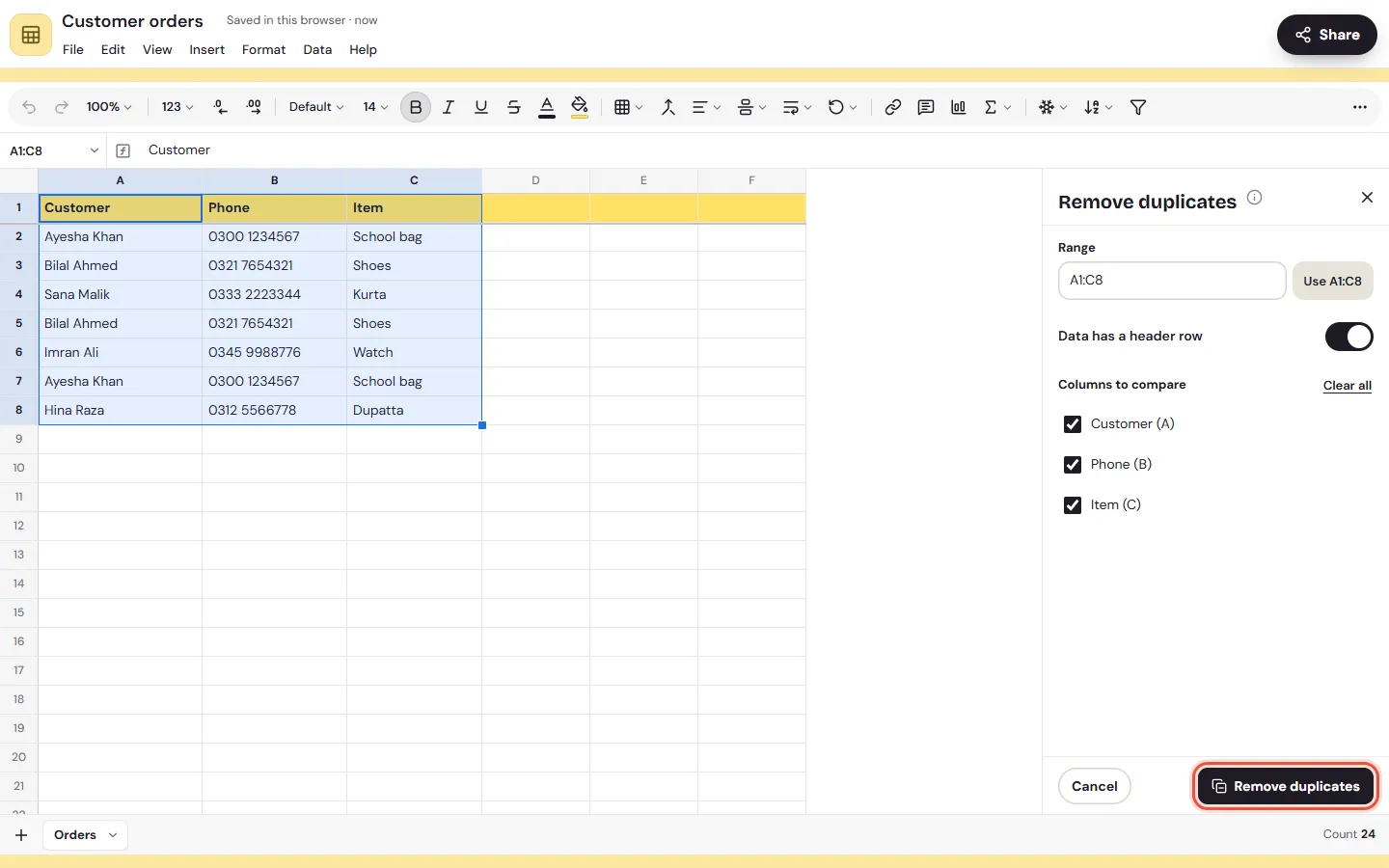
If you change your mind, undo it straight away with Undo.
Split text into columns
When one column holds "Ayesha Khan, 0300 1234567" and you want the name and number apart:
- Select the cells in that column.
- Choose
Data, thenSplit text to columns. - Under
Separator, leaveDetect, or pickComma,Semicolon,Period,Space, Tab orCustomand type what to split at. - Check the
Preview, then chooseSplit.
The parts go into the columns after it. Memlow asks before it writes over cells that already have something in them. Formulas aren't split.
Trim extra spaces
Text pasted from a message or a website often has spaces at the start or end, which can make two names that look the same count as different. Select the cells and choose Data, then Trim whitespace. Memlow takes spaces off both ends and turns runs of spaces inside into one. It says how many cells it trimmed, or "No extra spaces found". Formulas aren't changed.
Protect cells in a shared sheet
Protected ranges let the owner of a shared sheet decide who may change some cells, for example the totals row of a shop's sales sheet or the prices column.
- Choose
Data, thenProtected ranges. - Choose
Protect a rangeand type or select theRange. - Under
Who can edit, choose one:Only the owner: everyone else can read these cells but not change them.The owner and chosen people: pick the people who may change them.Anyone, after a warning: people are asked before they change these cells.
Only the owner can add, change or remove protection (Remove protection). Protected ranges take effect once the sheet is shared. Until then nobody else can open it anyway.
Someone who isn't allowed to change a protected cell sees "This range is protected. Ask the owner to change it." With a warning range, they see Change a protected range? and can choose Change anyway.
Note
A shared sheet is end-to-end encrypted, so Memlow's servers can't read it or check what changed. Each person's Memlow app keeps to the protection. It stops mistakes and changes made in the app, but it isn't a way to hide cells: everyone in the sheet can still read them.
For more on what can go in a cell, see Smart cells, links and cell notes. For freezing, hiding and merging, see Freeze, merge, hide and resize.
Questions and answers
How do I remove duplicates in a Memlow sheet?
Select the rows, choose Data, then Remove duplicates. Tick the columns to compare and choose Remove duplicates. The first of each set stays.
What's the difference between a filter and a filter view?
A filter is part of the sheet, so everyone sees the rows it hides. A filter view is saved with a name and changes only what you see while it's open.
Can I stop people changing some cells?
Yes, in a shared sheet. Choose Data, then Protected ranges, and pick who can edit: only you, chosen people, or anyone after a warning.
Can I split a full name into two columns?
Yes. Select the names, choose Data, then Split text to columns, and pick Space as the separator.