
Get started with Memlow: your first week
Memlow is a free notes app for Android and the web, and you can write without signing in. Here's how to use Memlow in your first week, one small step a day: a note, a checklist, a reminder, some order, a template, then a backup. The steps work in both apps, and where the buttons differ, each app has its own tab.
Day 1: write your first note
Start a note and type. Memlow saves as you go, so there's no Save button.
On Android
- Install Memlow from Google Play and open it. On the welcome screen, sign in or tap
Continue without an account. - Tap
+in the middle of the bar along the bottom. - Type a title, then tap below it and write.
Beside Style, above the title, Memlow says Saved on phone. Your notes stay on the phone and don't need a connection.
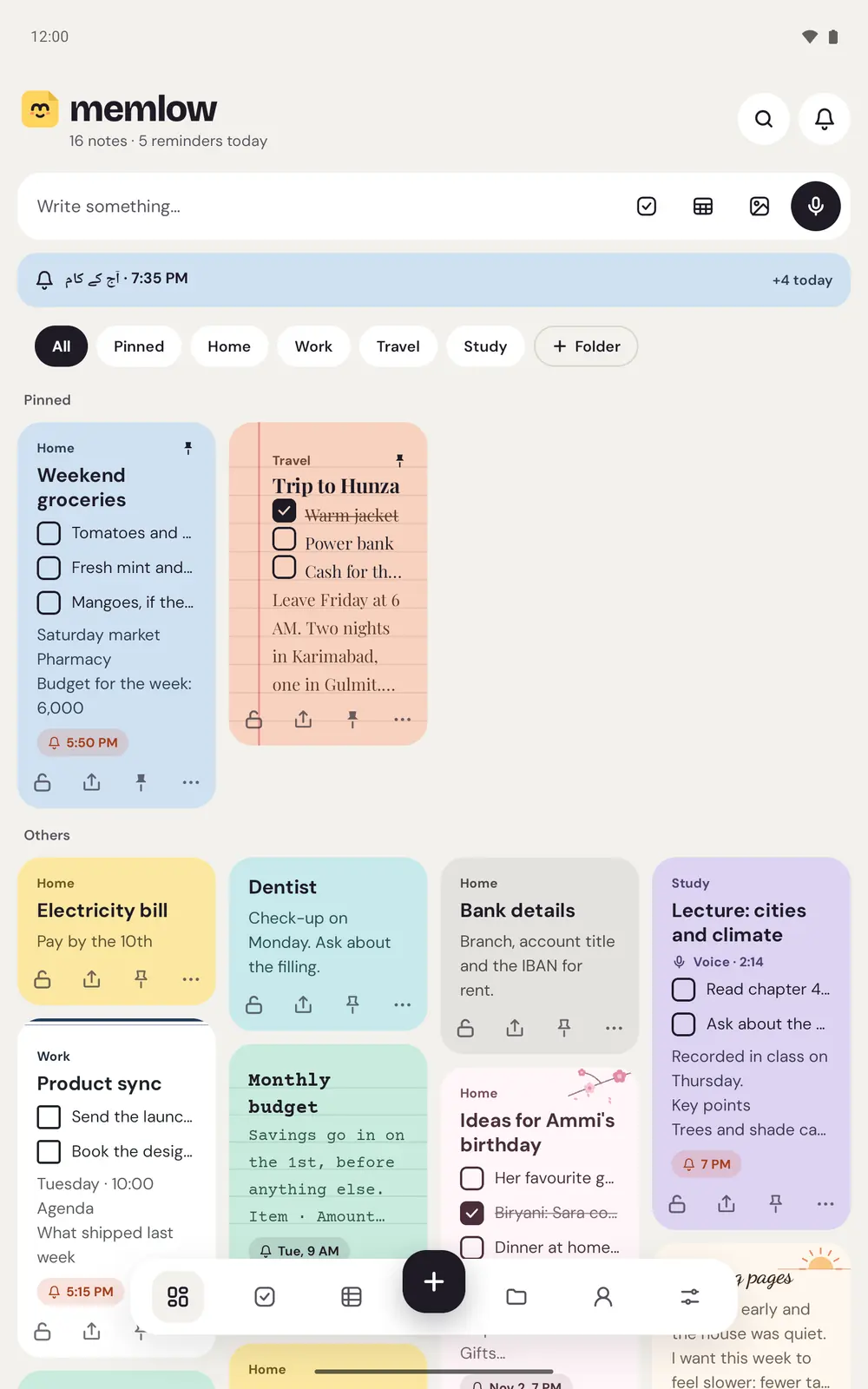
On a tablet, Home shows more of your notes side by side, and the bar along the bottom stays the same size.
On the web
- Open app.memlow.com in Chrome, Edge or another up-to-date browser. On the welcome screen, sign in or choose
Continue without an account. - Choose
New noteat the top of the sidebar. On a phone, tap+in the bar along the bottom. On a computer, N works too. - Type a title, press Enter and write.
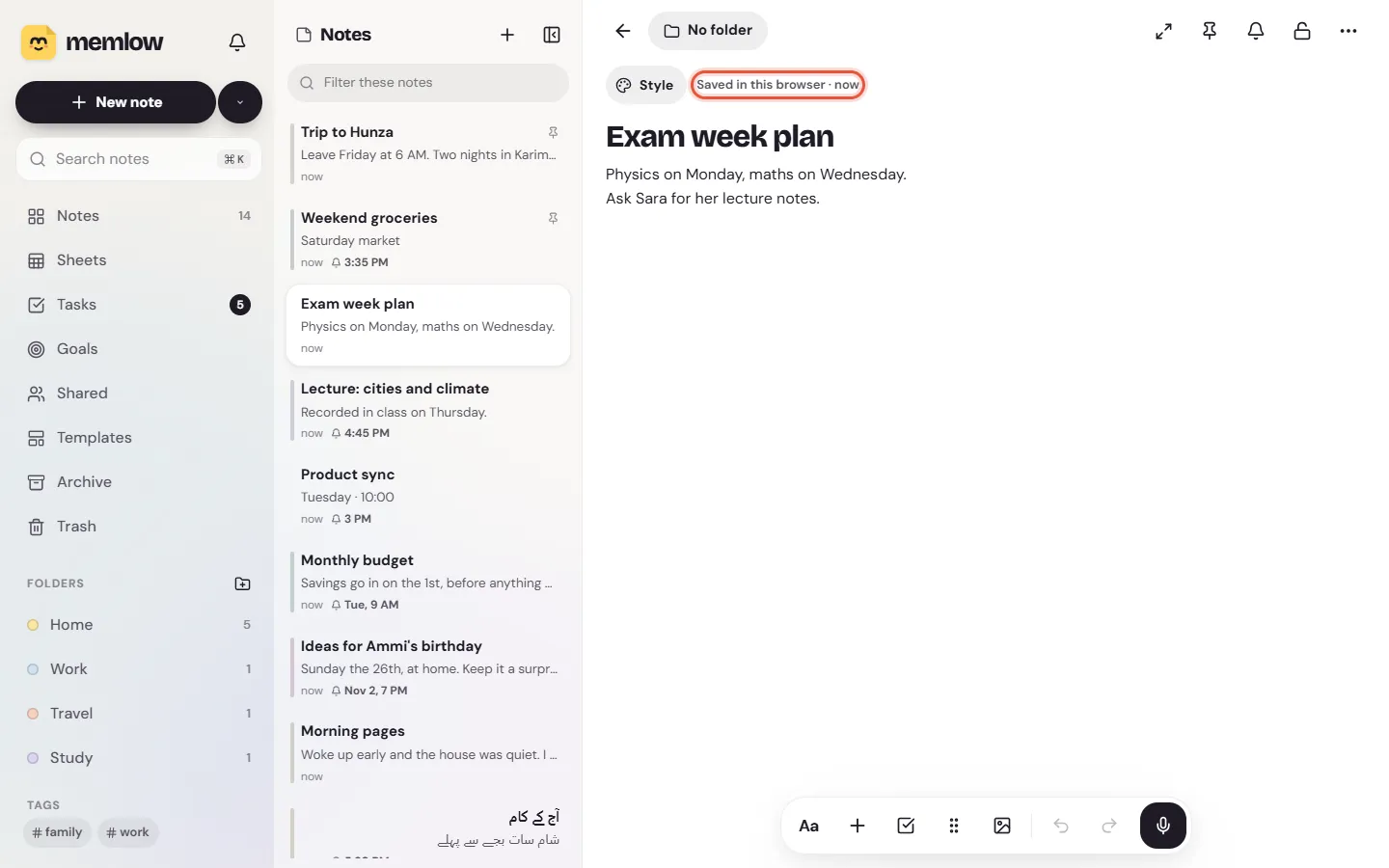
Beside Style, above the title, Memlow says Saved in this browser. The notes are kept in this browser's own storage, on this computer or phone. If you skipped signing in, Memlow also leaves a Welcome to Memlow note with a few tips to tick off.
To shape a note, type / at the start of a line for headings, checklists, tables and more. Write and format notes has the rest.
Day 2: make a checklist
Type [ ] and a space at the start of a line, or use the checklist button. Press Enter for the next item, and tap a box to tick it.
On Android
- Tap
+for a new note. - Tap the checklist button in the toolbar above the keyboard.
- Type an item, press Enter for the next one, and tap a box when it's done.
On the web
- Open the menu beside
New notein the sidebar and chooseNew checklist. On Home, the checklist button in theWrite something…box does the same. - Type an item and press Enter for the next one.
- Tick a box when it's done.
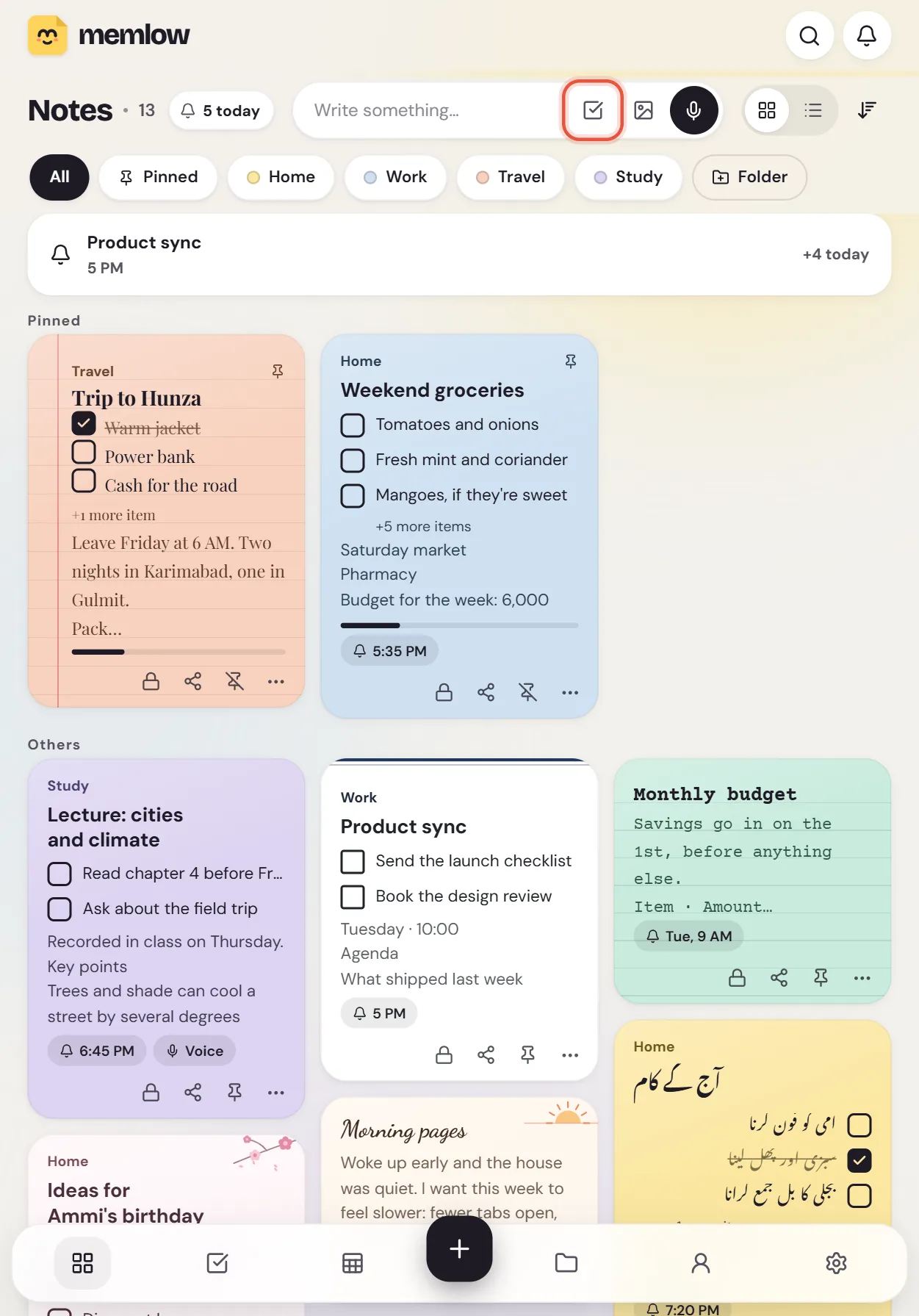
Ticked items slide below the rest while Move ticked items to the bottom is on, in Settings, then Notes. It's on to begin with. You can also tick items straight from the note's card on Home, so the milk gets crossed off without opening the list. See Make a checklist and tick it off.
Day 3: set a reminder
Tap the bell at the top of a note, pick a time and save it. Every reminder also shows up in Tasks, under Today, Upcoming and Done.
On Android
- In the note, tap the bell (
Set a reminder). - Pick
Later today,Tomorrow morning,This weekend, orPick a date and time. UnderRepeatyou can chooseDaily,WeeklyorMonthly. - Tap
Save reminder.
Reminders ring even when Memlow is closed. After your first one, Memlow shows the phone settings that keep it on time.
On the web
- In the note, choose the bell (
Add a reminder). - Pick
In an hour,This evening,Tomorrow morningorNext week, or set your ownDateandTime. - Choose
Save, and allow notifications when the browser asks.
A browser can only ring a reminder while Memlow is open in a tab or installed as an app. One you miss waits in the bell at the top of Memlow.
On a checklist, a reminder can be about one item, such as "Pay the electricity bill". You can also write "call Ammi tomorrow at 5" and Memlow offers to set that reminder. It works from a fixed set of rules on your device. There's no AI in Memlow. More in Set, repeat and snooze reminders.
Day 4: sort notes with folders, tags and pins
A few notes are easy to find. Fifty need some order:
- A folder holds notes on one subject, like Home, Work or a course at university.
- A tag is a word with
#in front of it, typed anywhere in a note, such as #recipes or #exams. - A pin keeps a note at the top of Home.
- Archive takes a finished note off Home without deleting it. Trash keeps deleted notes for 30 days.
Search looks through every word of every note, in any language. See Folders, tags, pins and archive and Search your notes in any language.
Day 5: start from a template and give it a look
Memlow has 41 note templates in 10 groups, from meeting notes to a credit book, plus 12 for sheets. A template opens as an ordinary note that you can change.
On Android
Press and hold + in the bar along the bottom to open Templates, pick one and tap Use template.
On the web
Choose Templates in the sidebar, or From a template in the menu beside New note, and pick one. On a phone, open Sheets and choose Template gallery: the note templates are there too.
Then make it yours. Open Style at the top of the note to pick one of 75 themes, 12 colours, a paper such as lined or notebook, and one of 30 fonts. Changes show at once, and nothing costs extra. See Use templates and save your own and Themes, paper, colours and fonts.
Day 6: take Memlow with you
Memlow works offline in both apps. On the web, installing it gives Memlow its own window and makes it start faster.
On Android
Add a Memlow widget to your home screen: today's tasks, a note you choose, or a quick note bar. The bar starts a note, a checklist, a photo note or a voice note in one tap. See Home-screen widgets on Android.
On the web
In Chrome or Edge, use the install button in the address bar, or Install in Settings, then Appearance. See Install the Memlow web app on a computer.
Day 7: back up your notes
Your notes live on your device. That keeps them private, and it also means a lost phone or a cleared browser could take them along. Set up a backup before the week is out.
On Android
- Open
Settings. Backup is the first section. - Tap
Google Drive backup, choose your Google account and create a backup password. Or tapCreate backup fileto save everything in one file you keep.
On the web
- Linking Google Drive needs a free Memlow account, so sign in first from
Account. - Open
Settings, thenStorage and Google Drive, and chooseLink Google Drive. - Without an account, open
Settings, thenBackup and data, and chooseDownloadnext toBackup file.
Drive backups are encrypted on your device with your backup password before they upload. Use at least 8 characters and write the password down away from the device: nobody can recover it for you, us included. See Back up your notes to Google Drive.
Questions and answers
Do I need an account to use Memlow?
Not to write. Notes, checklists and reminders work without one. On the web, a free Memlow account is needed to link your Google Drive, and sharing needs an account in both apps.
Is Memlow free?
Yes. There's no paid plan. The Android app shows a few ads, and the web app at app.memlow.com has none.
How do I keep my notes safe?
Turn on Google Drive backup, or save a backup file now and then, and keep the backup password somewhere safe. To keep a note away from others who use your phone, lock it with a PIN.