
Keep a to-do list with reminders
A to-do list in Memlow is a checklist with times on the items that need them. Write your tasks as a checklist, put a reminder on the ones with a deadline, and Memlow rings for each one and gathers them all in Tasks, sorted by day. Tick an item off in the note, in Tasks or from its notification, and it's done everywhere. You can also save the whole list as a PDF.
1. Write the list
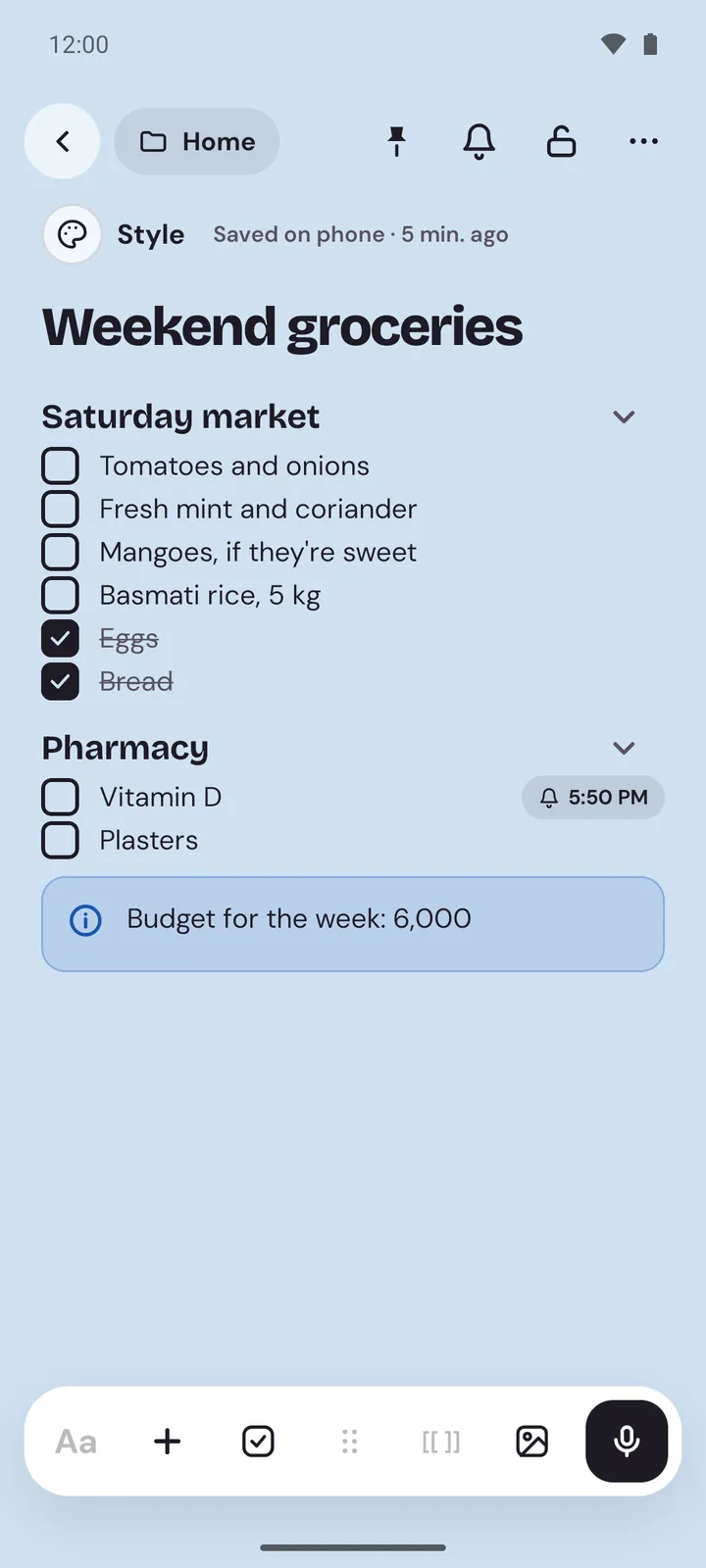
Start a checklist note: tap the checklist button in a note's toolbar, or type [ ] and a space. Press Enter after each item. On the web, New checklist is in the menu beside New note.
Keep one list per part of your life if that helps: "This week" for errands, "Exam prep" for revision, "Shop" for orders to send. Or keep everything in one. Tasks pulls them together either way.
The details are in Make a checklist and tick it off.
2. Give items a time
An item with a time becomes a task: it shows in Tasks and it rings.
On Android
Put the cursor in the item and tap the bell at the end of its row (Remind me about this item). Pick a time and tap Save reminder.
On the web
Choose the bell at the top of the note. Under About, pick the item, then a time, and choose Save.
If you write a time in the item itself, such as "Submit the form Friday 5pm", Memlow offers to set that reminder for you. It reads the words with fixed rules, in 12 languages, and no AI is involved. Items with no time stay in the note as a plain checklist.
3. Repeat the chores that come back
For a task that comes round again, like "Pay the internet bill" each month or "Water the plants" on Mondays and Thursdays, set the reminder's Repeat to Daily, Weekly, Monthly or Yearly. When it comes round, the item unticks itself, ready for next time. See Set, repeat and snooze reminders.
4. See your day in Tasks
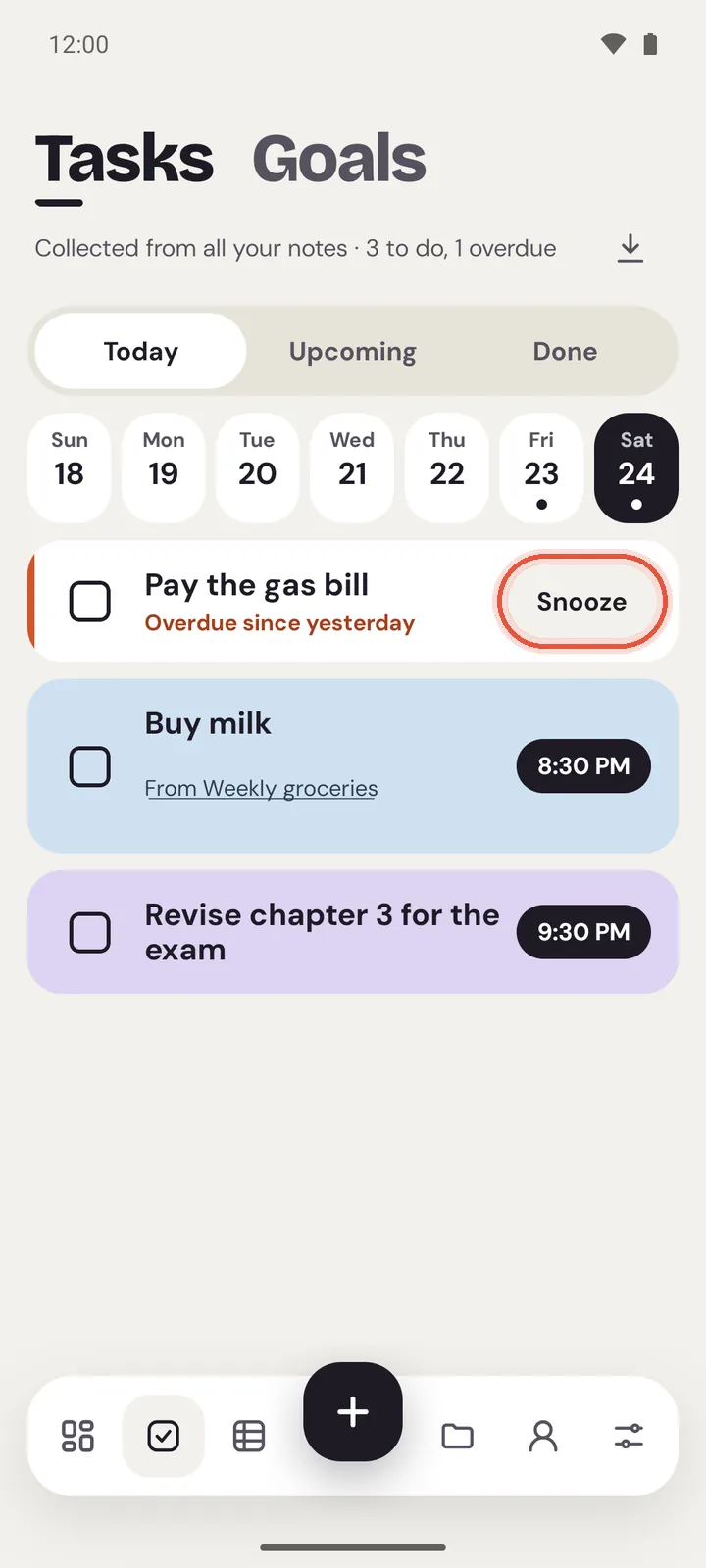
Tasks gathers every item with a time from every note:
Today: what's due by tonight, late ones first in red.Upcoming: the days ahead.Done: what you ticked off in the last 30 days.
Each row says which note it's from. Tap it to open that note. See The Tasks view.
5. Tick things off from anywhere
All of these tick the same item:
- the box in the note, or on the note's card on Home;
- the box in
Tasks; Doneon the reminder's notification;- on Android, the
Todaywidget on your home screen. See Home-screen widgets.
Tapped the wrong one? Undo appears for a moment, or untick it in Done.
On Android you can also add a task straight from Tasks: with Tasks open, tap +, type the task, pick a time and save. Memlow makes a note for it.
6. Save or print the list as a PDF
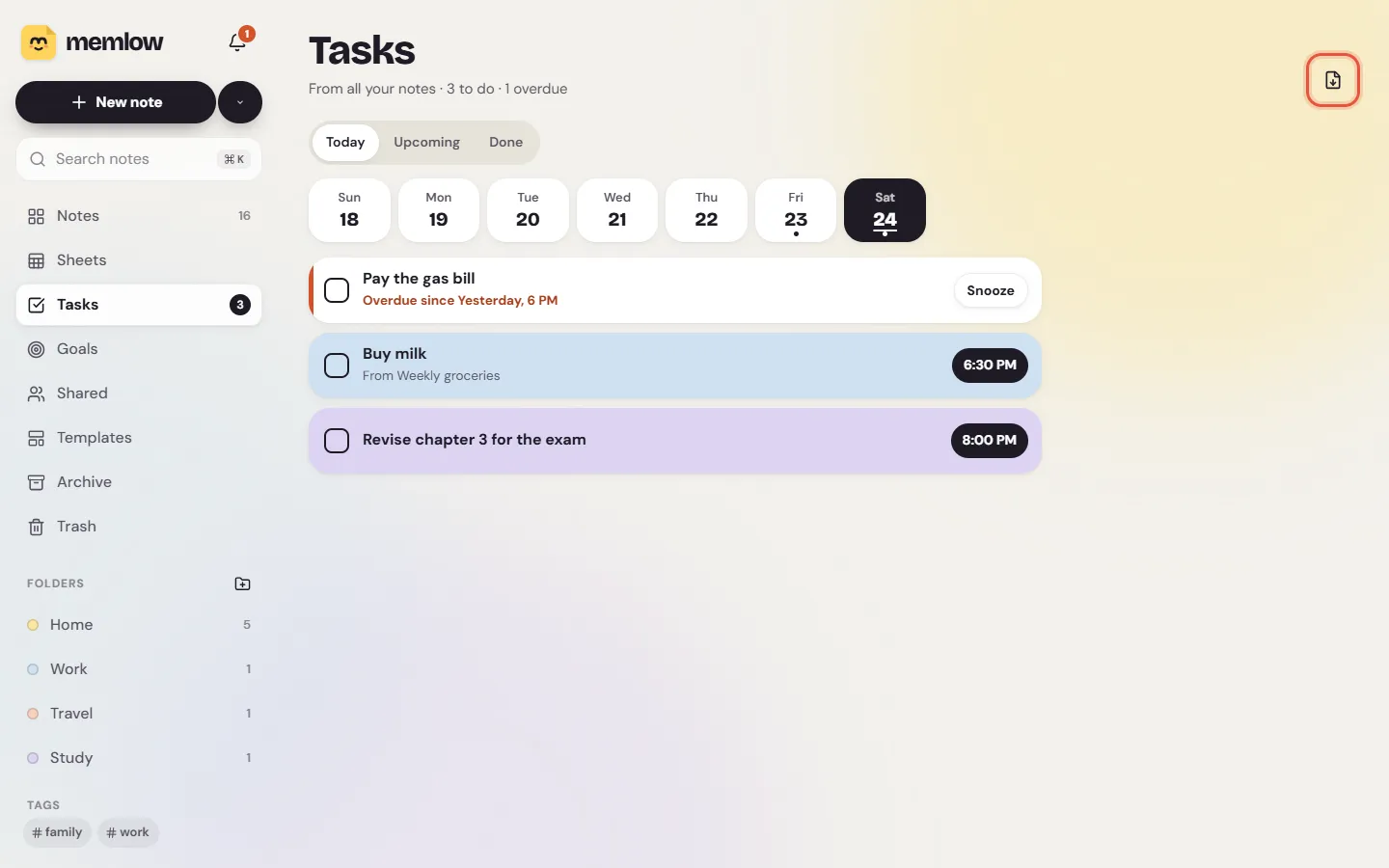
In Tasks, use Export as PDF at the end of the line under the title. The PDF shows Today, Upcoming and Done as Tasks draws them. On Android, choose Save to device or Share. On the web, the print window opens: choose Save as PDF, or print it on paper to stick on the fridge.
To print one list with its look instead, open the note and use Print or save as PDF (web) or Export (Android). See Print a note or save it as a PDF.
Share a list with family
Put the list in a shared notebook, and everyone in it can add items and tick them off. See Share a notebook with family or friends.
Note
On the web, reminders ring while Memlow is open in a tab or installed as an app. For reminders that always ring, even with the app closed, use the Android app.
Questions and answers
How do I make a to-do list with reminders?
Write the tasks as a checklist in a note, then put a reminder on each item that has a deadline. Those items show in Tasks and ring at their time.
Can a task repeat every week?
Yes. Set the item's reminder to repeat weekly and pick the days. When it comes round again, the item unticks itself.
How do I print my to-do list?
In Tasks, use Export as PDF, then save it or print it. One note can also be printed with its look from Print or save as PDF.
Can my family share one to-do list?
Yes. Put the list in a shared notebook and everyone in it can add and tick items.