
Design your profile banner
The Banner studio is where you make the wide picture across the top of your Memlow profile. Start from one of 14 ready-made designs, or from a plain background, then add your own words, stickers and shapes. It's free, it works the same in the Android app and on the web, and you can download the result as a 1500 × 500 pixel PNG.
The banner shows on your public profile while anything on it is public. While your profile is public, it also shows across the top of the profile card that people you share with see. You need a free Memlow account with a username to have a profile.
Open the Banner studio
On Android
- Tap
Accountin the bar along the bottom. - In the
Profilepart, find theBannerrow and tapEdit banner.
You can also open your own public profile and tap the paintbrush (Edit banner).
On the web
- Open
Account. - In the
Profilepanel, chooseEdit banneron theBannerrow.
On your own public profile page at app.memlow.com, the paintbrush button Edit banner opens it too.
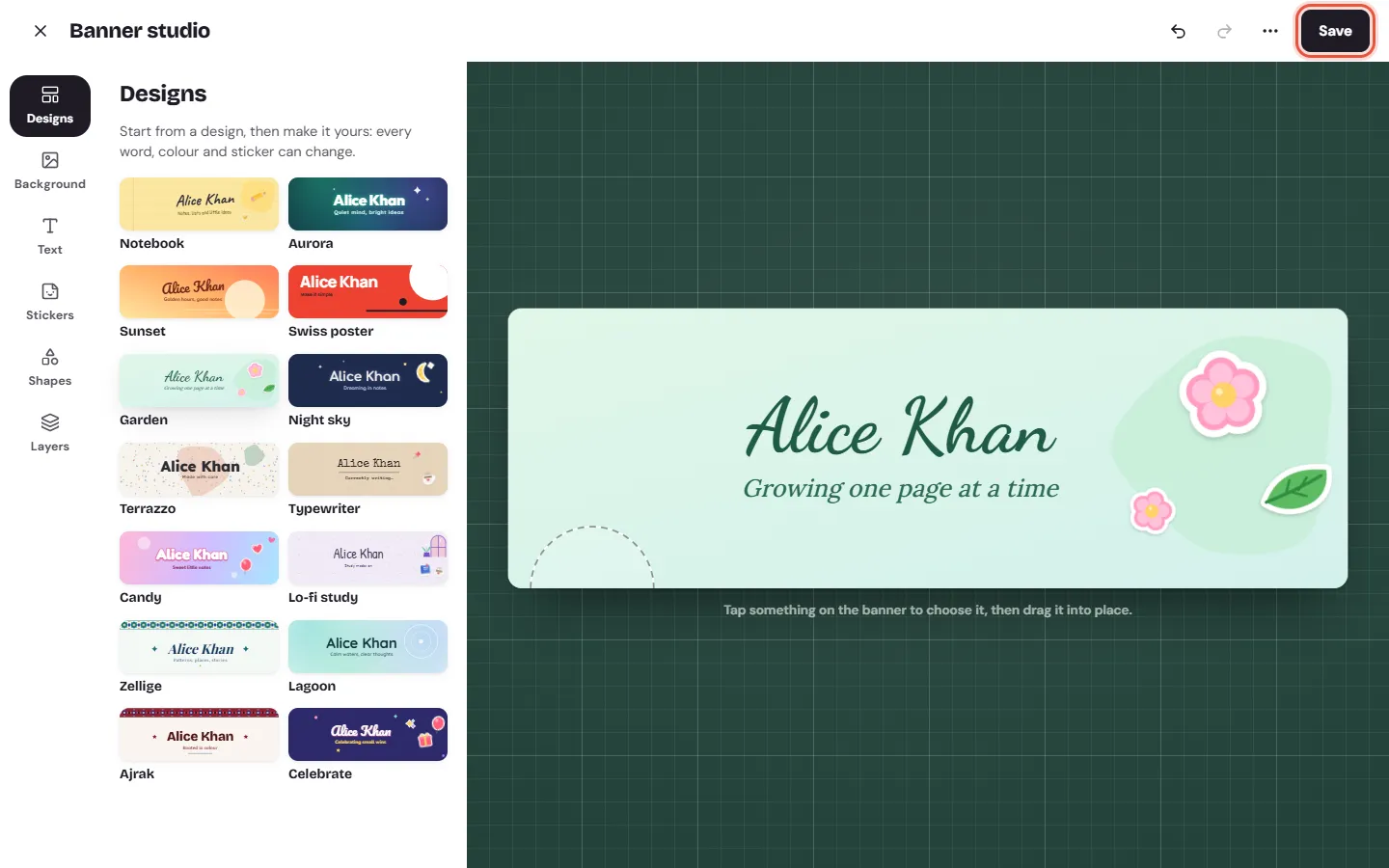
Start from a design
The Designs tab has 14 designs: Notebook, Aurora, Sunset, Swiss poster, Garden, Night sky, Terrazzo, Typewriter, Candy, Lo-fi study, Zellige, Lagoon, Ajrak and Celebrate. Each one puts your name on the banner, with a short line under it in your app's language.
Tap a design to put it on your banner. Memlow says it's on your banner, and you can change every word, colour and sticker after that. In a right-to-left language such as Urdu or Arabic, the designs are mirrored to read from the right.
Change the background
Open the Background tab and pick one of five kinds:
Memlow: the same backgrounds notes can have.Gradient: 2 to 4 colours at any angle, or one of theReady-made gradients.Colour: one plain colour.Any colourlets you pick your own, or type aColour code.Paper: a note paper, such as lined or grid, in one of the note colours.Theme: the art and colours of one of Memlow's note themes.
Add and style words
- Open the
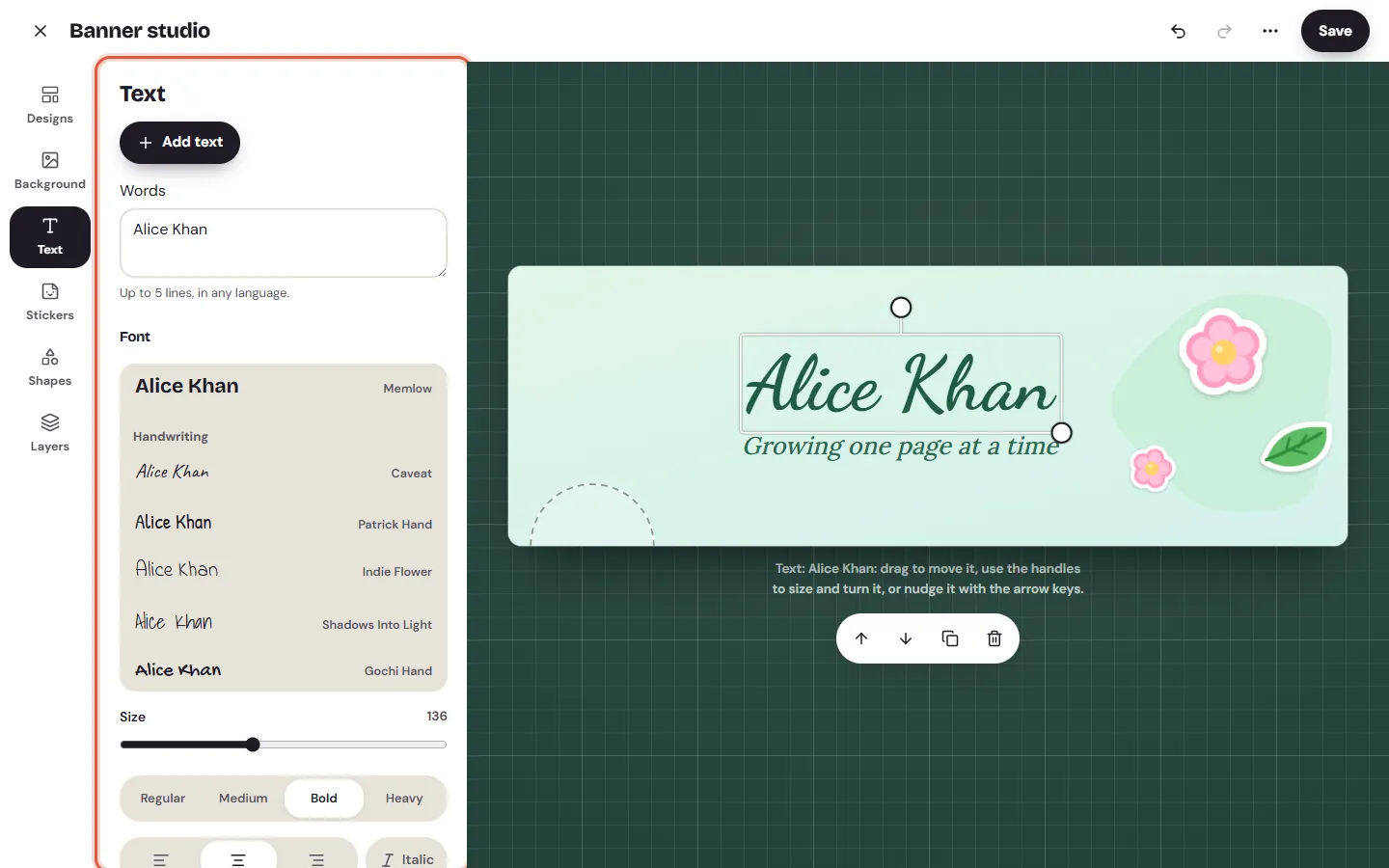
Texttab and chooseAdd text. - Type in
Words. You can write up to 5 lines, in any language. - Pick a
Font, aSizeand aWeight(Regular,Medium,BoldorHeavy). - Below those, set the alignment,
Italic, theFill(a colour or a gradient), anOutline, andShadow and glow.
Spacing changes the letter spacing and line height, and Turn and order sets the rotation and opacity. A banner can have up to 5 text layers.
Add stickers, emoji and shapes
Stickers: tap one of Memlow's drawn stickers, or type or paste an emoji and chooseAdd. With a sticker chosen on the banner, tapping another one swaps it.Shapes: Circle, Ring, Star, Sparkle, Heart, Line and Blob, in any colour and size.New shapedraws a blob again with a different outline.
Stickers and shapes together are limited to 12 on one banner.
Move, size and turn things
Tap something on the banner to choose it, then drag it into place. Use the handles to make it bigger or smaller and to turn it. On a phone you can also pinch with two fingers.
The buttons under the banner bring the chosen layer forward, send it backward, duplicate it or delete it. The Layers tab lists everything on your banner, front first. Choose a layer there to change it, or hide it and show it again.
On a computer, the arrow keys nudge the chosen layer, Delete removes it and Esc lets go of it. Ctrl + Z undoes a change (⌘ + Z on a Mac).
Save, download or start over
Saveputs the new banner on your profile. Memlow says "Banner saved".UndoandRedosit next to it, in the bar at the top.- The
⋯menu hasDownload PNGandStart over.
On the web, Download PNG saves the picture straight to your downloads. On Android, your phone asks where to save it. Either way it's 1500 × 500 pixels, named after your username.
If you close the studio with changes you haven't saved, Memlow asks first: Leave without saving?
Note
Memlow keeps your banner as a short description of what's on it, not as an uploaded picture. That's why it looks the same on your phone and on the web.
When it can't be saved
- "This banner is too big to save." Remove a layer or some words, then save again.
- "Something on this banner can't be saved." Undo your last change and try again.
- If Memlow has paused sharing on your account after a report, new words can't go on a public profile's banner until the pause ends. See Report a shared link or profile.
For what else your profile shows, and who sees each part, see the guide to your username and profile.
Questions and answers
How do I make a banner for my Memlow profile?
Open Account, then Edit banner on the Banner row. Pick one of the 14 designs or a background, add your words, stickers and shapes, and choose Save.
Can I download my banner?
Yes. In the Banner studio, open the ⋯ menu and choose Download PNG. You get a 1500 × 500 pixel picture.
Who sees my banner?
Anyone who opens your public profile, while something on it is public, and the people you share with on your profile card.
Is the Banner studio free?
Yes. Everything in Memlow is free, on Android and on the web.