
Your username and profile
Your Memlow username is your @name and your profile's address: app.memlow.com/ followed by it. You choose it once, and it can't be changed later. Your profile holds only what you add, and you choose who sees each detail. Your notes are never part of it.
Choose your username
Memlow asks for a username when you create an account, or once after you sign in if you don't have one yet. You need one to share notebooks and notes.
- In
Choose your username, type the name you want. Memlow suggests one from your name. - Follow the rules under the field: 3 to 30 letters (a to z), numbers, dots or underscores. Start and end with a letter or a number, and don't put two dots in a row.
- Wait for
Available. If it says "That username is taken", try the one it suggests. - Choose
Save username. Memlow says "Your username is" and your new @name.Laterputs it off, and Memlow asks again when you share.

Warning
You can't change your username later. It's also your profile's address and part of every link you share. If something is badly wrong with it, write to [email protected].
People you share with see your username beside your name. They can invite you with it instead of your email, and inviting you this way doesn't show them your email address.
Open your profile
On Android
Tap Account in the bottom bar. The Profile part shows your username, your profile's address with a copy button, and About you.
On the web
Open Account. The Profile panel shows the same. You can also edit it at memlow.com/account, under About you.
Who sees what
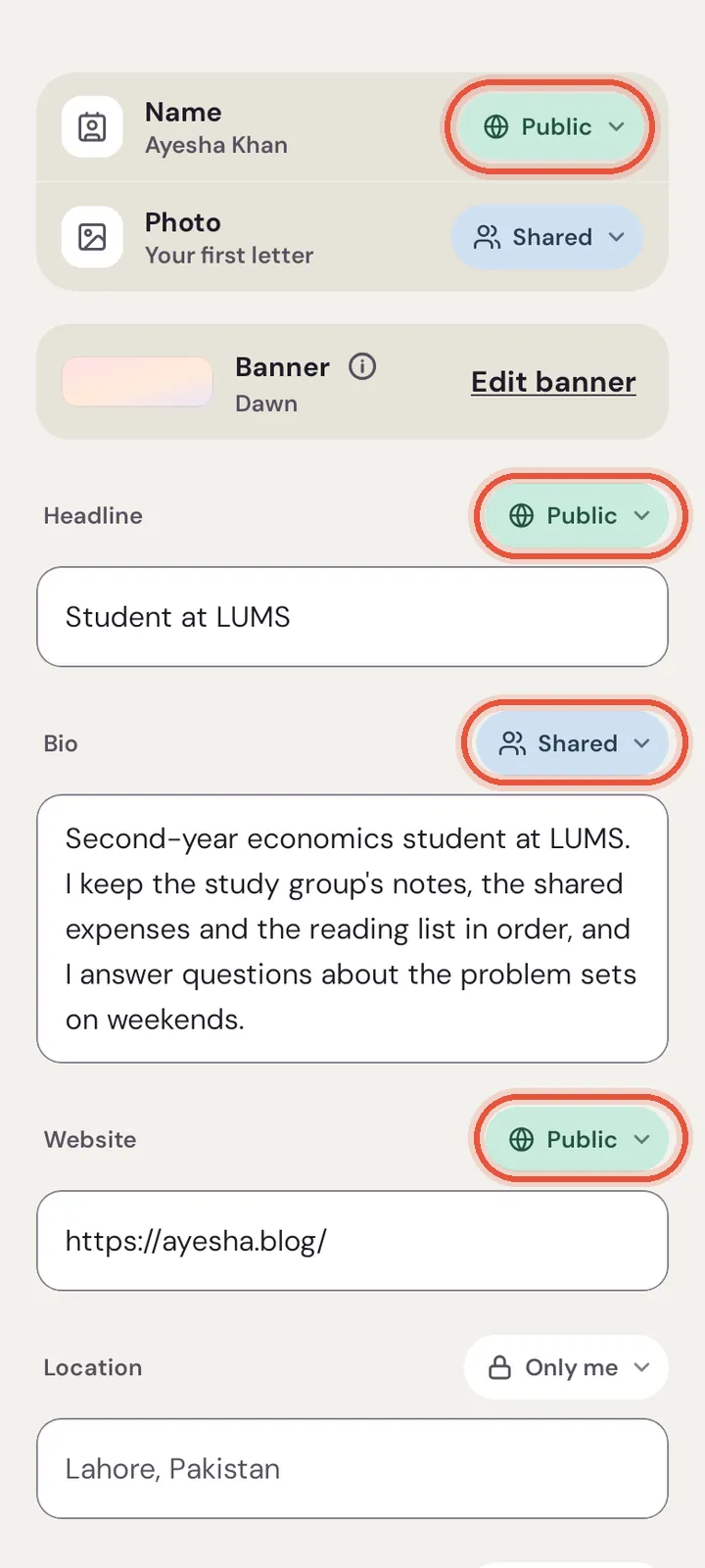
Each detail, and your name and photo, has one of three levels:
| Level | Who sees it |
|---|---|
| Only me | Just you |
| People I share with | People in one of your shared notebooks or teams with you, and people who added a note you shared |
| Public | Anyone with your profile's address. Search engines may list your profile |
New details start as Only me. Your name and photo start as People I share with. Your name can't be Only me: the people you share with always see who you are.
Edit your profile
- In the
Profilepart, chooseEdit profile. - Fill in what you want: headline, bio, website, location, organization, gender, date of birth, and your social profiles (Facebook, Facebook page, Instagram, LinkedIn, YouTube, Threads, X).
- Beside each one, pick who sees it.
- Choose
Save. Memlow says "Profile saved".
For a social profile, type your username on that service, or paste the address of your profile there. Memlow checks that it's a profile. A link to a post gets "That's a post or a page on" that service, "not a profile". A link to another site gets a note too. For your date of birth, you also choose how it shows: the full date, just the day and month, or only your age. It's used for nothing else.
To see your card the way others do, choose See what others see.
Your public profile
When anything is Public, app.memlow.com/ followed by your username shows a profile page. It has your public details, the month you joined ("Member since") and a banner at the top. You design the banner yourself in the Banner studio. Choose View public profile to see the page.
While nothing is Public, the page says "This profile is private", and search engines are asked not to list it. To make it private again, set each Public detail back to People I share with or Only me.
If Memlow hides your profile after a report, your profile shows "Memlow has hidden your public profile". Its page says it's private, and we email you why. See Report a shared link or profile. For what your account stores, see the Memlow account article.
Share your profile or its QR code
Open your public profile from View public profile. Its buttons are the same in both apps:
Share profileopens your phone's or browser's share options with the page's address.QR codeshows a code that opens your profile when someone scans it with a phone's camera.Download PNGsaves it as a picture, for a visiting card, a shop counter or a class notice board.Copy linkcopies the address.- Tap your @username under your name to copy it, so people can invite you with it.
On someone else's profile, More has Copy link, Copy and their @username, and Report profile.
What people you share with see
People in a shared notebook or a team with you can open your profile card: tap your name or photo in the notebook's or team's list of people. The card shows what you set to People I share with or Public, and how many notebooks you share with them ("Shares 3 notebooks with you"). While your profile is public, your banner shows across its top.
To check it before anyone else does, choose See what others see in the Profile part.
Questions and answers
Can I change my username?
No. You choose it once, because it's your profile's address and part of every link you share. If something is badly wrong with it, write to [email protected].
Who can see my profile details?
Only who you choose, detail by detail: only you, the people you share with, or everyone (Public). New details start as Only me.
Can my profile be public?
Yes. Set any detail to Public and app.memlow.com/ followed by your username shows it to anyone, and search engines may list it. With nothing Public, the page says it's private.