

- Keep notes on your own device. Every extra copy on someone else's server is one more place they can leak from.
- Lock personal notes with a PIN, and keep backups encrypted with a password only you know.
- Back up regularly: clearing browser data removes notes that aren't backed up.
Where your notes live matters most
Many notes apps keep the main copy of your notes on their own servers, so the same notes can appear on every device. That's handy, but it widens the circle of people who could get at them.
- The company holds a copy it can read. Unless notes are encrypted before they leave your device, the service can read them, and so can anyone who breaks into its servers.
- One password can open them all. When notes live online behind a password, anyone who gets it, because it was reused, guessed or phished, can read them from anywhere.
- Features can read along. Smart summaries, suggestions and AI search all work by processing what you wrote.
- The rules can change. Terms, prices and owners change over the years, and your notes go wherever the service goes.
Plenty of services work hard to protect people, and for shared work an online copy makes sense. But for a journal, health notes, money or anything else you'd rather keep to yourself, the fewer places your notes are kept, the better.
What “private” should really mean
Whatever app you use, these are good questions to ask before you trust it with something personal:
- Where are the notes kept? On your own phone or computer is best. A copy on someone else's server should be your choice, not the default.
- Does anything read them? No AI summaries, no analysis, no ads chosen from what you wrote.
- Are backups encrypted before upload? Encryption should happen on your device, with a password only you know, so whoever stores the file can't read it.
- Can I lock the sensitive ones? A PIN on single notes helps when someone borrows your phone or glances at your screen.
- Can I take my notes with me? Plain formats such as Markdown mean you're never stuck.
How Memlow handles it
Memlow was built around those answers. Notes are kept on your device: in your phone's storage in the Android app, or in the browser's own storage on app.memlow.com. We don't run a server that stores notes, so we never receive them.
Nothing reads what you write. There's no AI, and the reminders Memlow suggests come from simple rules. The notes app has no analytics, and the web app has no ads. The Android app is free because it shows ads from Google AdMob, but the ads never see your notes.
Backups are encrypted on your device with a backup password (AES-256-GCM) before they go anywhere. They can go to a hidden Memlow folder in your own Google Drive, where Memlow can't see your other files, or into a backup file you keep. Google stores the file but can't read the notes inside, and neither can we. And you can take everything with you at any time by exporting all your notes as Markdown files. The privacy policy has the details.
Set it up, step by step
- Start writing. Open app.memlow.com in any modern browser, or the Android app. On a computer, install it like an app (in Chrome or Edge, use the install button in the address bar) so it opens in its own window and works offline.
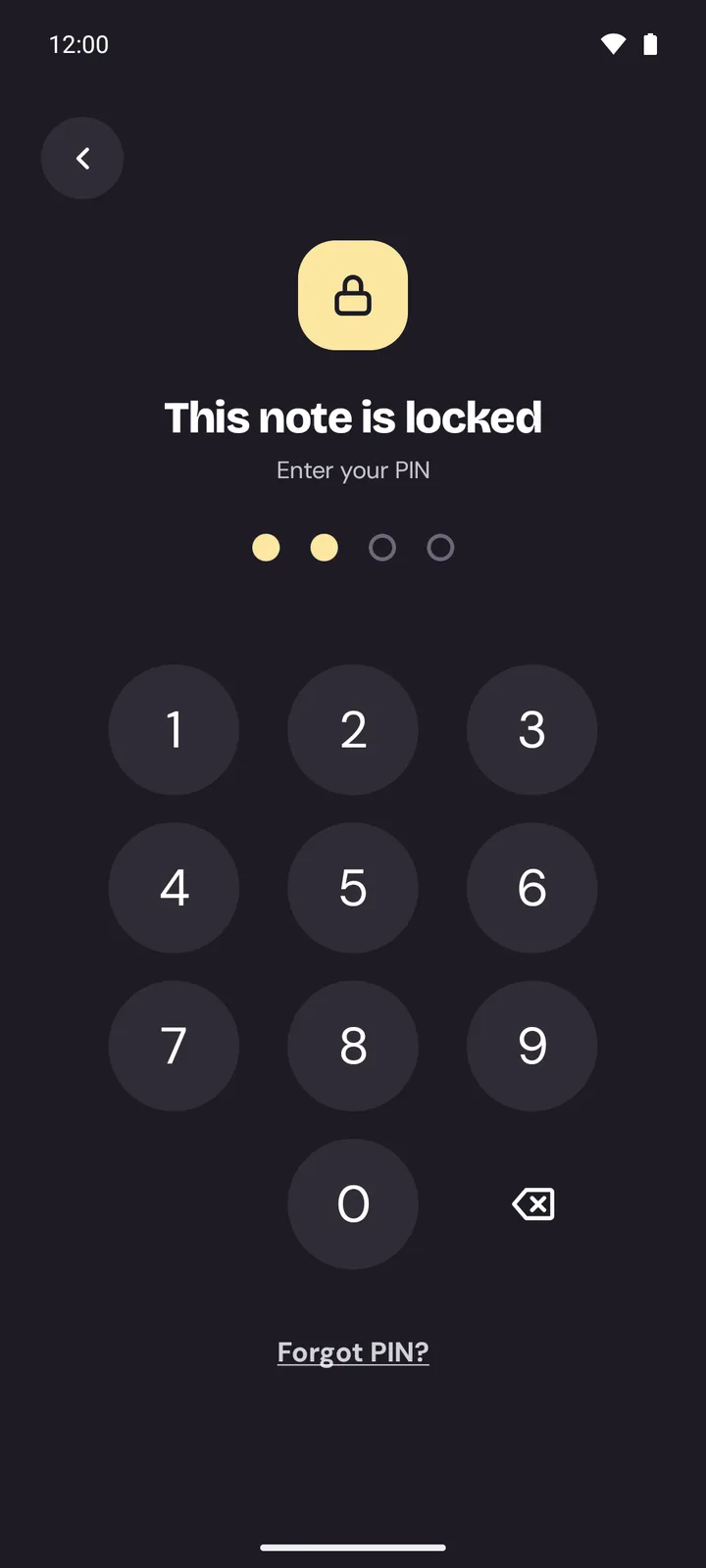
- Lock the notes that matter. Open a note and choose Lock note (on the web, it's the padlock at the top of the note). The first time, Memlow asks you to choose a PIN of 4 to 8 digits. Locked notes show only their title on cards and in search. On the web they're also encrypted in the browser with your PIN.
- Lock the whole app if you like. On the web, turn on Lock Memlow in Settings → Lock to be asked for the PIN whenever Memlow opens. On Android you can lock the app too, and unlock it with your fingerprint.
- Turn on an encrypted backup. For Google Drive, open Settings → Storage and Google Drive on the web, signed in to your free Memlow account (or Settings → Google Drive backup on Android), link your Google account and create a backup password. Or save a backup file instead: Settings → Backup and data on the web, Settings → Create backup file on Android. Keep the password on, so the file is encrypted.
- Keep the password somewhere safe. Write it on paper you keep at home, or store it in a password manager. Don't keep it only in a Memlow note: if you lose the device, that note is exactly the one you can't open.
- Protect the browser's storage. On the web, tap Protect storage in Settings → Storage and Google Drive. It asks the browser not to clear Memlow's data when space runs low.
- Try a restore once. A backup you've never opened is a hope, not a plan. On another browser or phone, restore it (Restore from a backup file on the web, Restore from a backup on Android) and check your notes are there. If that device isn't one you'll keep using, erase Memlow from it afterwards (on the web: Settings → Backup and data → Erase Memlow from this browser).
The honest limits
- Clearing browser data deletes notes that aren't backed up. On the web, notes live in that browser on that device. Clearing site data for app.memlow.com, writing in a private window or switching to another browser leaves them behind. A Drive backup or a recent backup file is what brings them back.
- We can't recover a lost backup password. That's the price of encryption only you can open. Without the password, nobody can open the backup, us included.
- A forgotten PIN can't be recovered either. That's what keeps locked notes safe, even from us. Choose one you'll remember, and keep a backup.
- Voice typing uses your browser's speech recognition. Some browsers, Chrome among them, send the audio to their provider to turn it into text. If that matters for a note, type it instead.
- Memlow can't guard an unlocked device. Use a screen lock on your phone and computer too, and lock Memlow when you step away.
Private notes don't take much: an app that keeps them on your device, a PIN for the sensitive ones, and an encrypted backup with a password you've written down. It's ten minutes of setting up, once. To carry the same notes between your phone and a computer, see Use the same notes on your phone and computer.


