

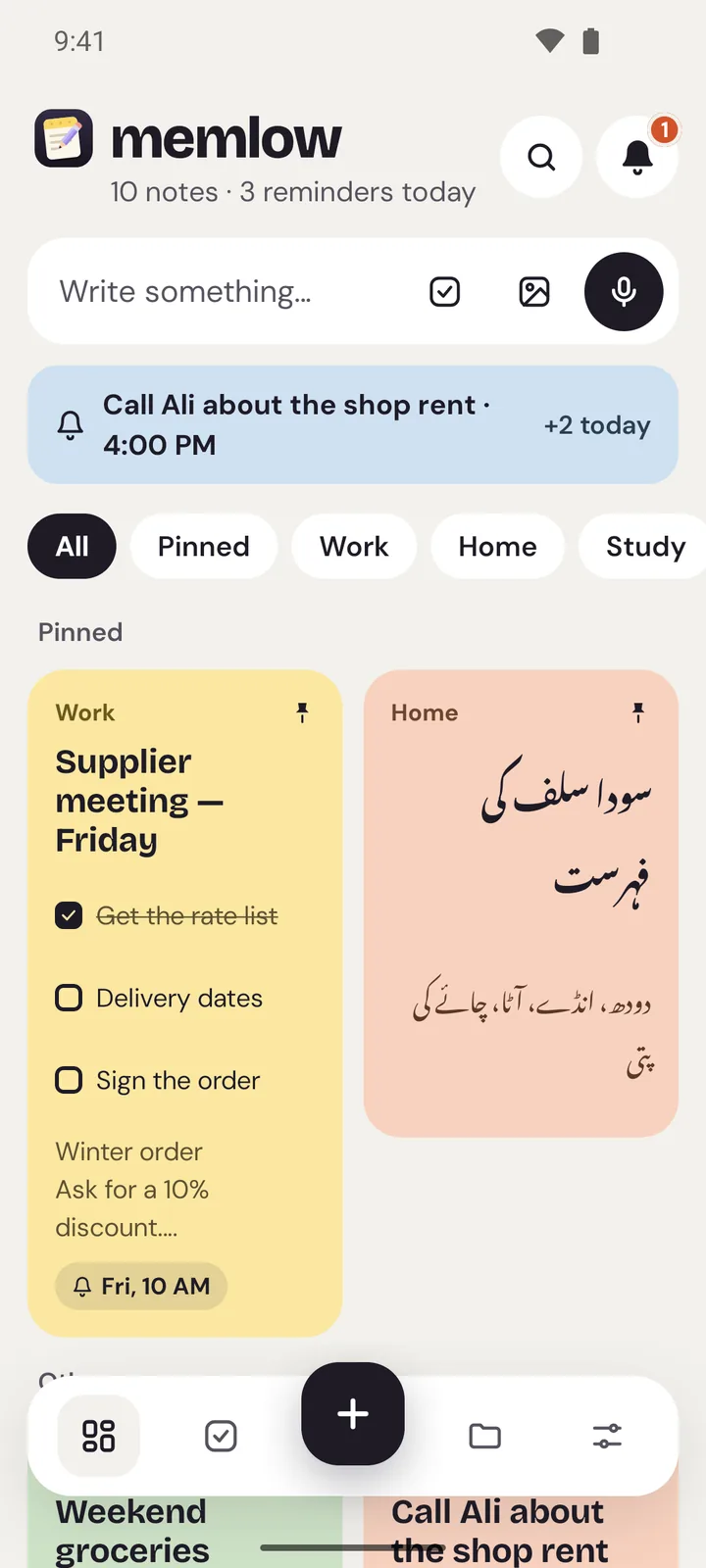
- You don't need an account to write: open app.memlow.com and every change is saved in your browser as you type.
- Type / for headings, checklists and tables, and tap the bell for a reminder. Every reminder gathers in Tasks.
- Back up in your first week: a backup file, or Google Drive (on the web, sign in to your free Memlow account first).
Day 1: write your first note
Open app.memlow.com in any modern browser. There's nothing to download or install, and you don't need an account to write. Choose New note, give it a title and type. Every change is saved in your browser's own storage straight away. You can close the tab mid-sentence and find every word when you come back.
A note can stay a plain page, or grow when you need more. Type / on an empty line for headings, checklists, tables, quotes, tip boxes, code and dividers. Markdown shortcuts work as you type, too: # for a heading, - for a list. Type [[ to link to another note.
Prefer your phone? The Android app keeps your notes on the phone and needs no connection at all for them. Wherever you write, we never receive your notes, and nothing reads them: there's no AI in Memlow.
Day 2: make a checklist
Choose New checklist on Home, or type [ ] and a space at the start of any line in a note. Press Enter for the next item and keep going.
Tick an item and it's crossed through. Turn on Move ticked items to the bottom (Settings → Notes on the web) and finished items slide below the ones still to do. On the web, checklist cards on Home have a tick box for each item they show, so you can tick off the milk without opening the note. For a list that's already laid out, try the shopping list template, grouped by aisle.
Day 3: set a reminder
Tap the bell at the top of any note. Pick a quick choice (in an hour, this evening, tomorrow morning or next week) or choose your own date and time. On a checklist, choose which item the reminder is about, so “call the plumber at 10” rings without nagging you about the rest of the list.
Reminders can repeat daily, weekly on the days you pick, monthly or yearly, and you can snooze one that rings at a bad moment. There's a shortcut, too: write “call mum tomorrow at 5” and Memlow offers to set that reminder. It's a fixed set of rules on your device, not AI.
Every reminder from every note gathers in Tasks, under Today, Upcoming and Done. Where it rings depends on the device:
- On the web, allow notifications when Memlow asks. A browser can only ring a reminder while Memlow is open in a tab or installed and running. One you miss waits in the bell.
- On Android, reminders ring as notifications even when Memlow is closed, with Done and Snooze right in the notification.
Day 4: sort with folders, tags and pins
As notes pile up, four things keep them in order:
- Folders group notes, each with its own colour: a Recipes folder, say, or one for each course.
- Tags are words you mark with # anywhere in the text, such as #dessert or #launch.
- Pins keep the notes you use most at the top.
- Archive keeps finished notes out of the way, and Trash holds deleted ones for 30 days before they're gone for good.
Search looks through every word of every note, in any language, and ignores accents. You can narrow it down: the Checklists filter finds every note with a list in it, and Voice finds every note with a recording.
Day 5: start from a template and give it a style
You don't have to start from a blank page. Memlow has 40 templates in 10 groups, from meeting notes to a credit book. Open Templates and pick one, and it becomes a normal note you can change. The week planner and the day planner are good first ones. Once a note is shaped the way you like, choose Save as template from its ⋯ menu to keep it for next time.
Then make it look the way it feels. Every note has a Style panel beside it, and changes show at once:
- A theme changes the colours, paper, art and fonts together. There are 43, from Zen and Nordic to Sakura and Truck art.
- A colour tints the note, and its card on Home takes the same colour. There are 12.
- A paper: plain, lined, notebook, grid or dots.
- A font from 30, with a text size and line spacing to suit you.
Found a look you love? Choose Use for new notes in the Style panel and every new note starts the same way. Every theme, font and paper is free.
Day 6: install it and write offline
Memlow on the web keeps working offline after your first visit. Installing it gives you the full app feel: it opens in its own window, starts faster and works without internet.
- Chrome or Edge: use the install button in the address bar, or open the browser menu and choose to install Memlow.
- iPhone or iPad: in Safari, tap Share and then Add to Home Screen.
- Android: get the Android app. Its widgets put today's tasks, a note of your choice and a quick note bar on your home screen.
On the web, notes are kept in the browser's storage on that device. Tap Protect storage in Settings → Storage and Google Drive to ask the browser not to clear Memlow's data when space runs low.
Day 7: back up your notes
Your notes live on your device, and that's what keeps them private. It also means that clearing the browser's data, or losing a phone, could take them with it. Before the week is out, set up a backup. There are two ways, both free:
- A backup file, with no internet needed. On the web, open Settings → Backup and data, choose Backup file, protect it with a password and save it. On Android, use Settings → Create backup file. The .memlow file holds every note, photo and voice note, and Memlow on either side can open it.
- Google Drive. Backups go to a hidden Memlow folder in your own Drive, encrypted on your device with a backup password of at least 8 characters. On the web, linking Drive needs a free Memlow account, so sign in first. Then open Settings → Storage and Google Drive and choose Link Google Drive. On Android, open Settings → Google Drive backup.
A Memlow account holds your sign-in details, never your notes. Whichever way you choose, write the password down somewhere safe, away from the device: we can't recover it for you. Next, see how to use the same notes on your phone and computer, or how to keep your notes private with a PIN.


